Table of Contents
Introduction in Your WiFi Not Connecting on Windows 10
There’s nothing more frustrating than turning on your computer and discovering that your internet isn’t working. One moment everything is fine, and the next you’re staring at a “No Internet” message in the taskbar.
If you’re dealing with wifi not connecting on windows 10, you’re not alone. This is one of the most common network problems Windows users face. The good news? In most cases, the issue can be fixed within a few minutes without calling a technician.
Whether your WiFi network isn’t showing up in windows 10, keeps disconnecting, or refuses to connect altogether, this guide will walk you through the most effective solutions step by step easy guide too.
Let’s get your internet working again.
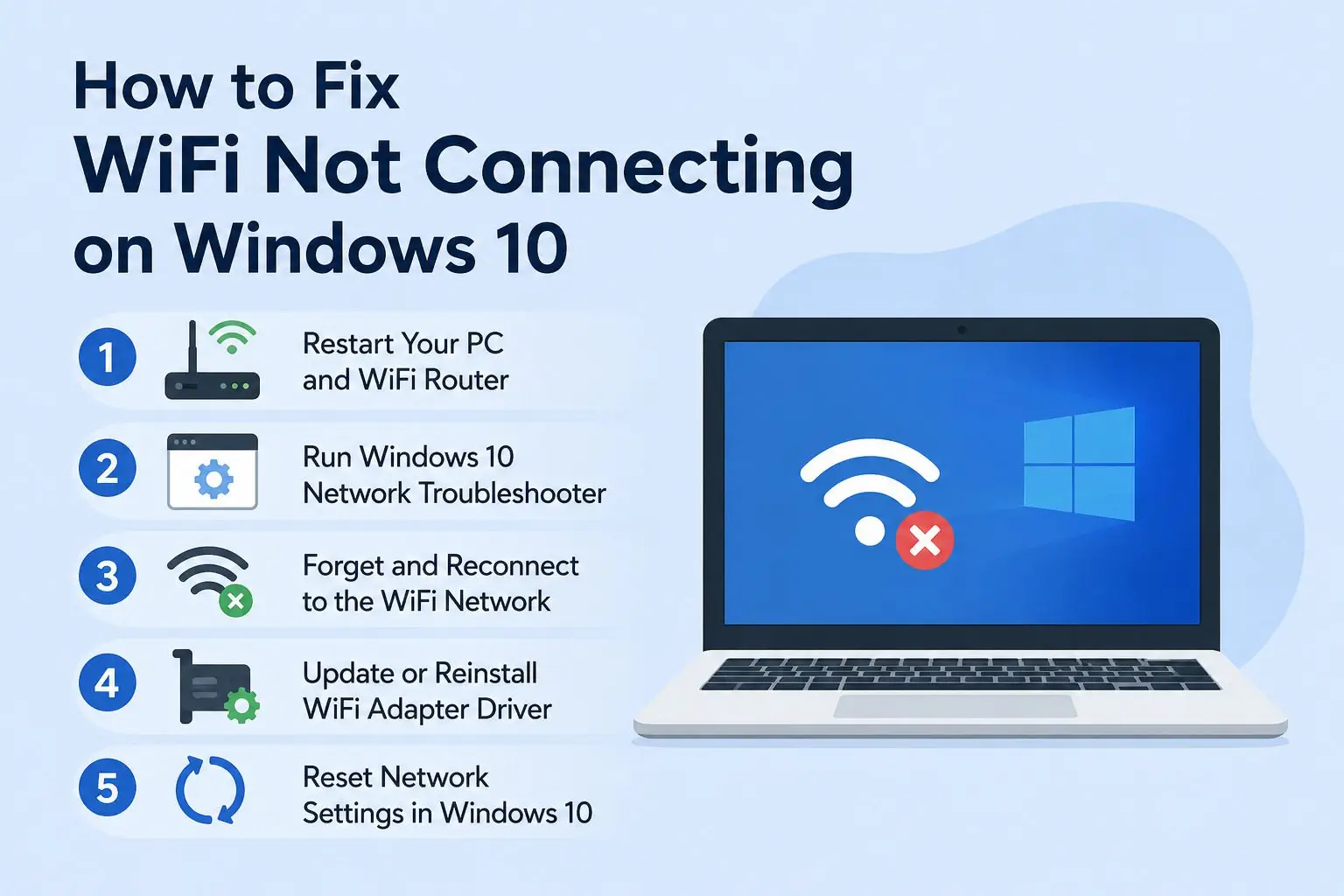
Step 1: Restart Your PC and WiFi Router
Before diving into advanced troubleshooting, start with the simplest fix.
Many WiFi connectivity problems happen because of temporary glitches in Windows 10 or your router. A quick restart often clears these issues automatically.
1.1 Restart Your Computer
- Click the Start Menu.
- Select Power.
- Click Restart.
1.2 Restart Your Router
- Turn off your router.
- Unplug the power cable.
- Wait about 30 seconds.
- Plug it back in.
- Wait until all indicator lights stabilize.
Once both devices restart, try connecting again.
1.3 Why This Works
Think of your router and PC like two people having a conversation. Sometimes communication gets interrupted. Restarting both devices essentially starts a fresh conversation.
If your WiFi still won’t connect, move to the next step.
Step 2: Run Windows 10 Network Troubleshooter
Windows 10 includes a built-in tool designed specifically to identify and fix network-related problems.
2.1 How to Run the Troubleshooter
- Press Windows + I to open Settings.
- Click Update & Security.
- Select Troubleshoot.
- Click Additional troubleshooters.
- Choose Internet Connections.
- Click Run the troubleshooter.
Allow Windows to scan for issues.
2.2 Common Problems It Can Fix
- Incorrect network settings
- Disabled network adapter
- DNS issues
- Connectivity errors
- Router communication problems
If Windows detects a problem, follow the on-screen instructions.
2.3 Check Airplane Mode
While you’re here, verify that Airplane Mode is disabled.
- Open Settings.
- Select Network & Internet.
- Click Airplane Mode.
- Make sure it is turned off.
It sounds obvious, but many users accidentally enable it and spend hours troubleshooting a problem that takes seconds to fix.
Step 3: Forget and Reconnect to the WiFi Network
Sometimes Windows saves outdated network information. If the password has changed or network settings become corrupted, your PC may fail to connect.
Removing the saved network and reconnecting often resolves the issue.
3.1 Forget the Network
- Open Settings.
- Select Network & Internet.
- Click WiFi.
- Choose Manage known networks.
- Select your WiFi network.
- Click Forget.
3.2 Reconnect to the Network
- Click the WiFi icon in the taskbar.
- Select your wireless network.
- Click Connect.
- Enter the correct password.
- Choose Connect Automatically if desired.
3.3 Signs This Fix May Help
- WiFi says “Can’t connect to this network.”
- Connection fails after entering the password.
- The network appears but never connects.
- You recently changed your router password.
Many users find that this simple step fixes the wifi not connecting on windows 10 issue immediately.
Step 4: Update or Reinstall the WiFi Adapter Driver
Your WiFi adapter driver acts as a translator between Windows and your wireless hardware.
If the driver becomes outdated, corrupted, or incompatible after a Windows update, connectivity problems can occur.
4.1 Update the Driver
- Press Windows + X.
- Select Device Manager.
- Expand Network Adapters.
- Right-click your wireless adapter.
- Select Update Driver.
- Click Search automatically for drivers.
Windows will search for available updates.
4.2 Reinstall the Driver
If updating doesn’t help:
- Open Device Manager.
- Expand Network Adapters.
- Right-click your WiFi adapter.
- Select Uninstall Device.
- Confirm the action.
- Restart your PC.
Windows will automatically reinstall the driver during startup.
4.3 Identify Driver Issues
Look for these warning signs:
- Yellow exclamation mark in Device Manager
- Missing WiFi adapter
- Frequent disconnections
- WiFi suddenly stopped working after an update
4.4 Check Adapter Status
- Press Windows + R.
- Type ncpa.cpl.
- Press Enter.
- Verify that your WiFi adapter is enabled.
If it is disabled:
- Right-click the adapter.
- Select Enable.
This often restores connectivity instantly.
Step 5: Reset Network Settings in Windows 10
If nothing has worked so far, performing a network reset can resolve deeper configuration issues.
This process reinstalls network adapters and restores networking components to their default state.
5.1 How to Reset Network Settings
- Open Settings.
- Click Network & Internet.
- Scroll down and select Network Reset.
- Click Reset Now.
- Confirm your choice.
- Restart your computer.
5.2 What Gets Reset?
A network reset removes:
- Saved WiFi networks
- VPN configurations
- Custom DNS settings
- Network adapter settings
After restarting, reconnect to your WiFi network using your password.
5.3 Use Command Prompt Network Reset Commands
If problems persist, you can manually reset networking services.
Open Command Prompt as Administrator and run:
netsh winsock reset
netsh int ip reset
ipconfig /release
ipconfig /renew
ipconfig /flushdns
Restart your computer after running the commands.
These commands rebuild critical networking components and often solve stubborn connection problems.
Step6: Additional Fixes for WiFi Not Connecting on Windows 10 Problems
If you’re still experiencing issues, try these extra solutions.
6.1 Check Router Distance
Weak signals can prevent stable connections.
Move closer to the router and test again.
6.2 Disable Power Saving for WiFi Adapter
- Open Device Manager.
- Right-click your wireless adapter.
- Select Properties.
- Open the Power Management tab.
- Uncheck:
Allow the computer to turn off this device to save power
- Click OK.
6.3 Verify Date and Time Settings
Incorrect system time can sometimes interfere with network authentication.
- Open Settings.
- Select Time & Language.
- Enable automatic time synchronization.
6.4 Check for Windows Updates
- Open Settings.
- Select Update & Security.
- Click Windows Update.
- Check for updates.
Installing the latest updates can resolve network compatibility issues.
6.5 Test Another Device
Try connecting a phone or tablet to the same WiFi network.
If other devices also fail to connect, the issue likely originates from the router or internet service provider rather than Windows 10.
FAQs for WiFi Not Connecting on Windows 10 Issues
1.Why is my WiFi connected but there is no internet on Windows 10?
This usually happens because of DNS issues, router problems, ISP outages, or incorrect IP settings. Restarting your router and running network diagnostics often resolves the issue.
2.Why won’t Windows 10 detect my WiFi network?
Possible causes include a disabled wireless adapter, outdated drivers, router broadcasting issues, or hardware problems with the WiFi card.
3.How do I manually reset WiFi on Windows 10?
Go to:
Settings → Network & Internet → Network Reset
Then restart your PC and reconnect to the network.
4.Can a Windows update cause WiFi problems?
Yes. Occasionally, Windows updates introduce driver conflicts or network configuration issues. Updating or reinstalling the WiFi driver often fixes these problems.
5.How do I know if my WiFi adapter is faulty?
Signs include:
- WiFi adapter disappearing from Device Manager
- Frequent connection drops
- Inability to detect any networks
- Persistent driver errors
Testing with a USB WiFi adapter can help confirm whether the internal adapter is failing.
6.Should I reset my router?
Yes. If multiple devices cannot connect to the internet, resetting the router is often an effective troubleshooting step.
Final Thoughts in Resolve in WiFi Not Connecting on Windows 10 Issue
Dealing with wifi not connecting on windows 10 can be frustrating, especially when you need internet access for work, school, or everyday tasks. Fortunately, most WiFi issues can be resolved by following a systematic troubleshooting process.
Start with simple fixes like restarting your router and PC. Then move on to forgetting the network, updating drivers, running Windows troubleshooters, and performing a network reset if necessary.
In many cases, one of these five solutions restores connectivity within minutes.
If you’ve tried every fix and your WiFi still won’t connect, the problem may be related to your router hardware, internet service provider, or wireless adapter. At that point, contacting your ISP or a computer technician may be the next step.
Need more Windows 10 troubleshooting guides? Bookmark this page and explore our other step-by-step solutions to keep your PC running smoothly.