Table of Contents
Introduction in WiFi Connected But No Internet Access
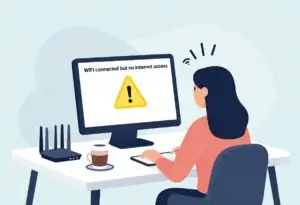
Your WiFi shows full signal bars. You’re linked to the network. But sites fail to load. Apps spit out errors. This “WiFi connected, no internet” snag bites deep. Your device reaches the router just fine. The router can’t touch the internet. It strikes Windows laptops, Macs, Androids, and iPhones. Billions hit it yearly from tiny bugs or major flaws.
We know how annoying it feels when work stops or streaming halts. This guide walks you through fixes. Start with easy steps. Move to checks on gear and settings. By the end, you’ll spot the cause and fix your WiFi connected no internet access error. No tech degree needed—just follow along.
Section 1: The Quick Fixes – Restarting and Reconnecting Essentials
Quick steps often solve WiFi connected no internet access issues. They clear temporary blocks without tools. Try these first before digging deeper.
Power Cycle Your Network Hardware
Shut down your modem first. Pause for 60 seconds. That allows a full reset. Switch it on again. Check the lights until they settle—about 1 to 2 minutes. Then pull the router plug. Hold for 120 seconds. Connect it and let it start. Last, reboot your device.
This order matters. The modem needs time to grab a fresh signal from your ISP. The router then syncs with it. Skipping waits can leave old data cached. It blocks new connections. Many users fix their no internet access on WiFi this way. ISP drops often clear after this cycle.
One tip: Set a timer for waits. Rushing skips the fix. If lights don’t return to normal, move to other steps.
Forget and Rejoin the Network
Old saved settings can cause glitches. Devices often keep faulty login info. This fools them into acting connected. Forgetting the network clears it up.
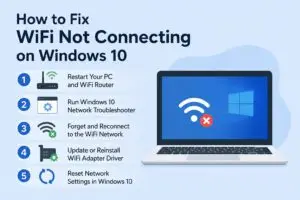
On Windows, right-click the WiFi icon in the taskbar. Select Open Network & Internet settings. Go to WiFi. Click Manage known networks. Pick your network. Choose Forget. Reconnect with the password.
For macOS, hold Option and click the WiFi menu. Pick Open Wireless Diagnostics. Or try System Settings, then Network, WiFi, Details, and Forget. Rejoin from the list.
On Android, open Settings, then Network & internet, and Internet. Tap the gear next to your network. Select Forget. Reconnect by hand.
iOS users go to Settings, then WiFi. Tap the info icon by the network. Choose Forget This Network. Join it again.
Troubleshooting corrupted WiFi profiles saves time. It fixes cases where passwords changed but devices didn’t update. Test browsing right after rejoining.
Check for Physical Connectivity Issues
Cables matter more than you think. A loose line can cut internet while WiFi stays linked. Check the coax cable to your modem. Make sure it’s tight. If you have a separate router, inspect the Ethernet from modem to router’s WAN port.
Combo modem-router units use one box. Ensure the input cable sits firm. Move gear if needed—furniture shifts can tug wires.
Picture this: You rearranged your desk. The cable loosened. Internet vanished, but WiFi showed connected. A quick push fixed it. Test by wiggling cables while online. If it drops, reseat them. This step catches 20% of home network woes, per tech forums.
Section 2: Diagnosing Router and IP Configuration Problems
If basics fail, look at your router’s brain. IP settings might stall. These checks pinpoint if the issue sits in your setup.
Verify Router Status Lights
Routers have LED tells. The power light should glow steady green. Internet or WAN light blinks or stays on for active link. DSL or cable light shows modem sync. If it’s off or red, no ISP feed reaches.
Normal setup: All key lights on or pulsing. Red means outage. Amber often signals weak sync. Check your model’s manual for exact colors—most brands like Netgear or TP-Link label them.
Data shows router light issues tie to ISP sync in about 70% of cases. Note patterns. If WAN light dies at set times, it could be peak-hour overload. Restart if lights flicker. Steady bad lights point to cables or service.
Renewing the IP Address (IP Configuration Reset)
Your device gets an IP from the router via DHCP. This auto-assigns addresses. Glitches can give bad IPs, blocking web access.
On Windows, open Command Prompt. Type ipconfig /release. Hit enter. Then ipconfig /renew. This drops and grabs a new IP.
Mac users: Go to System Settings > Network > WiFi > Details > TCP/IP. Renew DHCP lease. Or in Terminal, use sudo ipconfig set en0 DHCP (replace en0 for your adapter).
DHCP handles the handoff. Renewing refreshes it. Run your OS troubleshooter next—Windows has one in Settings > Network. macOS offers it in Wireless Diagnostics.
This fixes WiFi no internet access when local links work but outbound fails. It clears stale leases that clog the pool.
Testing Direct Connection (Bypassing the Router)
Plug a laptop straight into the modem with Ethernet. Skip the WiFi router. If internet loads, the router caused the block. Update or reset it.
No luck? Modem or ISP is the culprit. Call them. This test splits problems fast.
ISP techs use this step often. It isolates hardware faults. Grab an Ethernet cable—short ones work best. Boot the PC wired. Try a site like google.com. Success means router config error. Failure screams external issue.
Section 3: Software, Driver, and System Conflicts
Device-side problems can fake a connection. Software blocks the flow. Check these if hardware seems fine.
Updating or Reinstalling Network Adapter Drivers
Drivers talk between your WiFi card and OS. Old ones fail at gateway checks. Your PC sees the router but can’t route out.
Find your adapter in Device Manager on Windows. Right-click > Update driver. Pick “Search automatically.” Better yet, visit Dell, HP, or Intel’s site for fresh files. Install and reboot.
Macs update drivers automatically with Software Update. Reset SMC if problems linger: shut down, hold power button 10 seconds.
WiFi driver updates fix 40% of tough connection woes. Reinstall if update fails: remove in Device Manager, then scan for hardware changes.
Test speed after. Tools like speedtest.net confirm flow.
Temporarily Disabling VPNs and Proxy Settings
VPNs route traffic elsewhere. If mis-set, they block normal paths. Proxies do the same—old work setups linger.
Turn off VPN apps. Check browser proxy: In Chrome, Settings > System > Open proxy settings. Set to auto-detect or off.
On Windows, Settings > Network > Proxy > Turn off manual setup. macOS: System Settings > Network > Proxies > Uncheck all.
This unmasks hidden blocks. Internet returns if VPN was the thief. Re-enable after testing other fixes.
Checking Firewall and Security Software Interference
Firewalls guard ports. Overzealous ones block legit traffic. Antivirus suites flag network services wrong.
Disable Windows Firewall: Settings > Update & Security > Windows Security > Firewall > Turn off for private networks. Test.
For third-party like Norton, pause real-time protection. macOS: System Settings > Network > Firewall > Off.
If access returns, tweak rules. Add exceptions for browsers. Re-enable soon—security matters. This catches software clashes in mixed setups.
Section 4: Advanced Router Configuration Checks
Deeper router dives needed now. Access via browser—type 192.168.1.1 or similar. Login with admin creds.
Checking the Router’s DHCP Server Functionality
DHCP hands out IPs. If it crashes, devices connect but get no address. Or pool empties with many gadgets.
Log into router admin. Look for LAN or DHCP section. Check active leases. If full, expand pool or reboot.
Restart DHCP service if option exists. Multiple devices hit? Unplug extras. This fixes shared no internet access on WiFi.
DNS Resolution Failures
You get an IP but can’t reach sites? DNS translates names to addresses. Faulty servers stall it.
Change to Google’s: 8.8.8.8 primary, 8.8.4.4 secondary. On Windows: Network settings > Adapter properties > IPv4 > Use these.
macOS: Network > Details > DNS > Add servers. Android/iOS: In WiFi details, set static DNS.
Cloudflare’s 1.1.1.1 works too—faster often. Flush DNS after: Windows ipconfig /flushdns. Test pinging 8.8.8.8—if it replies but sites fail, DNS was key.
Restoring Router to Factory Defaults
Last local fix: Reset router. Hold back button 10-15 seconds till lights flash. Or admin page option.
This wipes settings. SSID, password, forwards—gone. Reconfigure from scratch. Use if configs tangled.
Warn: Backup first if possible. After reset, run setup wizard. Contact ISP for modem sync if needed.
WiFi Connected But No Internet Access FAQs
1.Why does my device say “Connected, no internet”?
This happens when your device talks to the router, but the router cannot reach the web. It is often a problem with your modem or your service provider.
2.Will restarting my router fix the connection?
Yes, a reboot often clears small software glitches. Unplug the power cord, wait thirty seconds, and plug it back in.
3.Could my DNS settings be the cause?
Yes, if your DNS fails, your browser cannot find websites. Try switching to a public DNS like Google to see if access returns.
4.Do I need to update my network drivers?
Old drivers can cause stability issues on laptops. Check your device manager and install any pending updates for your wireless card.
5.Can a VPN cause this error?
Yes, some VPNs block traffic if the connection drops. Try turning off your VPN to see if the internet starts working again.
6.Should I forget and reconnect to the network?
This refreshes the handshake between your device and the router. Delete the network from your settings and enter the password again.
Conclusion: Time to Call Your Internet Service Provider (ISP)
You’ve power cycled, renewed IP addresses, run direct tests, updated drivers, shut off VPNs, checked firewalls, tweaked DHCP, swapped DNS servers, even reset it all. Direct modem links fail? Problem sits elsewhere. ISP outages, weak signals, or busted modem parts need their fix.
Top steps that work most:
- Power cycle in sequence—clears most temp glitches.
- Renew IP address—refreshes local configs.
- Test wired to modem—narrows the fault line.
For WiFi connected no internet access final steps, log ISP status online first. Then call. Provide your account and symptom details. Techs fix lines fast.
This guide arms you against network woes. Apply it next time. Stay connected. If issues recur, note patterns for quicker solves.
WiFi Connected But No Internet Access WiFi Connected But No Internet Access WiFi Connected But No Internet Access WiFi Connected But No Internet Access WiFi Connected But No Internet Access WiFi Connected But No Internet Access WiFi Connected But No Internet Access WiFi Connected But No Internet Access WiFi Connected But No Internet Access
WiFi Connected But No Internet Access WiFi Connected But No Internet Access WiFi Connected But No Internet Access WiFi Connected But No Internet Access WiFi Connected But No Internet Access WiFi Connected But No Internet Access WiFi Connected But No Internet Access WiFi Connected But No Internet Access