Table of Contents
Introduction in Ethernet Connected But No Internet Problem
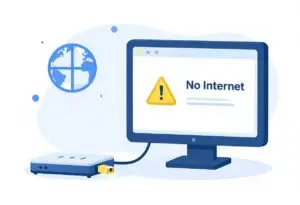
The Ethernet icon glows on your screen with a steady light. Connection seems fine. But webpages refuse to load. This connected-but-no-internet problem plagues Windows, macOS, and Linux users. Bad cables, IP errors, or router issues cause it. This guide gives step-by-step fixes. Start by checking hardware. Move to software next. Skip the tech support call. Use these steps to reconnect quickly.
We cover basics like cable checks to advanced resets. Each fix builds on the last. Start simple. If one works, stop there. Most users solve it in under 30 minutes.
Section 1: Immediate Checks – Confirming the Physical Connection and Device Status
Physical issues cause half of these problems. Skip them, and you waste time on software. Start here. Inspect your setup with care.
Verifying Cable Integrity and Port Status
Grab your Ethernet cable. Check for bends or cuts. Use a Cat5e or higher cable for best results. These handle gigabit speeds without issues.
Plug it firm into your computer and router. Both ends must click in place. Loose fits drop the signal.
Look at the lights. On your router port, a green light means link up. Blinking amber shows data flow. No light? Bad cable or port.
Your PC’s Ethernet jack has lights too. Solid green for 1Gbps. Orange for 100Mbps. If dark, swap cables. Test with a short one if yours is long.
Clean dust from ports with compressed air. Dirt blocks pins. This simple act fixes many silent fails.
Reboot Sequence: The Essential First Step
Power cycles clear temp glitches. Do it right to avoid more problems.
Unplug your modem first. Wait 30 seconds. This lets it reset its connection to your ISP.
Next, unplug the router. Count to 30 again. Routers hold IP leases. This frees them up.
Plug modem back in. Wait for its lights to steady. Green internet light means ISP link good.
Then router. Let it boot fully. Lights should show WAN active.
Last, restart your PC. Shut down, wait 10 seconds, power on.
This order renews your IP address. It mimics a fresh network handshake. Often, this alone ends the no-internet woes.
Testing with Another Device or Port
Isolate the culprit. Grab another gadget. A laptop or even a phone with USB Ethernet adapter works.
Plug it into the same port. If it gets internet, your main PC has the issue.
No luck? Try a different port on the router. Some ports fail from wear.
Swap cables too. Borrow one from a friend. This pins down if hardware is bad.
If the new device works, focus on your original setup. You saved time chasing ghosts.
Section 2: Diagnosing IP Address Configuration Issues
Your device needs an IP to talk on the net. Without it, Ethernet connects local but blocks internet. Check this next.
Checking IP Address Acquisition (DHCP vs. Static)
Open Command Prompt on Windows. Type ipconfig and hit Enter.
Look under Ethernet adapter. Local IPv4 should be 192.168.x.x or 10.0.x.x. These mean DHCP worked.
See 169.254.x.x? That’s APIPA. Your PC can’t reach the DHCP server. No IP from router.
On macOS, go to System Preferences > Network. Select Ethernet. Click Advanced > TCP/IP. IPv4 should show Configure IPv4 as DHCP with a valid address.
If static IP set wrong, change to DHCP. Wrong gateway blocks outbound traffic.
Run ipconfig /all for details. Subnet mask 255.255.255.0 is standard home setup.
Renewing the IP Lease
Force a fresh IP. This clears old leases.
On Windows, right-click Start. Pick Command Prompt as admin.
Type ipconfig /release. Enter. This drops your current IP.
Then ipconfig /renew. Hit Enter. Watch for new IP assignment.
Success shows “DHCP is now enabled.” Ping your gateway after. Type ping 192.168.1.1 or whatever your router IP is.
If renew fails, check cable again. Or router DHCP might be off.
Mac users: Renew via Network prefs. Click Renew DHCP Lease button.
This step fixes 30% of IP hangs. Quick and safe.
Temporarily Disabling Firewall and Antivirus Software
Security tools block traffic sometimes. Even with Ethernet up.
On Windows, search for Windows Defender Firewall. Click Turn off for private networks. Test internet.
Third-party like Norton? Open its app. Find firewall settings. Pause protection for 5 minutes.
Antivirus scans can hog bandwidth too. Pause real-time scan.
Load a site. If it works, tweak rules. Add exception for your browser.
Re-enable after test. This rules out software blocks without full removal.
Section 3: Troubleshooting DNS Resolution Failures
IP good, but sites won’t load? DNS translates names to numbers. Fix that layer now.
Testing Internet Connectivity via IP Address
Bypass DNS. Ping a raw IP.
Open Command Prompt. Type ping 8.8.8.8. That’s Google’s server.
Replies with times under 100ms? Path to internet works. DNS is the snag.
No replies? Deeper issue. Back to IP or hardware.
Try ping 1.1.1.1 for Cloudflare. Same result confirms.
This test takes seconds. It narrows the problem sharp.
Flushing the Local DNS Cache
Old cache entries cause bad lookups.
In Command Prompt as admin, type ipconfig /flushdns. Enter.
Message says “Successfully flushed.” Clear now.
Restart browser. Try google.com.
On macOS, Terminal: sudo dscacheutil -flushcache; sudo killall -HUP mDNSResponder.
This wipes local junk. Fixes stale site blocks.
Run it weekly if you change networks often.
Manually Changing DNS Servers
Public DNS beat ISP ones. They are faster and reliable.
Right-click network icon. Open Network and Internet settings.
Click Change adapter options. Right-click Ethernet > Properties.
Select Internet Protocol Version 4. Click Properties.
Choose Use the following DNS. Primary: 8.8.8.8. Secondary: 8.8.4.4.
OK out. Restart adapter or PC.
For IPv6, add 2001:4860:4860::8888 and 2001:4860:4860::8844.
Test with nslookup. Type nslookup google.com. Should show IPs.
This swap solves slow or failed resolutions. Keep it if ISP DNS flakes.
Section 4: Advanced Network Stack and Driver Solutions
Basic steps miss? Dive deeper. Drivers and stack corrupt easy after updates.
Updating or Reinstalling the Ethernet Adapter Driver
Outdated drivers cause drops.
On Windows, right-click Start > Device Manager.
Expand Network adapters. Look for Ethernet card. Yellow triangle? Problem.
Right-click > Update driver > Search automatically.
No luck? Right-click > Uninstall device. Restart PC. Windows reinstalls.
Still bad? Visit maker site. Realtek or Intel? Download latest for your model.
Mac: Software Update checks drivers. Or System Information > Network for versions.
Fresh drivers fix compatibility. Especially post-Windows 11 upgrades.
Resetting the Entire Network Stack (Winsock and TCP/IP)
Corrupt stack blocks all.
Admin Command Prompt. Type netsh winsock reset. Enter.
Then netsh int ip reset. Enter.
Restart PC. This wipes TCP/IP settings clean.
Run ipconfig /flushdns after.
Safe but thorough. Undoes malware or update damage.
Mac: sudo ifconfig en0 down then up. Or full network reset in prefs.
Checking Adapter Properties for Incorrect Settings
Wrong tweaks kill speed.
In adapter properties, Advanced tab.
Find Speed & Duplex. Set to Auto Negotiation.
Jumbo Packet off unless router matches.
Receive Side Scaling: Enabled or auto.
Energy Efficient Ethernet: Disable if drops occur.
Click OK. Test.
Defaults work best. Router mismatch causes fails.
Section 5: Router and Gateway Isolation Troubleshooting
Router might be the block. Check it last.
Accessing the Router Administration Panel
Find your gateway. ipconfig shows Default Gateway, like 192.168.1.1.
Open browser. Type that IP. Login with admin/password. Check sticker.
Look at status page. WAN or Internet light green? ISP connected.
Firmware update if old. Download from maker site.
Logs show errors? Note them for ISP call.
Checking for MAC Address Filtering or Parental Controls
Security blocks your device.
In router settings, find Access Control or MAC Filter.
List allowed devices. Add your PC’s MAC. Find it via ipconfig /all under Physical Address.
Parental controls? Disable or whitelist.
Wi-Fi works but Ethernet not? Port-specific filter.
Save changes. Reconnect.
Performing a Factory Reset on the Router (Last Resort)
All else fails? Reset router.
Find reset button. Press with pin 10 seconds. Lights flash.
Reboot. Re-enter ISP login. Username/password from provider.
Reconfigure Wi-Fi. This clears all custom junk.
Backup settings first if possible.
Ethernet Connected But No Internet FAQs
1.Why does my PC say “Connected” if I can’t browse the web?
This usually means your computer talks to the router, but the router cannot reach the web. The physical link is active, but the data path is blocked. Check your ISP for local outages first.
2.How do I fix a “DNS Server Not Responding” error?
Your computer cannot turn website names into IP addresses. Try flushing your DNS cache in the command prompt. You can also switch to Google DNS for a more stable connection.
3.Will switching the Ethernet cable solve the problem?
Yes, if the cable has a hidden break or a bent pin. Even if the lights are on, a bad wire can cause data loss. Test a known working cable to rule out hardware failure.
4.Does restarting the router always work?
It often does. Power cycling clears the router’s memory and resets the connection to your ISP. Unplug it for 30 seconds before plugging it back in.
5.Could my firewall or antivirus block the connection?
Some security software blocks new network connections for safety. Try disabling your firewall briefly to see if the web loads. If it does, add your network to the “trusted” list.
6.What do IP address conflicts cause?
A conflict happens when two devices have the same IP address. This confuses the router and cuts off internet access for one or both devices. Update your settings to “Obtain an IP address automatically.”
Conclusion: Final Verification and Next Steps
You started with physical checks. Moved to IP config. Then DNS, drivers, and router.
Reboot sequence or IP renew fixes most. Test full: Ping IP, load site, stream video.
If modem lights off, call ISP. Signal outage or account issue.
These steps keep you online. Save this guide for next time.
Ethernet Connected But No Internet Ethernet Connected But No Internet Ethernet Connected But No Internet Ethernet Connected But No Internet Ethernet Connected But No Internet Ethernet Connected But No Internet Ethernet Connected But No Internet Ethernet Connected But No Internet Ethernet Connected But No Internet Ethernet Connected But No Internet
Ethernet Connected But No Internet Ethernet Connected But No Internet Ethernet Connected But No Internet Ethernet Connected But No Internet