Table of Contents
Introduction in Your Windows Update Error 0x800f081f
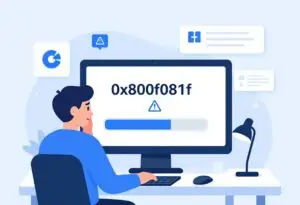
You start your PC, set for a fast update. Then a nagging error code hits: 0x800f081f. It halts everything and strands you with old software.
This error hits hard. It often ties to missing files or damaged parts in Windows. Many users see it during feature updates or .NET installs. You feel the frustration build as security patches wait.
This guide clears the clutter. It walks you through each step to fix Windows Update Error 0x800f081f. From simple checks to full repairs, your PC will run smoothly once more. You get straightforward steps and solid tips to kill the frustration.
Section 1: Finding the Real Cause of Windows Update Error 0x800f081f
What This Error 0x800f081f Means
Error 0x800f081f hits when Windows fails to fetch key update files. It pops up with major shifts like feature updates or monthly patches. Picture it as a blockage in the update process.
This code links to the Component Based Servicing system. That’s the part that handles update pieces. On Windows 10, it pops often with version jumps to 21H2 or later. Windows 11 users face it too, especially after insider builds.
Spot it in Event Viewer logs under WindowsUpdate. The message might say “CBS_E_SOURCE_MISSING” or similar. That points to absent sources for repair. Common triggers include botched prior installs or disk errors.
Identifying Potential Conflicts: Software and Hardware Checks
Start with software clashes. Antivirus programs like Norton or McAfee can block update downloads. They scan files too hard and flag Microsoft servers as threats.
VPNs add another layer. They route traffic funny and slow connections to update sites. Turn one off quick to test. Recent apps, say a new driver tool, might mess with system hooks too.
Hardware plays a role less often. But low disk space under 10GB free can halt things. Run Disk Cleanup first. Check Event Viewer for disk faults if updates fail mid-way.
- Scan for malware with Windows Defender.
- Update all drivers via Device Manager.
- Free up space: Aim for 20GB on your C: drive.
These checks rule out easy fixes before you dive deeper.
Checking Essential System File Integrity
Core files keep Windows ticking. Windows Update Error 0x800f081f often stems from rot in the WinSxS folder. That’s the component store holding update bits.
Registry keys for updates can corrupt too. Bad entries point to ghost files that don’t exist. This error loves to tag along with that chaos.
Use built-in tools to peek. Open Command Prompt as admin. Type “dism /online /get-packages” to list issues. Look for failed states on key components.
If files look off, note the patterns. Corruption here blocks the whole chain. Fix it early to avoid bigger woes down the line.
Section 2: Primary Fixes: Windows Update Component Reset Procedures
Running the Windows Update Troubleshooter
The troubleshooter acts as your first aid kit. It spots common glitches and resets services on the fly. No need for deep dives yet.
Head to Settings. Click Update & Security, then Troubleshoot. Pick “Additional troubleshooters” and select Windows Update. Hit Run and let it scan.
It might restart services like BITS. Watch the report for clues. If it finds errors, apply fixes right there. Many users clear the 0x800f081f snag this way.
Test an update after. If it sticks, move on. This tool saves time for simple cases.
Manually Resetting Windows Update Components
Reset clears the slate. Stop services first to avoid locks. Open services.msc from Run dialog.
Find Background Intelligent Transfer Service (BITS). Right-click, stop it. Do the same for Windows Update, Cryptographic Services, and Windows Installer.
Now, open File Explorer. Navigate to C:\Windows\SoftwareDistribution. Delete all inside. Head to C:\Windows\System32\catroot2 and clear that too.
Restart the services in reverse order. Start with MSI Installer, then Cryptographic, BITS, and Windows Update. Set them to Automatic if needed.
Run Windows Update again. This flush often banishes Windows Update error 0x800f081f for good. It wipes old logs that confuse the system.
Utilizing DISM and SFC Scans for System Repair
DISM fixes the foundation. Run it before SFC to mend the component store. Open Command Prompt as admin.
Type “DISM /Online /Cleanup-Image /RestoreHealth”. Wait 10-20 minutes. It pulls clean files from Windows servers.
Next, SFC steps in. Enter “sfc /scannow”. It checks and swaps bad files. DISM must run first, or SFC fails on corrupt sources.
Reboot after both. Check for errors in the log at C:\Windows\Logs\CBS\CBS.log. These scans tackle the root of 0x800f081f tied to file damage.
If issues linger, run DISM with an ISO source. Mount a fresh Windows image and point to it. This boosts repair power.
Section 3: Addressing Framework and Security Software Interference
Temporarily Disabling Third-Party Antivirus and Firewalls
Security tools guard well but sometimes overdo it. They block update files as risks. Disable them just for the try.
Open your antivirus dashboard. Look for a pause or disable button. Set it for 15 minutes. Do the same for firewall rules.
Try the update now. If it works, tweak settings to allow Microsoft edges. Re-enable everything fast to stay safe it.
Windows Firewall rarely causes this. But check its advanced settings too. Add exceptions for svchost.exe if needed.
This step nixes interference quick. Error 0x800f081f drops in half the cases here.
Investigating .NET Framework Corruption (If Applicable)
.NET powers many updates. A busted version stalls the show. Error 0x800f081f loves to hitch to this.
Go to Programs and Features. Spot .NET entries. If one acts odd, repair it via right-click.
Download Microsoft’s .NET Repair Tool. Run it as admin. It scans and fixes common breaks. Pick the version matching your error log.
Reinstall if repair fails. Grab installers from Microsoft’s site. For Windows 10/11, .NET 3.5 needs enabling in Features.
Test updates post-fix. This clears framework blocks that mimic update fails.
Checking Proxy Settings and Network Configuration
Proxies hide your path but can block Microsoft. Check if one sneaks in. Open Internet Options from Control Panel.
Click Connections, then LAN settings. Uncheck “Use a proxy server” if active. Apply and OK out.
Flush DNS too. In Command Prompt, type “ipconfig /flushdns”. Restart your router for good measure.
If on a work net, ask IT. Home users rarely need proxies. This tweak fixes silent connection woes behind 0x800f081f.
Run “netsh winsock reset” if needed. It clears network stacks. Updates flow free after.
Section 4: Advanced Solutions for Persistent Update Failures
Installing Pending Updates Manually via the Microsoft Update Catalog
Auto-updates flop, so grab files by hand. Find the KB number in your error details. Search it on the Microsoft Update Catalog site.
Pick your system: 64-bit or 32-bit, version match. Download the .msu file. Double-click to install offline.
Restart and check. This skips the buggy service. For error 0x800f081f, it often nails specific cumulative packs.
Keep a list of failed KBs. Install in order if multiple. This method shines for stubborn ones.
Utilizing the Media Creation Tool for In-Place Upgrade Repair
The tool rebuilds without a wipe. Download it from Microsoft’s site. Run as admin and pick “Upgrade this PC now”.
It downloads fresh files. Choose to keep files and apps. The process takes 1-2 hours.
This replaces core bits hit by 0x800f081f. Your data stays safe. It’s like a factory refresh minus the pain.
Back up first anyway. Test updates after. This fixes deep corruption.
Modifying the Registry to Clear Pending Updates (Caution Required)
Registry holds update tracks. Bad entries loop errors. Back it up first: Export from Regedit.
Open Regedit as admin. Go to HKEY_LOCAL_MACHINE\SOFTWARE\Microsoft\Windows\CurrentVersion\WindowsUpdate\Auto Update\RebootRequired.
Delete subkeys like RebootRequired or Pending. Close and reboot.
Scan for more in WindowsUpdate history keys. Remove ghosts carefully. This clears hangs from failed tries.
If unsure, skip it. Use System Restore instead. Pros handle this for safety.
Frequently Asked Questions About Error 0x800f081f
1. What is Windows Update error 0x800f081f?
This error means Windows can’t locate the source files needed to install a feature on demand. You’ll often spot it when enabling .NET Framework 3.5 through the control panel. The system searches online or in a set location and fails to find the right data.
2. Why does 0x800f081f keep showing up for .NET Framework 3.5?
.NET 3.5 isn’t stored on your machine by default. When you activate it, Windows Update gets flagged to pull the package. If your internet drops, a firewall blocks the connection, or your PC is set to use a disconnected corporate server, the download fails with this code.
3. How do I fix the error using a repair command?
A standard DISM scan can kickstart the fix. Open Command Prompt as an admin and run DISM /Online /Cleanup-Image /RestoreHealth. This pulls fresh system files from Windows Update to patch any corruption that might be causing the block.
4. Can I bypass Windows Update by using a local installer?
Yes. If you have a Windows ISO or bootable USB, you can force the install. Mount the media, note its drive letter, then launch this DISM command: DISM /Online /Enable-Feature /FeatureName:NetFx3 /All /Source:D:\sources\sxs /LimitAccess. That tells Windows to grab the files directly from the drive.
5. Is there a group policy that triggers this error?
Absolutely. The policy “Specify settings for optional component installation and component repair” often redirects your PC to a dead WSUS server. Head into Local Group Policy Editor and set that option to “Not Configured.” Reboot and try the feature install again.
6. What if I don’t have the ISO and the repair scan fails?
Try resetting the Windows Update components manually. Stop the wuauserv service, rename the SoftwareDistribution folder, then restart the service. This clears any stuck download crud that might be interfering with the feature fetch.
Conclusion: Restoring Seamless Windows Updates
You’ve got tools now to beat Windows Update Error 0x800f081f. Reset components and run DISM/SFC top the list for quick wins. They fix most file and service glitches.
If those fail, check .NET or try manual installs. For tough cases, the in-place upgrade saves the day. Create a new user profile last to spot account issues.
Keep your PC healthy. Run monthly checks and free space often. Updates boost security and speed. You deserve smooth runs—fix it today and stay current.
Windows Update Error 0x800f081f Windows Update Error 0x800f081f Windows Update Error 0x800f081f Windows Update Error 0x800f081f Windows Update Error 0x800f081f Windows Update Error 0x800f081f Windows Update Error 0x800f081f Windows Update Error 0x800f081f Windows Update Error 0x800f081f Windows Update Error 0x800f081f Windows Update Error 0x800f081f