Table of Contents
Introduction in Windows 10 High Disk Usage
Is your computer taking forever to start? Do apps freeze for no obvious reason? If you open Task Manager and notice your disk usage sitting at 100%, you’re not alone.
Windows 10 high disk usage is one of the most common performance issues users face. When your hard drive is constantly running at full capacity, even simple tasks can feel painfully slow. Programs take longer to open, file transfers crawl, and your entire PC may become unresponsive.
The good news? In most cases, you don’t need a new computer. A few targeted fixes can dramatically reduce disk usage and restore your system’s speed.
In this guide, we’ll walk through five practical methods to fix Windows 10 high disk usage and improve overall system performance.
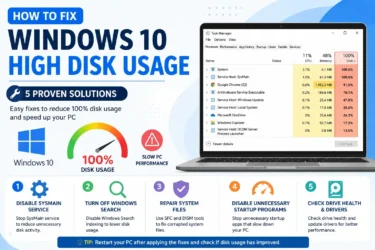
Step 1: Disable SysMain (Superfetch) Service
One of the biggest causes of Windows 10 high disk usage is the SysMain service, formerly known as Superfetch.
This feature tries to predict which applications you’ll use and loads them into memory ahead of time. While it sounds helpful, it often creates excessive disk activity, especially on older computers and systems using traditional hard drives.
1.1 How to Disable SysMain
- Press Windows + R.
- Type services.msc and press Enter.
- Locate SysMain in the Services list.
- Double-click it.
- Click Stop.
- Change Startup Type to Disabled.
- Click Apply and OK.
Restart your computer and check Task Manager again.
1.2 Why This Works
Many users report immediate improvements after disabling SysMain because it reduces unnecessary background disk operations.
Step 2: Turn Off Windows Search Indexing
Windows Search indexing helps files appear quickly when you search. However, it can sometimes get stuck in a loop and cause constant disk activity.
If you’re experiencing Windows 10 high disk usage, disabling Windows Search temporarily is a good troubleshooting step.
2.1 Disable Windows Search
- Press Windows + X.
- Select Windows Terminal (Admin) or Command Prompt (Admin).
- Type:
net.exe stop "Windows Search"
- Press Enter.
Monitor disk usage for a few minutes.
2.2 Permanently Disable Windows Search
- Open services.msc.
- Find Windows Search.
- Double-click it.
- Click Stop.
- Set Startup Type to Disabled.
- Save the changes.
2.3 When to Use This Fix
This solution is especially effective if your hard drive constantly spikes to 100% even when you’re not actively using the computer.
Step 3: Check for Corrupted System Files
Corrupted Windows files can trigger background processes that repeatedly access the disk.
Running built-in repair tools can often resolve Windows 10 high disk usage caused by damaged system files.
3.1 Run System File Checker
- Open Command Prompt as Administrator.
- Enter:
sfc /scannow
- Press Enter.
- Wait for the scan to complete.
The process may take several minutes.
3.2 Run DISM Tool
If SFC finds issues but cannot repair them, run:
DISM /Online /Cleanup-Image /RestoreHealth
After the process finishes:
- Restart your PC.
- Run sfc /scannow again.
3.3 Benefits
These tools repair corrupted Windows components that may be causing excessive disk reads and writes behind the scenes.
Step 4: Disable Startup Programs
Many applications automatically launch when Windows starts. Some continue running in the background, consuming disk resources even when you aren’t using them.
Reducing startup applications can significantly lower Windows 10 high disk usage.
4.1 How to Disable Startup Apps
- Press Ctrl + Shift + Esc.
- Open the Startup tab.
- Review all listed applications.
- Right-click unnecessary programs.
- Select Disable.
Focus on apps such as:
- Third-party updaters
- Game launchers
- Cloud sync tools
- Chat applications
- Utility software
4.2 Signs Startup Apps Are Causing Problems
- Slow boot times
- High disk activity immediately after login
- Fan noise increasing shortly after startup
Think of startup programs like passengers boarding a bus. The more people getting on at once, the longer the trip takes. Reducing unnecessary passengers helps Windows move faster.
Step 5: Check Your Hard Drive Health & Update Drivers
Sometimes the problem isn’t Windows at all. A failing hard drive or outdated storage driver can create persistent performance issues.
5.1 Check Hard Drive Health
Open Command Prompt as Administrator and run:
chkdsk C: /f /r
You may be prompted to schedule the scan for the next restart.
Allow the scan to complete.
5.2 Update Storage Drivers
- Press Windows + X.
- Select Device Manager.
- Expand IDE ATA/ATAPI Controllers.
- Right-click your storage controller.
- Choose Update Driver.
Also update:
- SATA drivers
- SSD firmware
- Chipset drivers
5.3 Upgrading to an SSD
If you’re still using a traditional HDD, upgrading to an SSD can dramatically improve performance.
Many users struggling with Windows 10 high disk usage notice the issue disappears after switching to solid-state storage because SSDs handle read and write operations much more efficiently.
Additional Tips to Reduce Disk Usage
If the problem persists, try these extra optimizations:
Disable Background Apps
- Open Settings.
- Navigate to Privacy.
- Select Background Apps.
- Turn off apps you don’t need.
Pause OneDrive Sync
Large sync operations can generate heavy disk activity.
Pause syncing temporarily and observe whether disk usage drops.
Check for Malware
Malware often runs hidden processes that constantly access files.
Run a full scan using:
- Windows Security
- Microsoft Defender
- Trusted antivirus software
Install Windows Updates
Microsoft frequently releases bug fixes that address performance problems and storage-related issues.
Keeping Windows updated can eliminate hidden causes of excessive disk activity.
Common Causes of Windows 10 High Disk Usage
Understanding the root cause makes troubleshooting easier.
Typical reasons include:
- SysMain service
- Windows Search indexing
- Corrupted system files
- Too many startup applications
- Malware infections
- Driver issues
- Failing hard drives
- Windows update problems
- Insufficient RAM
- Heavy background processes
The exact cause varies from one computer to another, which is why testing multiple solutions is important.
FAQs in Windows 10 high Disk Usage
1.Why is my disk usage at 100% in Windows 10?
The most common causes include SysMain, Windows Search indexing, corrupted system files, malware, outdated drivers, or failing storage hardware.
2.Is 100% disk usage bad?
Yes. Sustained 100% disk usage can slow down your computer significantly and make programs unresponsive.
3.Can low RAM cause high disk usage?
Yes. When physical memory runs low, Windows relies more heavily on virtual memory stored on the disk, increasing disk activity.
4.Does upgrading to an SSD fix high disk usage?
In many cases, yes. SSDs are much faster than traditional hard drives and handle storage operations more efficiently.
5.Should I disable SysMain permanently?
If disabling SysMain noticeably improves performance and causes no issues, many users choose to leave it disabled.
6.Can malware cause Windows 10 high disk usage?
Absolutely. Malicious software often runs hidden background processes that continuously access files and system resources.
Final Thoughts in Windows 10 high disk usage Problem
Dealing with Windows 10 high disk usage can be frustrating, especially when your computer becomes sluggish during everyday tasks. Fortunately, the problem is usually fixable without spending money on a new PC.
Start by disabling SysMain and Windows Search. Then repair system files, reduce startup programs, and check your drive’s health. In many cases, one of these solutions immediately lowers disk usage and restores performance.
If you’re still experiencing slowdowns after trying every step, consider upgrading to an SSD. It’s one of the most effective upgrades you can make for a Windows 10 computer.
Take a few minutes to work through these fixes today. Your PC will likely feel faster, more responsive, and much easier to use.