Table of Contents
Introduction in Your Windows 10 High CPU Usage Problem
Is your computer suddenly running slow, freezing, or making the cooling fan sound like it’s working overtime? In many cases, the culprit is Windows 10 high CPU usage.
When CPU usage stays near 90% or 100% for long periods, your system struggles to handle even basic tasks. Apps take longer to open, games stutter, and multitasking becomes frustrating. The good news? You don’t need to be a computer expert to solve the problem.
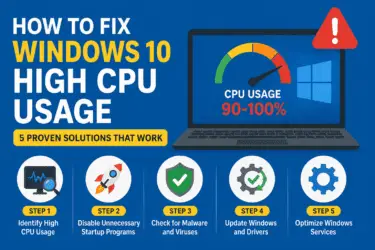
In this guide, we’ll walk through five practical methods to fix Windows 10 high CPU usage, explain why it happens, and help you get your PC running smoothly again.
Why Does Windows 10 High CPU Usage Happen?
Before jumping into the fixes, it helps to understand the common causes.
High CPU usage in Windows 10 can occur because of:
- Too many startup programs
- Background applications consuming resources
- Windows Update processes
- Corrupted system files
- Malware or viruses
- Driver issues
- Faulty Windows services
- Browser tabs and extensions using excessive resources
Think of your CPU as the engine of your computer. If too many programs demand attention at the same time, the engine starts working harder than necessary.
Step 1: Identify the Process Causing High CPU Usage
The first step is finding out what’s using all your processor power.
1.1 Open Task Manager
- Press Ctrl + Shift + Esc
- Click the Processes tab
- Click the CPU column to sort by usage
Look for applications using an unusually high percentage of CPU resources.
1.2 Common Culprits
You may find:
- Google Chrome with dozens of tabs
- Windows Update
- Antivirus software
- Third-party applications
- Background syncing programs
If a program is consuming excessive resources and you don’t need it immediately:
- Select the process
- Click End Task
1.3 Important Tip
Don’t end unknown Windows processes unless you’re sure they aren’t system-related. Stopping critical services can cause instability.
After closing unnecessary processes, check whether the Windows 10 high CPU usage problem improves.
Step 2: Disable Unnecessary Startup Programs
Many applications automatically start when Windows boots. Over time, these startup programs can significantly increase CPU usage.
2.1 How to Disable Startup Apps
- Press Ctrl + Shift + Esc
- Open Task Manager
- Click the Startup tab
- Review the list of applications
- Disable programs you don’t need immediately after startup
Common examples include:
- Music launchers
- Chat applications
- Cloud storage clients
- Gaming launchers
- Software updaters
2.3 Why This Works
Imagine ten people trying to enter a doorway at once. Everything slows down.
The same thing happens when multiple applications launch simultaneously. Reducing startup items helps Windows allocate CPU resources more efficiently.
Restart your computer after making changes and monitor CPU usage.
Step 3: Check for Malware and Viruses
Malware is a surprisingly common cause of Windows 10 high CPU usage.
Some malicious programs run hidden processes that consume processor power for activities such as:
- Cryptocurrency mining
- Data collection
- Adware operations
- Unauthorized background tasks
3.1 Run Windows Security Scan
- Open Settings
- Select Update & Security
- Click Windows Security
- Choose Virus & Threat Protection
- Click Quick Scan
For better results:
- Select Scan Options
- Choose Full Scan
- Start the scan
3.2 Signs of Malware
Watch for:
- Constant 100% CPU usage
- Unexpected pop-ups
- Slow startup times
- Unknown programs running
- Browser redirects
Removing malware often leads to an immediate improvement in system performance.
Step 4: Update Windows and Device Drivers
Outdated drivers and system files can create compatibility issues that increase CPU consumption.
4.1 Update Windows 10
- Open Settings
- Click Update & Security
- Select Windows Update
- Click Check for Updates
Install any available updates and restart your PC.
4.2 Update Device Drivers
To update drivers:
- Right-click the Start button
- Select Device Manager
- Expand device categories
- Right-click a device
- Choose Update Driver
Focus especially on:
- Graphics drivers
- Network adapters
- Storage controllers
- Chipset drivers
4.3 Why Driver Updates Matter
Drivers act like translators between hardware and Windows.
If the translator makes mistakes, your CPU may work harder than necessary trying to process hardware requests.
Keeping drivers current can reduce unnecessary processor load and improve overall system stability.
Step 5: Disable Windows Services That Cause High CPU Usage
Certain Windows services occasionally become stuck and trigger excessive CPU usage.
5.1 Disable SysMain (Superfetch)
SysMain helps speed up application loading, but it can sometimes cause high CPU usage.
Steps
- Press Windows + R
- Type services.msc
- Press Enter
- Locate SysMain
- Double-click it
- Click Stop
- Change Startup Type to Disabled
- Click Apply
Check CPU performance afterward.
5.2 Disable Windows Search Temporarily
Sometimes Windows Search indexing causes processor spikes.
Steps
- Open Services
- Find Windows Search
- Double-click it
- Click Stop
- Apply changes
If CPU usage drops significantly, the indexing service may be contributing to the issue.
5.3 Run System File Checker
Corrupted system files can also lead to abnormal CPU activity.
Open Command Prompt as Administrator
Type:
sfc /scannow
Wait for the scan to finish.
If issues are found, Windows will attempt to repair them automatically.
5.4 Run DISM Repair
After SFC completes, run:
DISM /Online /Cleanup-Image /RestoreHealth
This command repairs damaged Windows image files that may be causing excessive CPU consumption.
Additional Tips to Reduce Windows 10 High CPU Usage
If the problem persists, try these extra optimizations:
Close Unused Browser Tabs
Modern browsers can use substantial CPU resources.
Consider:
- Closing unnecessary tabs
- Removing unused extensions
- Using browser task manager tools
Change Power Settings
- Open Control Panel
- Select Power Options
- Choose Balanced
High Performance mode may keep the processor running at higher frequencies unnecessarily.
Check CPU Temperature
Overheating can cause performance issues and unusual CPU behavior.
Signs include:
- Loud fans
- Sudden slowdowns
- Random shutdowns
Clean dust from vents and ensure proper airflow.
Increase RAM
Sometimes insufficient memory causes Windows to rely more heavily on the CPU.
If you’re regularly using most of your available RAM, upgrading memory can improve overall performance.
FAQs in Windows 10 High CPU Usage.
1.Why is my CPU usage at 100% on Windows 10?
Common causes include malware, Windows updates, startup programs, outdated drivers, corrupted system files, and resource-heavy applications.
2.Is high CPU usage bad?
Short spikes are normal. However, constant high CPU usage can slow performance, increase temperatures, and reduce hardware lifespan over time.
3.How do I check CPU usage in Windows 10?
Press Ctrl + Shift + Esc to open Task Manager and view CPU usage under the Processes tab.
4.Can malware cause Windows 10 high CPU usage?
Yes. Malware often runs hidden background processes that consume processor resources continuously.
5.Does more RAM reduce CPU usage?
In some situations, yes. When memory is limited, the CPU may spend extra time managing resources, which can increase overall usage.
6.Should I disable SysMain permanently?
Not necessarily. Many systems benefit from SysMain. Disable it only if testing confirms it is causing excessive CPU consumption.
7.Can Windows Update cause high CPU usage?
Yes. During downloads, installations, and indexing, Windows Update may temporarily increase CPU usage. This usually decreases after updates complete.
Final Thoughts
Dealing with Windows 10 high CPU usage can be frustrating, especially when your computer becomes slow during everyday tasks. Fortunately, the issue is often caused by software conflicts, background processes, outdated drivers, or Windows services that can be fixed without replacing hardware.
Start by identifying the process responsible for the excessive CPU load. Then disable unnecessary startup programs, scan for malware, install updates, and troubleshoot problematic Windows services. In many cases, one of these steps restores normal performance within minutes.
If you’ve worked through all five solutions and CPU usage remains unusually high, it may be worth checking your hardware health or consulting a professional technician.
A fast computer isn’t just about better hardware—it’s about keeping Windows optimized. Take a few minutes to apply these fixes, and you’ll likely notice a significant improvement in speed, responsiveness, and overall system performance.