Table of Contents
Introduction in Dell XPS 13 Screen Flickering Issues
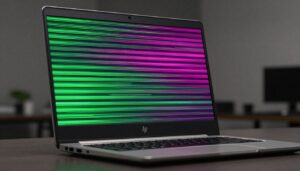
You power on your Dell XPS 13 to start your day. Then the screen begins to flicker. Lines zip across it, or it dims out of nowhere. This problem strikes lots of users. It yanks you from work or fun in a flash. The XPS 13 boasts a slim look and crisp display. But this flaw can wreck it all. This guide walks you through fixes for your Dell XPS 13 flickering screen. We share simple checks and full repairs. Your display runs smooth again soon.
Flickering shows as screen shakes or blinks. You might see quick black spots or shifting light. XPS 13 models like 9300, 9310, and 9320 hit this often. Intel graphics cause it. Let’s hit the easy steps first.
Step 1: Initial Diagnosis and Quick Fixes for Dell XPS 13 Display Issues
Simple tests often spot the root cause. They help you avoid big changes at first. Start here to fix most glitches.
Identifying the Flicker Type: Software vs. Hardware
Press Ctrl + Shift + Esc to open Task Manager. Watch if the screen flickers there. Task Manager runs outside normal apps. If it stays steady, a program might cause the problem. If it flickers too, look at drivers. This test points to software or hardware fast. Many users find apps like browsers trigger it. Close them one by one to check.
Hardware flickers show in all modes. Software ones tie to specific tasks. Run this test in safe mode next. Boot into safe mode by holding Shift during restart. If flickers stop, it’s software. This narrows your search quick.
Power Settings and Refresh Rate Verification
Wrong settings can make screens jump. Open Settings in Windows. Go to System > Display. Click Advanced display settings. Check the refresh rate. Set it to 60Hz for most XPS 13 panels. Some models hit 120Hz. Match the native rate from Dell specs.
Power plans affect this too. Search for Power & sleep settings. Pick High performance. Balanced mode saves energy but dims screens. Test in each plan. If flickers ease on high, power was the issue. Adjust slider for screen brightness too. Low levels sometimes cause odd effects.
Restart after changes. This clears temp files. Many fix their Dell XPS 13 display flickering with this alone.
BIOS/UEFI Environment Check
Power on and tap F2 right away. Enter BIOS setup. The screen loads basic menus. No drivers run here. If no flicker shows, blame Windows or drivers. Exit and boot normal.
If it flickers in BIOS, hardware likely faults. Update firmware later. Tap F12 for boot menu too. Test there. This check saves time on wrong paths. Users report BIOS stability rules out big software woes.
Step 2: Addressing Driver Conflicts and Updates (The Software Culprit)
Drivers control your graphics. Outdated ones cause most XPS 13 screen issues. Update them right to stop flickers.
Rolling Back the Display Driver
Windows updates can break drivers. Roll back if flickers started after one. Right-click Start button. Pick Device Manager. Expand Display adapters. Find Intel UHD Graphics. Right-click it. Select Properties. Go to Driver tab. Click Roll Back Driver. Confirm and restart.
This works if the old driver was stable. Check update history first. Go to Settings > Update & Security > View update history. Note recent graphics changes. Roll back fixes quick post-update bugs. Test your Dell XPS 13 flickering screen after.
If no roll back option shows, uninstall instead. Right-click and pick Uninstall device. Reboot. Windows reinstalls basics.
Clean Installation of Intel Graphics Drivers
Old driver bits linger and clash. Clean install wipes them out. Download Display Driver Uninstaller from guru3d.com. Boot in safe mode. Run DDU. Select Intel. Choose Clean and restart.
Now, get fresh drivers. Visit Dell’s site. Enter your service tag or model. Go to Drivers & Downloads. Pick the latest Intel Graphics driver. Install it. Skip Dell’s auto tool if issues persist. Direct download ensures matches.
Restart twice. This seals the install. Users fix XPS 13 display flickering this way often. It beats simple updates.
Updating Firmware and Chipset Drivers
BIOS handles core display links. Chipset drivers aid power flow. Outdated ones spark flickers. On Dell site, download BIOS update. Run it in Windows. Follow prompts. It flashes safe.
Next, grab Intel Chipset drivers. Same page. Install them. Restart. These updates fix display handshakes. Check release notes for flicker fixes. Dell patches these in monthly drops. Keep current to avoid repeats.
Step 3: Configuration Fixes: Dell Display Manager and Adaptive Sync
Advanced features boost screens but can glitch. Tweak them to steady your view.
Disabling Adaptive Sync Technologies
Variable refresh fights tears but causes flickers. XPS 13 uses Intel tech mostly. Open Intel Graphics Command Center. Go to Display > Custom Resolutions. Disable Adaptive Sync if on.
For rare NVIDIA setups, open NVIDIA Control Panel. Pick Manage 3D Settings. Find Variable Rate Shading or G-Sync. Turn off. Test games or videos. Flickers drop when sync mismatches rates.
Restart apps after. This stops perceived stutters on Dell XPS 13 screen.
Checking Dell Display Manager Conflicts
DDM sets colors and profiles. It can force wrong timings. Uninstall it from Settings > Apps. Restart. See if flickers stop. If yes, reinstall from Dell site. Reset settings inside DDM. Pick default profile.
Avoid third-party color tools. They clash with DDM. Stick to built-ins for stability. This check rules out software overlays.
Graphics Switching: Integrated vs. Discrete GPU (If Applicable)
Some XPS 13 have extra GPUs. They switch for power. Conflicts arise. In Windows Settings, go to System > Display > Graphics settings. Add apps. Set to Power saving for integrated Intel.
For NVIDIA, open Control Panel. Pick 3D Settings > Manage. Set preferred graphics to Integrated. Test under load. Discrete cards heat up and flicker more. Force integrated to calm it.
Step 4: Investigating Hardware Integrity and Connections
Software fails? Check the physical side. Careful tests confirm faults.
Testing External Monitors for Confirmation
Plug in an external screen via USB-C. Use HDMI adapter if needed. Mirror displays. If external stays solid, internal panel issues. Cable or inverter likely bad.
Run videos on both. Flickers only inside? Dell service next. This test proves hardware without opens. Save time and cash.
Checking for Loose Internal Display Cables (Advanced Users Only)
Warranty voids if you pry open. Stop if covered. Else, power off. Remove bottom screws. Lift panel carefully. Find eDP cable near hinge. It links mobo to screen. Gently reseat it.
Physical bumps loosen this. Test after. Pros handle this best. Don’t risk if unsure.
Thermal Throttling and Overheating Correlation
Heat warps signals. Install HWMonitor. Run a stress test like Prime95. Watch temps. Over 90C? Clean vents. Use on lap desk.
Throttling drops clocks, causes flickers. Undervolt CPU via ThrottleStop if skilled. Cool runs fix many Dell XPS 13 display issues.
Step 5: Advanced Windows Troubleshooting and System Integrity
Deep system checks mend hidden breaks. Run these if basics fail.
Running the System File Checker (SFC) and DISM
Corrupt files hit displays. Open Command Prompt as admin. Type DISM /Online /Cleanup-Image /RestoreHealth. Wait. Then sfc /scannow. Restart.
This repairs core libs. Fixes post-crash flickers. Run monthly for health.
Clean Boot State Verification
Third-party apps interfere. Press Win + R. Type msconfig. Go to Services. Hide Microsoft. Disable rest. Same for Startup in Task Manager.
Reboot. Test screen. If steady, enable groups till culprit shows. Antivirus often guilty. This isolates fast.
Considering a Windows Reset or Reinstallation
Last software step. Go to Settings > Update & Security > Recovery. Pick Reset this PC. Keep files. Or full clean install from USB.
Backup first. This wipes conflicts. If flickers gone, software was it. Pros recommend for stubborn cases.
Conclusion: When to Contact Dell Support
We walked from quick power tweaks to hardware probes. Start simple: Task Manager, settings, BIOS. Move to drivers and configs. Test externals if needed. Run system scans last.
Contact Dell if BIOS flickers or clean install fails. Check warranty online with tag. They fix panels free if covered. Pros handle cables safe.
Your XPS 13 deserves steady screens. Follow these for a fix. Share your results in comments. Get back to seamless use today.
Dell XPS 13 Screen Flickering Issues Dell XPS 13 Screen Flickering Issues Dell XPS 13 Screen Flickering Issues Dell XPS 13 Screen Flickering Issues Dell XPS 13 Screen Flickering Issues Dell XPS 13 Screen Flickering Issues Dell XPS 13 Screen Flickering Issues Dell XPS 13 Screen Flickering Issues Dell XPS 13 Screen Flickering Issues Dell XPS 13 Screen Flickering Issues
Dell XPS 13 Screen Flickering Dell XPS 13 Screen Flickering Dell XPS 13 Screen Flickering Dell XPS 13 Screen Flickering Dell XPS 13 Screen Flickering Dell XPS 13 Screen Flickering Dell XPS 13 Screen Flickering Dell XPS 13 Screen Flickering Dell XPS 13 Screen Flickering Dell XPS 13 Screen Flickering Dell XPS 13 Screen Flickering Dell XPS 13 Screen Flickering