Table of Contents
Introduction in Windows 10 Update Stuck on 0% Problem
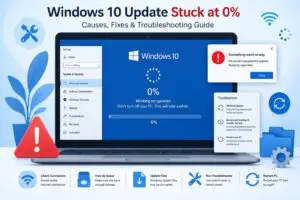
It is annoying when a Windows update stays at 0%. You wait for twenty minutes but nothing happens. Your PC might look frozen while the fan spins fast. You start to think something is broken.
Don’t worry if your Windows 10 update stops. A glitch, a bad file, or slow internet usually causes this. Sometimes a background service just stops working. You can typically fix it in less than an hour.
This guide gives you simple steps to solve the a problem.
Why Does Windows 10 Get Stuck at 0%?
It helps to know the cause before you start. Windows updates need steady internet, certain background services, and temporary files. The process can freeze at 0% if one part fails.
Common reasons include:
- Slow or unstable internet
- Corrupted update cache
- Windows Update service issues
- Antivirus conflicts
- Damaged system files
- Not enough storage space
- Background apps interrupting updates
Sometimes Windows only appears stuck. On older PCs, updates can take a long time to initialize. But if it stays at 0% for more than 30–60 minutes, it’s time to troubleshoot.
Step 1: Wait a Little Longer and Restart Your PC
It sounds too simple, but this fixes the issue more often than people expect.
Windows updates occasionally hang temporarily while preparing files in the background. If your internet is slow or your hard drive is older, the percentage may stay at 0% for a while before jumping forward.
What to Do
- Wait at least 30 minutes
- Check if your internet connection is working
- Listen for hard drive activity or fan movement
- If nothing changes, restart your PC
To restart:
- Press and hold the power button for about 10 seconds
- Wait a minute
- Turn the computer back on
After restarting:
- Open Settings
- Go to Update & Security
- Click Windows Update
- Try the update again
If the update still gets stuck at 0%, move to the next method.
Step 2: Run the Windows Update Troubleshooter
Windows 10 includes a built-in repair tool designed specifically for update problems. It checks common errors automatically and resets broken update components.
How to Run It
- Press Windows + I to open Settings
- Click Update & Security
- Select Troubleshoot
- Click Additional troubleshooters
- Choose Windows Update
- Click Run the troubleshooter
The tool will start scanning for problems.
It may repair:
- Broken update services
- Missing files
- Incorrect settings
- Update database errors
Once finished:
- Restart your computer
- Try updating Windows again
A lot of users stop here because the problem disappears immediately.
Step 3: Clear the Windows Update Cache
If the windows 10 update stuck on 0% issue keeps returning, corrupted update cache files are often the reason.
Think of the update cache like a download folder. If a file inside becomes damaged, Windows can’t continue the update process properly.
Clearing the cache forces Windows to download fresh update files.
Stop Windows Update Services
First, we need to stop update-related services.
Follow These Steps
- Press Windows + R
- Type:
services.msc
- Press Enter
Now locate these services:
- Windows Update
- Background Intelligent Transfer Service (BITS)
Right-click each one and select Stop.
Delete the Software Distribution Folder
Next:
- Open File Explorer
- Go to:
C:\Windows\SoftwareDistribution
- Delete everything inside the folder
Don’t worry. These are temporary update files.
Restart the Services
Go back to the Services window and:
- Right-click Windows Update
- Select Start
Do the same for BITS.
Now restart your PC and check for updates again.
This method fixes update freezes surprisingly often.
Step 4: Repair Corrupted System Files
Sometimes Windows updates fail because important system files are damaged or missing.
Thankfully, Windows includes built-in repair tools that scan and restore corrupted files automatically.
Run the SFC Scan
Here’s How
- Type cmd in the Start menu
- Right-click Command Prompt
- Select Run as administrator
Type this command:
sfc /scannow
Press Enter.
The scan may take 10–20 minutes depending on your PC speed.
What This Does
The System File Checker scans Windows system files and replaces corrupted ones with healthy copies.
Once the scan finishes:
- Restart your PC
- Try the update again
Run DISM Tool
If SFC doesn’t fix the issue, use DISM.
In Command Prompt, type:
DISM /Online /Cleanup-Image /RestoreHealth
Press Enter.
This tool repairs the Windows system image itself. Think of it like fixing the foundation before rebuilding the walls.
After completion:
- Restart your computer
- Check Windows Update again
Step 5: Disable Antivirus and Perform a Clean Boot
Third-party antivirus programs sometimes interfere with Windows updates. Background startup apps can also cause update conflicts without warning.
A clean boot starts Windows with only essential services.
Temporarily Disable Antivirus
If you use antivirus software other than Windows Defender:
- Open the antivirus program
- Disable real-time protection temporarily
- Try the Windows update again
Don’t forget to turn protection back on afterward.
Perform a Clean Boot
Follow These Steps
- Press Windows + R
- Type:
msconfig
- Press Enter
Now:
- Go to the Services tab
- Check Hide all Microsoft services
- Click Disable all
Next:
- Open the Startup tab
- Click Open Task Manager
- Disable unnecessary startup apps
Restart your PC.
Now try updating Windows again.
If the update works, one of your background programs was causing the issue.
Additional Fixes for Windows 10 Update Stuck on 0%
If none of the main steps worked, try these extra solutions.
Check Free Storage Space
Windows updates need space to download and install properly.
Aim for:
- At least 20GB of free storage
Delete:
- Temporary files
- Large downloads
- Unused apps
You can also run Disk Cleanup:
- Search Disk Cleanup
- Select your drive
- Remove temporary files
Reset Windows Update Components
Advanced users can manually reset all update components through Command Prompt.
Open Command Prompt as administrator and run:
net stop wuauserv
net stop bits
net stop cryptsvc
net stop msiserver
Then rename update folders:
ren C:\Windows\SoftwareDistribution SoftwareDistribution.old
ren C:\Windows\System32\catroot2 catroot2.old
Restart services:
net start wuauserv
net start bits
net start cryptsvc
net start msiserver
Restart your PC afterward.
Update Drivers
Outdated drivers can sometimes freeze Windows updates.
Check:
- Graphics drivers
- Network drivers
- Storage drivers
You can update them through:
- Device Manager
- Your PC manufacturer’s website
FAQs for Windows 10 update stuck at 0% Problems
1.Is it safe to force restart during a Windows update?
Yes, if the progress bar does not move for a long time. Just do not turn off your PC if the update is actually moving.
2. Antivirus software block Windows updates?
Some third-party security apps stop update services, which leads to freezes or failed installs.
3. Will deleting the Software Distribution folder harm my PC?
No. That folder only holds temporary files. Windows will make a new one the next time it checks for updates.
4.How long should a Windows 10 update take?
Most take 15 to 45 minutes. Large feature updates take longer depending on your hardware and internet.
Final Thoughts in windows 10 update stuck on 0% Issues
It is stressful when a Windows 10 update stays at 0%. Your PC might look frozen, but this is usually not a hardware crash. Instead, it is often caused by bad cache files, system errors, or frozen services.
Try these quick fixes:
- Restart your computer.
- Run the built-in troubleshooter.
- Clear the update cache.
If those fail, try system scans or a clean boot. Most people fix this without needing a pro or a full Windows reinstall.
If you are still stuck, use the Windows Update Assistant. You can also do an in-place repair with the official media creation tool. These methods fix deep errors without wiping your files.
Fix the error and restart. You can finally get past that 0% screen.
windows 10 update stuck on 0% windows 10 update stuck on 0% windows 10 update stuck on 0% windows 10 update stuck on 0% windows 10 update stuck on 0% windows 10 update stuck on 0% windows 10 update stuck on 0% windows 10 update stuck on 0% windows 10 update stuck on 0% windows 10 update stuck on 0%
windows 10 update stuck on 0% windows 10 update stuck on 0% windows 10 update stuck on 0% windows 10 update stuck on 0% windows 10 update stuck on 0% windows 10 update stuck on 0% windows 10 update stuck on 0% windows 10 update stuck on 0% windows 10 update stuck on 0% windows 10 update stuck on 0%