Table of Contents
Introduction For Computer Microphone Not Working Issues
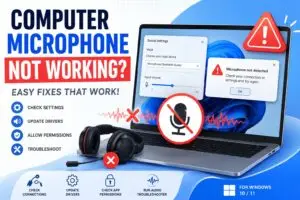
Have you started a video call and heard no one can hear you? It happens before a meeting or class. Few things annoy more than a dead mic at the wrong time.
Most mic problems have simple fixes. Wrong settings cause many issues. Old drivers do too. The input might be muted or a cable loose. You won’t need a new mic or shop repair.
This guide shows easy steps that work. They cover desktops, laptops, headsets, and USB mics. Your audio comes back after these fixes.
Step 1: Check the Basics First
Before changing Windows settings or reinstalling drivers, start with the obvious stuff. You’d be surprised how often the fix is simple.
1.1 Make Sure the Microphone Is Properly Connected
If you use an external microphone:
- Unplug and reconnect it
- Try a different USB port
- Check for loose cables
- Make sure the connector is fully inserted
Using a headset? Double-check that it’s plugged into the microphone jack, not the headphone-only port.
On desktop PCs, the pink audio jack is usually for microphones.
1.2 Test the Microphone on Another Device
This helps you figure out whether the issue is with the mic or the computer.
For example:
- Plug the microphone into another PC
- Test it on a laptop
- Try it on a phone if supported
If it still doesn’t work, the microphone itself may be damaged.
1.3Check for a Physical Mute Button
Many headsets and USB microphones include a mute switch. Some laptops even have keyboard shortcuts that disable the microphone.
Look for:
- A mute slider on the headset cable
- A microphone button on the keyboard
- LED mute indicators
Sometimes the smallest switch causes the biggest headache.
Step 2: Make Sure Windows Detects the Microphone
One major reason for a pc microphone not working issue is that Windows is using the wrong input device.
2.1 Open Sound Settings
Follow these steps:
- Right-click the speaker icon in the taskbar
- Click Sound settings
- Scroll to the Input section
You should see your microphone listed there.
2.2 Select the Correct Input Device
If multiple microphones appear, choose the one you actually want to use.
Examples:
- USB Microphone
- Headset Mic
- Realtek Audio Mic
- Webcam Microphone
A laptop may automatically switch to a webcam mic instead of your headset. That’s common.
2.3 Test the Microphone
Speak into the mic while watching the input volume bar.
If the bar moves:
- Your microphone is working
If nothing happens:
- Windows may not be receiving audio
2.4 Increase Input Volume
Sometimes the mic works, but the volume is too low.
To fix it:
- Open Sound settings
- Click your microphone device
- Increase the input volume slider
Try setting it between 80% and 100%.
Step 3: Allow Microphone Access in Windows Privacy Settings
Windows privacy settings can silently block microphone access. This became more common in recent versions of Windows 10 and Windows 11.
3.1 Enable Microphone Permissions
Here’s how:
- Open Settings
- Go to Privacy & Security
- Click Microphone
Make sure these options are turned ON:
- Microphone access
- Let apps access your microphone
3.2 Check Individual App Permissions
Maybe your microphone works everywhere except one app like:
- Discord
- Zoom
- Google Meet
- Microsoft Teams
Scroll down and make sure the specific app has permission enabled.
Imagine giving someone a phone but never allowing them to speak. That’s basically what Windows does when microphone permissions are disabled.
3.3 Restart the App
After changing permissions:
- Close the app completely
- Reopen it
- Test the microphone again
Some apps don’t recognize new permissions until restarted.
Step 4: Update or Reinstall Audio Drivers
Outdated or corrupted drivers are another major cause of a computer microphone not working problem.
Drivers act like translators between your hardware and Windows. If they break, the microphone may stop responding entirely.
How to Update Audio Drivers
Open Device Manager
- Press Windows + X
- Click Device Manager
Expand Audio Inputs and Outputs
Look for your microphone device.
Right-click it and choose:
- Update driver
Then select:
- Search automatically for drivers
Windows will look for updated drivers online.
Reinstall the Driver
If updating doesn’t help:
- Right-click the microphone device
- Select Uninstall device
- Restart your computer
Windows usually reinstalls the driver automatically after rebooting.
Update Realtek Audio Drivers
Many PCs use Realtek audio hardware. If your microphone still fails:
- Visit your PC manufacturer’s support page
- Download the latest audio driver
- Install it manually
This often fixes stubborn microphone detection problems.
Step 5: Run Windows Troubleshooter and Advanced Fixes
If the microphone still refuses to work, don’t panic yet. Windows includes built-in troubleshooting tools that can automatically detect issues.
Run the Recording Audio Troubleshooter
Follow These Steps
- Open Settings
- Go to System
- Click Troubleshoot
- Select Other troubleshooters
- Find Recording Audio
- Click Run
Windows will scan for:
- Disabled microphones
- Driver conflicts
- Incorrect settings
- Hardware issues
Sometimes it fixes the issue automatically.
Disable Audio Enhancements
Audio enhancements can occasionally interfere with microphones.
To Disable Them:
- Open Sound settings
- Select your microphone
- Go to Advanced settings
- Turn off audio enhancements
Then test the mic again.
Step6: Check Default Communication Device
Windows sometimes chooses the wrong default device.
Fix It Like This
- Open Control Panel
- Go to Sound
- Click the Recording tab
- Right-click your microphone
- Select:
- Set as Default Device
- Set as Default Communication Device
Click Apply and test again.
Step7: Restart Windows Audio Services
If audio services freeze, your microphone may stop functioning.
Restart the Services
- Press Windows + R
- Type:
services.msc
- Press Enter
Find these services:
- Windows Audio
- Windows Audio Endpoint Builder
Right-click each one and choose Restart.
This can instantly revive dead audio input.
Step7: Common Reasons Why a PC Microphone Stops Working
Here’s a quick breakdown of the most common causes:
| Problem | Possible Cause |
|---|---|
| Mic not detected | Loose cable or bad USB port |
| No sound input | Privacy settings disabled |
| Very quiet microphone | Low input volume |
| Mic works in one app only | App permissions issue |
| USB mic disconnects randomly | Faulty USB power or driver |
| Headset mic not recognized | Wrong audio jack |
Understanding the cause makes troubleshooting much faster.
Step8: Tips to Prevent Future Microphone Problems
Once your microphone works again, keep it that way with a few simple habits.
Keep Drivers Updated
Outdated drivers create unnecessary audio problems.
Check for updates regularly through:
- Windows Update
- Manufacturer support pages
Avoid Cheap USB Hubs
Some low-quality hubs don’t provide stable power for microphones.
Whenever possible:
- Connect directly to the PC
Protect Audio Ports
Dust and debris inside audio jacks can interrupt microphone signals.
Use compressed air occasionally to clean ports safely.
Restart Your PC Occasionally
Many people leave computers running for weeks. Audio services can become unstable over time.
A simple reboot fixes more problems than most people realize.
FAQs in computer microphone not working Problems
1.Why is my computer microphone not working suddenly?
The issue may come from:
- Disabled permissions
- Loose connections
- Driver problems
- Incorrect input settings
- Recent Windows updates
Start with basic checks before trying advanced fixes.
2.How do I test if my microphone works?
You can test it in Windows:
- Open Sound settings
- Go to Input
- Speak into the microphone
- Watch the input level bar
If the bar moves, the mic is working.
3.Why is my headset microphone not working on PC?
This often happens because:
- The headset is plugged into the wrong jack
- Windows selected the wrong input device
- Audio drivers are outdated
USB headsets may also need driver updates.
4.Can Windows updates break microphones?
Yes, occasionally. A Windows update can:
- Reset audio settings
- Replace drivers
- Disable permissions
Rechecking your sound settings usually solves it.
5.Should I buy a new microphone?
Not immediately.
Most pc microphone not working issues are software-related and fixable within minutes. Test all troubleshooting steps first before replacing hardware.
Final Thoughts in Pc Microphone not Working
A computer microphone not working problem can feel frustrating, especially when you need your PC for calls, gaming, streaming, or online meetings. Thankfully, most microphone issues are easier to fix than they appear.
Start with simple checks:
- Connections
- Mute buttons
- Input settings
Then move on to:
- Privacy permissions
- Driver updates
- Troubleshooting tools
Work through each step carefully, and there’s a good chance your microphone will be back to normal without spending a dollar.
If this guide helped you fix your microphone, bookmark it for future reference and share it with someone else struggling with the same issue.
Computer microphone not working Computer microphone not working Computer microphone not working Computer microphone not working Computer microphone not working Computer microphone not working Computer microphone not working Computer microphone not working
Computer microphone not working Computer microphone not working Computer microphone not working Computer microphone not working Computer microphone not working Computer microphone not working Computer microphone not working Computer microphone not working