Table of Contents
Introduction For Brother Printer Not Printing
You connect your Brother printer, press print, and nothing comes out. The empty paper tray looks right at you. Deadlines pile up as everything stalls. Brother printers pack homes and offices. They manage routine jobs with no sweat most days. But printing halts spark real anger. This guide hits every fix. Quick scans to full repairs wait here. Ditch blind trials. Fire up your printer now.
Step 1: Initial Checks and Connection Verification
Start with the basics before diving deeper. Often, a simple oversight causes the whole issue. These steps take just minutes but solve many brother printer not printing problems.
Check Power, Paper, and Ink or Toner Levels
Turn on your Brother printer. Watch the power light. It must shine steady green or blue. If off or flashing, inspect the cord. Try another outlet. Check the switch. Loose plugs cause trouble more than you know.
Next, load paper right. Open the tray and slide in sheets. Don’t cram too many. Align the guides snug against the stack. Overloaded trays jam the feed. For ink or toner, check the display screen. It shows levels clear as day. If low, replace cartridges soon. Brother models alert you with icons. Ignore them, and printing halts. Run a test page from the panel to confirm.
Low ink triggers errors fast. Toner in laser units lasts longer but still needs watch. Use genuine Brother supplies. Fakes cause more headaches down the line.
Inspecting Physical Connections and Network Status
Grab your USB cable if wired. Unplug it from both ends. Wait ten seconds, then reconnect. Try another port on your computer. Faulty cables fail silent. Swap with a known good one if you can.
For wireless setups, check Wi-Fi lights. The status light blinks during connect attempts. Solid means linked. If not, restart your router. Brother printers need strong signals. Move it closer to the access point. Open the printer menu and print a network config page. It lists the SSID and IP details.
Network drops happen after power outages. Re-enter the Wi-Fi password if needed. Use the Brother app on your phone for quick scans.
The Essential Printer Status Check (Ready vs. Error)
Look at the control panel now. Ready mode shows no alerts. Just a calm screen. Offline status means it lost touch with your device. Error lights flash in patterns. Count the blinks for clues. Brother manuals list codes by model.
Blinking red often signals jams or open covers. Press buttons to cycle through messages. For inkjets, watch for clogs. Lasers flag toner seats wrong. Run the built-in status report. It prints a sheet with diagnostics. This pinpoints if hardware or software blocks the job.
Ignore errors at your peril. They build to bigger fails. Reset by holding the power button ten seconds. Many brother printer offline issues clear this way.
Step 2: Software Conflicts and Driver Malfunctions
Software glitches sneak up after updates. Your OS changes, and suddenly print commands vanish. Focus here if basics check out. These fixes target the digital side.
Diagnosing Spooler Service Failures on Windows
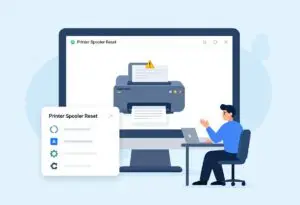
Open the Start menu on Windows. Type services.msc and hit enter. Scroll to Print Spooler. Right-click and select restart. This clears hung jobs fast. If it won’t start, stop it first. Then restart your PC.
Spooler errors stem from bad files. Delete them in C:\Windows\System32\spool\PRINTERS. Empty the folder safe. No files mean no stuck prints. Brother printers rely on this service smooth.
Test print after. A simple Notepad page works best. If it flows, the block lifted.
Updating or Reinstalling the Latest Brother Drivers
Head to the Brother support site. Pick your exact model. Download the full driver package. Avoid random sites. They pack malware. Install over old ones first. If issues persist, uninstall clean.
Use Brother’s tool for removal. It wipes remnants. Reboot, then install fresh. Match your OS version. Windows 11 needs specific packs. macOS follows suit.
Drivers age out. Updates from April 2026 fix new bugs. Check monthly for patches. This keeps brother printer not printing woes at bay.
Checking Print Queue Management
Access printers in settings. Click your Brother model. See the queue list. Cancel all jobs if stuck. One bad file holds the line. Right-click and remove.
In Brother software, open the utility. Clear from there too. Queues build from failed attempts. Empty them regular. Set to pause on errors next time.
Print a test from queue view. It bypasses apps. Success here means software cleared.
Step 3: Addressing Communication Blockages and Port Settings
Printers talk to computers via ports. Blocks here mimic hardware fails. Check these if prints send but vanish midway.
Verifying the Correct Default Printer Selection
Go to printer settings. Right-click your Brother and set as default. Apps like Word pull from this list. Wrong choice sends jobs nowhere.
In apps, check print dialog. Select the right model. Multiple installs confuse things. Delete extras from devices list.
Test from different programs. Consistency proves the pick works.
Troubleshooting Port Settings (USB vs. Network)
For USB, open properties. Go to ports tab. Pick USB001 or match your plug. Wrong port routes wrong.
Network printers use IP. Print config sheet for the address. Enter it in properties. Mismatch causes drops. Static IP beats DHCP for steady.
Restart both devices after changes. Ports reset the link.
Firewall and Security Software Interference
Antivirus blocks ports often. Open your firewall settings. Add exception for Brother apps. Ports 9100 and 631 need open for network.
Test by disabling security temp. If prints work, tweak rules. Brother lists needed ports online.
Updates in 2026 tighten security. Adjust for new rules.
Step 4: Hardware Obstructions and Maintenance Procedures
Hardware clogs the works physical. Dust and wear build up. Clean regular to prevent.
Clearing Paper Jams and Misfeeds Safely
Power off first. Open the back cover slow. Pull paper gentle by the lead edge. Don’t yank. Rollers tear easy.
Check front tray and output. Brother models have access doors marked. Use flashlight for hidden spots. Wipe rollers with soft cloth. No water.
After clear, fan paper stack. Reload even. Test feed without print.
Cleaning the Print Head or Fuser Unit
For inkjets, run clean cycle. Press menu, select maintenance. It takes two minutes. Repeat if streaks show.
Lasers clean fuser via software. Open utility, pick clean option. Heat units need care. Wait cool.
Poor quality hints clogs. Clean fixes print blocks too.
Utilizing the Brother Diagnostic Tools
Download Printer Setting Tool from Brother. Run scan. It flags errors auto. Follow on-screen steps.
For scanners, use iPrint&Scan. It tests full. Reports save for support.
Tools catch what eyes miss. Run monthly.
Step 5: Advanced Scenarios and Operating System Specific Fixes
Tough cases need targeted tweaks. OS quirks trip up pros too.
Addressing macOS Printing Issues (CUPS Resets)
On Mac, go to System Settings. Printers and Scanners. Right-click Brother, remove. Add back via IP or Bonjour.
Reset CUPS: Terminal command cupsenable. Reboot follows. This clears ghost jobs.
macOS Ventura updates in 2026 broke some. Fresh add fixes.
Printer Offline Status After Sleep Mode or Updates
Wake from sleep? Restart printer. Handshake lost easy.
After OS updates, reinstall drivers. Windows pushes features quarterly. Reconnect post.
Set no sleep for printer in energy settings.
Testing Print Functionality Across Multiple Applications
Try Notepad first. Works? App issue. Check PDF settings in Adobe.
Word fails? Update it. Cross-tests isolate.
Brother Printer Troubleshooting FAQs
1.Why is my Brother printer not printing?
Check your cable or Wi-Fi link first. Make sure the printer is “Online” in your computer settings. If it says “Offline,” restart both your PC and the printer.
2.How do I clear a print queue jam?
Open the “Devices and Printers” menu on your PC. Right-click your Brother model and select “See what’s printing.” Click “Printer” and then “Cancel All Documents” to reset the line.
3.What should I do if the printer is offline?
Turn the printer off and unplug it for 30 seconds. Plug it back in and restart your router. This often forces the device to reconnect to your network.
4.Why are there blank pages in my print job?
This usually means the ink or toner is low. Run a print head cleaning cycle from the printer menu. Check if the protective tape was removed from new cartridges.
5.How do I fix a “Paper Jam” error when no paper is visible?
Open every door on the printer to look for tiny scraps of paper. Use a flashlight to check the rollers. Reset the machine by turning it off and on again.
Conclusion: Get Your Brother Printer Printing Again
Driver issues top the list for brother printer not printing. Spooler fails next. Connectivity drops round it out. Most fix with these steps.
If all fails, call Brother support. They have model logs. Parts under warranty help.
You can beat these glitches. Follow the guide, and prints flow smooth. Your setup deserves it.