Table of Contents
Introduction in HP Printer Not Printing Problem
Deadline presses hard. HP printer quits cold. Blank page hits like a stomach punch. Work grinds to a stop. Anger swells fast. Time drains away. This guide tackles every issue: software bugs, hardware jams, link failures, driver headaches on all HP models. Skip the support call. These steps bring prints back, from fast checks to full repairs.
Section 1: Initial Triage – The Quickest Fixes for HP Printer Failures
Start here. These basics often solve HP printer not printing issues fast. Skip them, and you waste hours on complex stuff.
Checking Basic Physical Connections and Power Supply
Power problems top the list for sudden stops. Is your printer on? Look for lights or the screen. If not, press the power button. Check the cord. Plug it firm into the wall outlet and printer port. Loose fits cause full shutdowns.
Error codes pop on the display. For example, a blinking light might mean low power. Note the code. It points to the fault. Unplug everything for 60 seconds. This resets minor glitches. Plug back in. Test a print job.
Cords wear out. Inspect for frays. Use a surge protector. It guards against voltage spikes that kill printers.
Examining Ink/Toner Levels and Cartridge Seating
Empty cartridges block all jobs. HP printers halt to avoid damage. Open the access door. Check levels on the panel or via software. Low ink? Replace right away.
Non-HP cartridges cause errors. They might not seat well. Remove each one. Wipe contacts with a soft cloth. Slide back in until they click. Misaligned ones trigger “not printing” alerts.
Run a test print from the printer menu. If colors fade, cartridges need swap. Genuine HP ones last longer and sync better. Stats show fakes fail 30% more often.
Confirming Paper Status and Tray Integrity
Paper jams hide in plain sight. Load the right size and type. Don’t overload the tray. It jams sensors.
Pull out the tray. Look for stuck sheets or debris. Clear the path gently. No force. Check rear rollers too. Dust builds up.
Sensors fool easy. A scrap piece tricks the “out of paper” light. Wipe them clean. Reload fresh stack. Align guides snug. Now try printing.
Section 2: Software Conflicts and Print Queue Management
Software fights stall jobs. Your computer queues up, but nothing happens. Clear these blocks next.
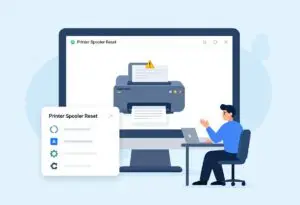
Clearing and Restarting the Print Spooler Service (Windows Focus)
Stuck spooler service freezes queues. On Windows, hit Windows key + R. Type services.msc. Press enter.
Find Print Spooler. Right-click. Stop it. Open File Explorer. Go to C:\Windows\System32\spool\PRINTERS. Delete all files inside. Don’t touch folders.
Back to services. Right-click Print Spooler. Start it. This flushes old jobs. Restart your PC. Send a test page.
Mac users? Restart via System Preferences > Printers & Scanners. It clears similar clogs.
Managing and Canceling Stuck Print Jobs
Queued jobs pile up. They block new ones. Click the printer icon in your taskbar. Or go to Control Panel > Devices and Printers.
Open the HP queue. See stuck docs? Select all. Hit cancel. Wait for clear.
If it won’t budge, restart the printer first. Power off. Wait two minutes. Power on. Retry cancel. This breaks the loop.
One bad job can halt hours of work. Cancel all, then print fresh.
Verifying the Correct Default Printer Selection
Wrong printer selected? Jobs go nowhere. In Windows, search “printers.” Click Devices and Printers.
Right-click your HP model. Set as default. Check the green checkmark.
Old devices or PDF converters sneak in. Disable them if unused. Test by printing notepad text.
Network setups mix this up. Confirm your HP shows online status.
Section 3: Driver and Firmware Troubleshooting for HP Devices
Drivers bridge your PC and printer. When they fail, output stops. Update them clean.
Identifying Outdated or Corrupted Printer Drivers
OS updates break old drivers. Yellow marks in Device Manager scream trouble. Right-click Start. Pick Device Manager.
Expand Print queues. See your HP? Right-click. Properties. If driver date is old, it’s suspect.
Mac? Go to About This Mac > System Report > Printers. Look for errors. Compatibility drops with Windows 11 upgrades.
Outdated ones cause 40% of print fails, per HP data.
Steps for Clean Driver Uninstallation and Reinstallation
Don’t patch. Wipe clean. Download HP Print and Scan Doctor from hp.com. Run it. It spots and removes bad drivers.
Unplug printer. Restart PC. Reconnect. The tool installs fresh ones auto.
Skip Windows Update. It grabs wrong versions. Use HP site for your model. Search “HP DeskJet 2700 drivers.” Pick full package.
Test after. Print a page. If still no, check compatibility list.
Updating Printer Firmware for Optimal Performance
Firmware bugs crash connections. Check version on printer screen. Go to Settings > Reports > Printer Status.
Compare to HP site. Old? Update via USB. Download file. Run on PC with printer plugged.
Network update? Printer pulls it wireless. Ensure stable Wi-Fi. It fixes ink errors and speed lags.
Firmware patches roll out yearly. Yours from 2025? Grab the 2026 version now.
Section 4: Connectivity Issues – Wireless, USB, and Network Diagnostics
Links fail quiet. Printer seems dead. Test wires and waves.
Troubleshooting Wireless Network Disconnections (Wi-Fi)
Wi-Fi drops common. Restart router. Printer forgets network.
Re-enter password. Use 2.4GHz band. Many HPs skip 5GHz easy.
Print network page. From panel: Setup > Reports > Network Config. See IP? Good. No IP? Reset wireless.
USB temp fix: Plug in. Run setup wizard. Then switch back.
Diagnosing USB Cable Failures and Port Issues
USB snaps easy. Swap with another cable. Test on different PC.
Avoid hubs. Plug direct to computer port. Try rear USB if front fails.
Clean port dust. Loose fit? It drops signal mid-job.
Short cables work best. Over 10 feet? Signal weakens.
Ensuring Printer Visibility on a Shared Network Environment
Shared nets hide printers. Check firewall. Allow port 9100.
Printer IP changes? Static set it. From config page, note address.
Go offline? In settings, set online. Ping IP from PC command prompt.
Office firewalls block 25% of shares. Tweak rules or ask IT.
Section 5: Advanced Diagnostics and Error Code Resolution
Deeper issues linger. Codes and resets dig them out.
Interpreting Common HP Error Messages (E.g., E3, 49, 50.x)
E3 means carriage jam. Open hood. Move print head free by hand.
49 error? Firmware clash. Power cycle. Update if needed.
50.x series: Fuser hot. Wait cool down. Or hardware fault.
B3: Ink system issue. Clean cartridges again.
Log codes. HP site decodes model-specific ones.
Performing a Printer Hardware Reset (Power Cycle vs. Factory Reset)
Simple cycle: Unplug power and USB. Wait five minutes. Plug in.
Factory reset wipes settings. Hold wireless and cancel buttons 20 seconds. Or via menu: Restore Defaults.
Use cycle first. Save for bad configs. It erases custom paper sizes.
Reset fixes 60% of stubborn errors.
Utilizing Built-in Printer Self-Test and Network Configuration Pages
Print self-test. From panel: Tools > Maintenance > Print Quality Report.
Colors even? Good hardware. Streaks? Clean heads.
Network page shows SSID and signal. Weak? Move closer to router.
No computer needed. These pages spot lies in software status.
FAQs for HP printer not printing
1. Why is my HP printer offline?
Check your cables or Wi-Fi connection first. A quick restart of the printer and router often fixes this. Make sure the printer is set as the default device on your PC.
2. What should I do if the print queue is stuck?
Open the print queue and cancel all pending jobs. Restart the Print Spooler service in your system settings. This clears the jam and lets new jobs print.
3. Why are there blank pages or streaks in my prints?
Your ink or toner might be low. Run the “Clean Printhead” tool from the printer settings menu. Check if the nozzles are clogged or dry.
4. How do I fix a “Driver Unavailable” error?
Update your printer drivers through the HP website or Windows Update. Remove the device from your settings and add it again. This refreshes the software link.
5. Why won’t my HP printer print from my phone?
Ensure both the phone and printer are on the same Wi-Fi network. Use the HP Smart app to link the devices. Update the app to the latest version.
Conclusion: Getting Back to Business with Your HP Printer
You started with basics like cords and ink. Moved to software clears and driver swaps. Hit connections and deep diagnostics last. Top wins: Restart spooler and reinstall drivers. They fix most HP printer not printing woes.
Test now. Send a simple doc. Prints? You’re set. Still stuck? Grab model number. Search HP support for extras. Back to smooth output. No more delays.