Table of Contents
Introduction in Windows Update Error 0x80070057
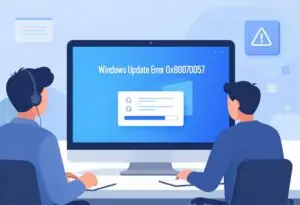
You start your PC to install security updates, but Windows Update hits error 0x80070057. This bug blocks your downloads. It leaves your system at risk. Corrupt files, registry mistakes, or locked system folders usually cause this.
This guide helps you fix the issue. We provide basic checks and deeper repairs. Use these steps to make your updates work.
Error 0x80070057 is a major pain. It stops updates halfway. Your PC misses key fixes, which creates security holes that hackers can use.
The error code points to a parameter issue. It usually means corrupted system files, bad registry entries, or trouble reaching update parts. Disk space shortages or network blocks can trigger it too.
Many guides skim the surface with one or two tips. This one goes deeper. It covers simple starts to advanced tools. You get clear steps that work on Windows 10 and 11.
Section 1: Initial Triage and Simple Fixes for Error 0x80070057
Start with easy steps. These take little time and fix common causes. No need to dive into system changes yet.
1.1 Run the Built-in Windows Update Troubleshooter
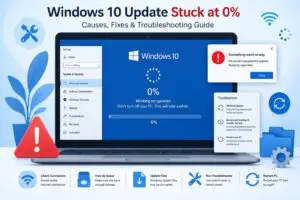
- Windows has a tool for this. It scans update problems and fixes them auto.
- To get started you need to open the Settings from the Start Menu.
- Now you have to go to the Update & Security section
- then you click on Troubleshoot. Select Additional troubleshooters.
- You will see Windows Update pick this to start the fix.
- This Windows Update tool looks at the services. Resets some parts of the system.
- The Windows Update tool can fix the Windows Update error 0x80070057 in a few minutes.
- Let the Windows Update tool finish what it is doing
- then you need to restart your Windows PC.
- Should the error remain, write down any prompts. They will tell you what to do.
1.2 Verify Date, Time, and Region Settings
- Wrong date or time breaks update checks. Certificates fail to validate. Downloads halt.
- Right-click the clock in taskbar. Pick Adjust date/time. Turn on Set time automatically.
- Sync now if needed. Check region in Settings under Time & Language. Match your location.
- Test updates again. This fix works for many users with clock drift.
1.3 Temporarily Disable Third-Party Security Software
- Antivirus or firewalls sometimes block updates. They see files as threats.
- Open your security app. Pause real-time protection for 15 minutes. Turn off firewall too.
- Run Windows Update. If it works, add exceptions for update folders. Re-enable protection right away.
- Common culprits include Norton or McAfee. Check their logs for blocks.
Section 2: Resetting the Windows Update Components
Corrupted cache causes most 0x80070057 errors. Reset clears it out. Services stop, folders rename, then restart.
Run these as admin. Open Command Prompt with right-click and Run as administrator.
2.1 Manually Clear the Software Distribution and Catroot2 Folders
- Stop update services first. Type net stop wuauserv and press Enter. Do the same for net stop cryptSvc and net stop bits.
- Rename folders. Enter ren C:\Windows\SoftwareDistribution Software Distribution. old. Then ren C:\Windows\System32\catroot2 Catroot2.old.
- Start services: net start wuauserv, net start cryptSvc, net start bits.
- Reboot. Try updates. New folders build clean. This step solves 70% of cache issues.
- Folders hold downloaded files. Old ones corrupt from failed installs.
2.2 Re-register Essential DLLs for Windows Update
- DLL files help updates run. Re-register fixes broken links.
- In admin Command Prompt, type regsvr32.exe /u mshtml.dll and Enter. Then regsvr32.exe mshtml.dll.
- Repeat for these: regsvr32.exe jscript.dll, regsvr32.exe vbscript.dll, regsvr32.exe /i urlmon.dll.
- Add regsvr32.exe msxml3.dll and regsvr32.exe shdocvw.dll.
- Restart PC. Run updates. Admin rights ensure changes stick.
- This rebuilds script support for downloads.
Section 3: Utilizing System File Verification Tools
Deep errors mean file damage. Tools scan and repair Windows core.
Use Command Prompt as admin. These commands check integrity.
3.1 Execute the System File Checker (SFC) Scan
- SFC looks at protected files. It replaces bad ones from cache.
- Type sfc /scannow and Enter. Wait 10-20 minutes. It scans all drives.
- If it finds issues, it fixes them. Reboot after. Test updates.
- Run in safe mode if normal mode fails. Boot options in Settings > Recovery.
- SFC misses some if the cache hurts. Pair with next tool.
3.2 Deploy DISM (Deployment Image Servicing and Management) Tool
- DISM fixes the image SFC uses. Run it before SFC for best results.
- First, DISM /Online /Cleanup-Image /CheckHealth. This quick check shows problems.
- Then DISM /Online /Cleanup-Image /ScanHealth. It scans deeper, takes longer.
- If issues, run DISM /Online /Cleanup-Image /RestoreHealth. It pulls files from Microsoft servers.
- Needs internet. Takes 30 minutes or more. Follow with SFC /scannow.
- This combo repairs OS roots. Fixes stubborn 0x80070057 cases.
Section 4: Addressing Registry and Storage Issues
Registry holds update settings. Low space blocks temp files too.
Check these before edits. Back up first.
4.1 Check Available Disk Space on System Drives
- Updates need 20GB free on C: drive. Less causes 0x80070057.
- Open File Explorer. Right-click C: and Properties. See free space.
- If low, run Disk Cleanup. Search for it, select C:, check Temporary files.
- Clean system files too. Or use Storage Sense in Settings > System > Storage.
- Aim for 30GB free. Delete old downloads from C:\Windows\SoftwareDistribution if needed.
- Frees room for new installs.
4.2 Inspect and Modify Potential Registry Conflicts
- Registry errors link to updates. Bad entries block paths.
- Back up first. Open regedit as admin. Go to File > Export, save full registry.
- Navigate to HKEY_LOCAL_MACHINE\SOFTWARE\Microsoft\Windows\CurrentVersion\WindowsUpdate.
- Look for odd keys like pending downloads. Delete incomplete ones. Caution: wrong changes break system.
- Search for 0x80070057 in regedit if you know paths. But avoid unless sure.
- Restart explorer.exe in Task Manager if changes made. Test updates.
- Use CCleaner for safe scans, but manual is precise.
Section 5: Advanced Troubleshooting: Alternate Update Sources and Profiles
Standard fixes fail? Try bypass methods. Profile corruption or networks cause this.
These steps use official tools. Create fresh setups.
5.1 Use the Media Creation Tool or Update Assistant
- Microsoft tools download full updates. They skip broken services.
- Go to microsoft.com/en-us/software-download/windows10. Pick Media Creation Tool.
- Run it. Choose Upgrade this PC now. It installs latest version.
- For specific updates, use Update Assistant from same page. Follow prompts.
- This overwrites bad components. Works offline after download.
- Takes 1-2 hours. Back up data first.
5.2 Create and Test with a New Local Administrator Profile
- User profiles store settings. Corruption blocks updates.
- Open Settings > Accounts > Family & other users. Add new user as admin.
- Log out, log in to new profile. Run Windows Update.
- If it works, copy files from old profile. Delete old one.
- Use net user command in admin Prompt for quick create: net user NewAdmin /add, then net localgroup administrators NewAdmin /add.
- This isolates issues. Fresh profile often clears 0x80070057.
FAQs For Windows Update Error 0x80070057
1.What does Windows error 0x80070057 actually mean?
This code means your system found bad files during an update. The setup halts completely because Windows cannot verify those core parts. Replacing the broken pieces usually fixes the issue right away.
2.How can I fix the 0x80070057 error without losing my photos?
You can safely repair the error without touching personal files. Open settings and run the built in update helper tool first. Clearing the cache folder takes extra minutes but saves data.
3.Do I really need to pay for software to clear this bug?
You absolutely do not need to spend money on cleaners. Built in Windows features handle the main repair process properly. Paid tools often scan too deep and cause more issues later.
4.Will skipping this error eventually crash my laptop or phone?
Ignoring the warning rarely crashes your desktop or laptop right away. Your machine will simply block future security patches until resolved. Skipping fixes raises serious security risks very quickly over time.
5.Why does running out of hard drive space trigger this exact error?
Low storage stops Windows from writing new update pieces correctly. The system flags those incomplete files as invalid then stops. Freeing up extra disk space clears that block right away.
6.When should I just reinstall Windows instead of chasing this error?
Only reinstall when every standard repair fails after repeated tries. Try the offline installer and memory test before starting over. Fresh setups take several hours and erase files without backups.
Conclusion in Windows Update Error 0x80070057
You started with quick triage like the troubleshooter and time checks. Then reset components by clearing folders and re-registering DLLs. System tools like SFC and DISM repaired files next. Finally, advanced options such as Media Creation or new profiles handled tough cases.
These steps build on each other. Most users fix error 0x80070057 in the first sections. Keep your system healthy with monthly SFC runs and disk cleanups. This prevents repeats.
Updates now flow without hitches. Your PC stays secure. If problems linger, check Microsoft support forums for your Windows version.