Table of Contents
Introduction in Virus Scanned Failed in Google Chrome Issues
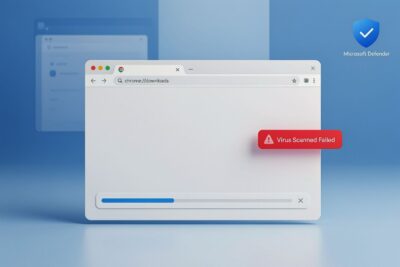
When you click to download a critical file quickly. The progress bar moves forward very slowly across the screen. Then Chrome stops everything halfway through the transfer process. A red banner flashes stating Virus scan failed clearly. You stare at the display wondering if a virus is present. Is it a real infection or just a browser glitch? Frustration grows because you need this file right now. You rely on the document for work or school tasks.
Virus Scanned Failed in Chrome
This warning message does not always mean malware blocked the file. Chrome often fails to finish its security check perfectly. Windows might reject the file or your security program gets stuck. Corrupted temporary files also create this same annoying error code. Most problems fix themselves without turning off all protections. This guide helps you find the true cause easily. It restores safe downloads and confirms your file works now. Follow the steps to open your document without fear.
What the Chrome error actually means
When Chrome displays “virus scan failed,” it means the browser began checking a file but could not finish. This does not confirm that malware was found. The scan itself was interrupted, perhaps because Windows Defender took too long, an extension blocked it, or a network timeout occurred during verification.
Unlike a confirmed infection warning, this message leaves the file’s safety unclear. Chrome could not complete its check, so handle the file with care until you know what caused the failed scan.
Quick safety checks before changing settings
Before you touch any settings, run these basic safety steps. First, check that you downloaded from the publisher’s official website. Look at the URL bar to see if it uses HTTPS. Second, review the file extension to ensure it matches what you expected. A PDF should end in .pdf, not .exe. Third, avoid clicking links from emails or pop-up windows unless you recognize the sender. Fourth, scan the file with a trusted security tool before opening it. These steps keep you safe while you troubleshoot.
Step1: Confirm Whether Chrome, Windows, or Antivirus Software Blocked the File
Different security layers can interrupt downloads. Windows Security handles built-in protection, while Chrome runs its own checks. Third-party antivirus programs add another layer that might conflict. Start by identifying which component caused the block. This approach prevents unnecessary changes and speeds up resolution.
1.1 Check Chrome’s download history and security status
Open Chrome and press Ctrl plus J to view your download history. Look at the exact warning message next to the failed file. Chrome labels dangerous files differently than general scan failures. If it says “dangerous download,” the browser detected a threat. If it says “virus scan failed,” the scan process broke down. This distinction guides your next troubleshooting steps.
1.2 Review Windows Security protection history
Windows tracks blocked downloads in its security center. Open Windows Security by pressing the Windows key and searching for it. Click Virus & threat protection, then Protection history. Review recent entries to see if Microsoft Defender flagged your file. Note whether it quarantined the file or just blocked the download attempt. This log reveals whether Windows Security caused the interruption.
1.3 Check third-party antivirus quarantine logs
Antivirus programs like Norton, McAfee, Bitdefender, ESET, or Avast often intercept downloads silently. Their web protection modules may block files without showing the full reason in Chrome. Open your antivirus dashboard and look for quarantine or web shield logs. Check the detection area for any recent blocks related to your download. These programs frequently cause scan failures more than Chrome does.
1.4 Look for Windows Attachment Manager restrictions
Windows Attachment Manager blocks files from certain sources automatically. It restricts downloads from untrusted zones or unknown publishers. Organization-managed computers often enforce these rules through Group Policy. If you’re on a company or school device, administrative policies may prevent changes. Contact your IT administrator before modifying system-level settings.
Step2: Repair Chrome’s Download and Browser Configuration
Browser glitches sometimes cause scan failures even when security tools work fine. Start with the least invasive fixes before moving to advanced options. Restarting Chrome or clearing cache often resolves the problem immediately.
2.1 Restart Chrome and retry from the official source
Close all Chrome windows completely, then reopen the browser. Navigate directly to the publisher’s official website using their main domain. Avoid stale links copied from emails or chat messages. Start a fresh download from their current release page. This method clears session data that might be interfering with the process.
2.2 Clear Chrome’s cached data and download history
Corrupted temporary files can block new downloads. Open Chrome Settings by clicking the three-dot menu, then Privacy and security. Select Clear browsing data and choose Cached images and files. Keep cookies enabled if you want to stay signed into websites. Clear only the cache and retry the download. Old cached data sometimes prevents Chrome from processing files correctly.
2.3 Reset Chrome’s settings
Chrome offers a reset option that restores default configurations. Go to Settings, scroll to Advanced, then Reset settings. Choose Restore settings to their original defaults. This action resets startup pages, search engines, pinned tabs, and extensions. It preserves bookmarks and saved passwords. Use this when multiple trusted downloads fail across different websites.
Virus Scanned Failed in Chrome
2.4 Disable conflicting or suspicious extensions
Extensions interfere with download behavior frequently. Open chrome://extensions to review installed add-ons. Temporarily disable download managers, security add-ons, VPN tools, and recently added extensions. Test downloading a small file after disabling each one. Remove or update any extension that blocks standard operations.
Virus Scanned Failed in Chrome
2.5 Update Chrome to the current version
Outdated browsers contain bugs that disrupt downloads. Open chrome://settings/help to check for updates. Chrome automatically downloads available updates, then prompts you to restart. Finish restarting to apply the latest security patches and performance fixes. Newer versions resolve compatibility issues with Windows and antivirus software.
Virus Scanned Failed in Chrome
Step3: Fix Windows and Antivirus Settings That Interrupt Safe Downloads
Operating system and security software settings often block legitimate downloads. Focus on targeted adjustments rather than blanket disabling of protections. These steps help maintain security while restoring download functionality.
Virus Scanned Failed in Chrome
3.1 Restart the Windows Security services and computer
Security services can get stuck during updates or background tasks. Perform a full system restart before trying advanced troubleshooting. Rebooting refreshes Windows Security services and pending updates. This simple step resolves many temporary interference issues with Chrome downloads.
Virus Scanned Failed in Chrome
3.2 Update Windows and security definitions
Outdated virus definitions cause false positives and scanning errors. Check Windows Update for the latest operating system patches. Ensure Microsoft Defender has current signature definitions. Current definitions improve detection accuracy and reduce scan interruptions. Regular updates prevent compatibility problems between components.
Virus Scanned Failed in Chrome
3.3 Temporarily test antivirus web or download protection
Some antivirus programs pause specific features for diagnostic testing. Briefly turn off web shield or download scanning, then retry the download. Immediately re-enable protection after testing. Follow your antivirus vendor’s official instructions for this action. Never leave protection disabled longer than necessary for testing purposes.
Virus Scanned Failed in Chrome
3.4 Add a narrowly scoped exception only when the file is verified
Virus Scanned Failed in Chrome
Use exceptions as a last resort after verifying file safety. Check the publisher name, digital signature, and independent malware scans. Compare checksums if the publisher provides them. Create exceptions for specific files or folders rather than broad categories. Avoid excluding entire download directories or common file types.
Virus Scanned Failed in Chrome
3.5 Check workplace, school, or administrator policies
Managed devices enforce strict download restrictions through group policies. Network filtering and endpoint security software may block downloads entirely. Attempting to bypass these controls violates organizational security protocols. Contact your system administrator for authorized exceptions or alternative download methods.
Step4: Repair the Download Path and File-Level Problems
Destination folders and file permissions cause many scan failures. Insufficient space or restricted access prevents proper saving. Address these physical factors before blaming security software.
Virus Scanned Failed in Chrome
4.1 Change the download folder
Select a different local folder in Chrome download settings. Try Documents or a newly created temporary folder. Avoid network drives, removable media, or cloud-synced locations during testing. Some synced folders lock files while syncing processes run. Local folders provide the most stable destination for testing.
Virus Scanned Failed in Chrome
4.2Confirm available storage and folder permissions
Verify your disk has enough free space for the download. Ensure your Windows account can write to the selected location. Controlled folder access or ransomware protection may block writes to specific directories. Check disk space properties and folder permissions before retrying.
Virus Scanned Failed in Chrome
4.3 Delete the incomplete download and start again
Remove the failed partial file from your downloads folder. Refresh the official download page in your browser. Start a completely new download instead of resuming an interrupted file. Resuming damaged downloads often preserves the original failure state.
4.4 Test a different file format or trusted download
Compare the failed file with a known-safe download. Try obtaining a small PDF or text file from a reputable source. Use the result to determine if the issue affects all downloads or just one file type. Different outcomes point to different root causes.
Virus Scanned Failed in Chrome
4.5 Use the publisher’s alternative delivery method
Check if the software publisher offers other ways to obtain their product. Look for official mirrors, verified direct links, or Microsoft Store downloads. Some publishers provide supported installers or download managers. Avoid third-party portals that repackage installers with extra software.
Virus Scanned Failed in Chrome
Step5: Use Advanced Windows Troubleshooting When Basic Fixes Fail
Advanced methods apply when simple steps don’t resolve persistent errors. These techniques address system-level corruption affecting multiple downloads. Create a restore point before making system changes.
Virus Scanned Failed in Chrome
5.1 Test Chrome with a new browser profile
A fresh Chrome profile identifies corrupted user settings. Create a new profile via Chrome’s Profile Manager. Test downloads from the new profile. Working downloads indicate profile corruption rather than system issues. Migrate only trusted bookmarks and extensions to the new profile.
Virus Scanned Failed in Chrome
5.2 Run a Windows system file check
Damaged Windows system files disrupt security scanning. Open Command Prompt as administrator and run sfc /scannow. This command scans and repairs corrupted system files automatically. Wait for the process to complete before testing downloads again. Administrator access is required for this repair operation.
Virus Scanned Failed in Chrome
5.3 Repair the Windows image with DISM
Deployment Image Servicing and Management fixes system component corruption. Run DISM /Online /Cleanup-Image /RestoreHealth in Command Prompt. This tool repairs the Windows component store when basic repairs fail. Restart your computer after the command completes.
5.4 Scan for malware outside the normal Windows session
Recurring security issues warrant offline scanning. Microsoft Defender Offline scans when your system restarts. Boot-time scanning detects threats hidden from normal operation. Use reputable boot-time scanners for comprehensive cleanup. Unexplained browser redirects signal potential malware infections requiring attention.
5.5 Reinstall Chrome only after preserving important data
Clean reinstall removes browser corruption while preserving data. Verify bookmarks and passwords sync to your Google account first. Backup important settings before uninstalling Chrome. Download the browser exclusively from Google’s official website. Reinstallation should only follow unsuccessful troubleshooting attempts.
Step6: Verify the File Before Opening It
Resolving the error message doesn’t prove file safety. Verification remains essential before executing any downloaded program. Confirm the publisher, check signatures, and scan independently.
6.1 Confirm the publisher and digital signature
Right-click executable files and select Properties. View the Digital Signatures tab to inspect the signer. Match the signer name against the expected software publisher. Valid signatures appear with green indicators and no warnings. Expired or invalid signatures require immediate caution.
6.2 Compare checksums when the publisher provides them
SHA-256 hashes confirm file integrity against publisher originals. Open PowerShell and run Get-FileHash with your file path and SHA256 algorithm. Compare your result character by character with the official hash value. Any mismatch indicates file corruption or tampering.
6.3 Scan the file with trusted security tools
Use Microsoft Defender or reputable security products for additional scanning. Multi-engine services like VirusTotal analyze files against numerous engines. Upload cautiously and avoid submitting confidential or personal files. Public scanning services handle uploaded content according to their terms.
6.4 Do not override a confirmed malware detection
Verified detections must not be bypassed simply to proceed. Delete or quarantine files with confirmed malicious signatures. Obtain clean copies from official publisher sources only. Ignoring legitimate security warnings exposes your system to real threats.
Step7: Prevent Chrome’s Virus Scan Failed Error From Returning
Maintenance reduces recurring download failures without weakening security. Implement these habits to minimize future interruptions.
7.1 Keep Chrome, Windows, and antivirus software updated
Enable automatic updates across all platforms. Restart when prompted to apply security patches. Coordinated updates improve compatibility between browser, operating system, and security tools. Outdated software creates more friction during downloads.
7.2 Download software from official sources
Use publisher websites, official app stores, and verified release pages. Avoid cracked software, misleading advertisements, and bundled installers. Unofficial mirrors frequently repackage files with unwanted extras. Sticking to verified sources eliminates many security warnings naturally.
7.3 Maintain a clean and accessible download folder
Periodically remove abandoned partial files from your download directory. Check available storage space regularly. Avoid overly restrictive or unstable download locations. Clean directories reduce interference with scanning processes.
7.4 Review browser extensions regularly
Remove unused or recently installed extensions without clear purposes. Install extensions only from trusted sources. Excessive permissions trigger security alerts that affect downloads. Periodic review keeps your browser secure and functional.
7.5 Record the exact error and security event
Save Chrome messages, file names, source URLs, and antivirus alerts. Document Windows protection-history entries for reference. Detailed records speed up future diagnosis and help support teams identify patterns. Written documentation becomes valuable during repeated issues.
Frequently Asked Questions for Virus Scanned Failed in Chrome
1.What causes a virus scan failure in Chrome?
Malicious add-ons or corrupted files often trigger these warnings immediately. Missing recent updates makes detection hard for older browser builds though.
2.How can I fix this scanning error fast?
Clearing cache removes temporary junk blocking the main browser process. Resetting default settings restores full trust to the system naturally.
3.Is my password safe when scans fail?
Your login details remain locked behind strong encryption layers securely. Only actual malware steals private info during major failed checks.
4.Will updating Chrome remove these false warnings?
Yes, recent patches close holes used by scam sites now. Downloading the latest version stops most fake alerts instantly for sure.
5.When did this error start appearing recently?
New script codes block access more often than last year. Security teams adjust their filters based on threat reports weekly.
Conclusion: Restore Safe Downloads Without Disabling Protection
Troubleshooting follows a logical sequence: identify the blocking layer, retry from trusted sources, repair Chrome settings, check Windows and antivirus controls, test download locations, verify files, and escalate to advanced repair or administrator support when needed. A virus scan failed message signals a scanning or download problem, not proof that your file is safe. Security warnings deserve investigation, not routine bypassing.
Key takeaways for resolving the error
Inspect Chrome and antivirus logs to locate the block. Update all security tools to their latest versions. Clear or reset affected browser settings when needed. Use different trusted download folders for testing. Verify digital signatures or checksums before execution. Never ignore confirmed malware detections in favor of completing downloads.