Table of Contents
Introduction in Chrome Bookmarks Not Syncing
Few things are more frustrating than opening Google Chrome on a different device and realizing your bookmarks are missing. You saved important websites, organized folders, and relied on Chrome Sync to keep everything updated across devices. Then suddenly, it stops working.
If you’re dealing with chrome bookmarks not syncing, you’re not alone. This is a common issue that affects Windows, Mac, Android, iPhone, and Chromebook users. The good news? In most cases, the problem can be fixed within a few minutes.
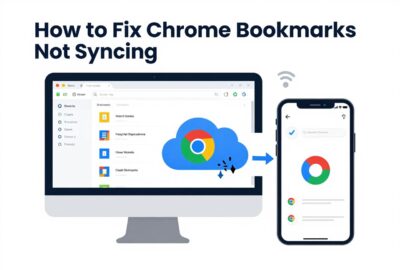
Chrome Sync is designed to keep your bookmarks, passwords, history, tabs, and settings synchronized across all devices connected to the same Google account. When bookmarks stop syncing, it usually points to a sign-in issue, sync setting conflict, outdated browser version, or corrupted Chrome data.
In this guide, we’ll walk through five effective methods to fix chrome bookmarks not syncing and get your bookmarks syncing properly again.
Why Are Chrome Bookmarks Not Syncing?
Before jumping into the fixes, it’s helpful to understand what might be causing the issue.
Common reasons include:
- Sync is disabled
- Incorrect Google account is being used
- Outdated Chrome version
- Corrupted browser cache
- Sync service errors
- Internet connection problems
- Google account sync conflicts
- Security software blocking Chrome Sync
Once you identify the cause, fixing the problem becomes much easier.
Step 1: Verify That Chrome Sync Is Enabled
The first thing you should check is whether synchronization is actually turned on.
Sometimes Chrome signs users out automatically after updates, password changes, or account security events.
Check Google Chrome Sync Settings on Desktop
- Open Google Chrome.
- Click your profile icon in the upper-right corner.
- Select Settings.
- Click You and Google.
- Choose Sync and Google Services.
- Click Manage what you sync.
Make sure:
- Sync is enabled.
- Bookmarks are included in synced data.
- You’re signed into the correct Google account.
Check Sync Settings on Mobile
- Open Chrome.
- Tap the three-dot menu.
- Select Settings.
- Tap your Google account.
- Ensure Sync is enabled.
- Confirm Bookmarks syncing is turned on.
If sync was disabled, enable it and wait several minutes to see if bookmarks appear.
Step 2: Sign Out and Sign Back Into Chrome
A temporary authentication issue can prevent bookmarks from syncing properly.
Think of it like a stuck elevator button. Everything appears normal, but the signal never reaches its destination.
Signing out and back in often refreshes Chrome’s connection to Google’s sync servers.
On Windows or Mac
- Open Chrome Settings.
- Click your profile.
- Select Turn Off Sync.
- Close Chrome completely.
- Reopen Chrome.
- Sign back into your Google account.
- Enable Sync again.
Important Tip
When prompted, avoid deleting browsing data unless necessary. Your local bookmarks will remain available during the process.
After signing back in, allow Chrome a few minutes to synchronize all data.
Many users find that this simple step resolves the chrome bookmarks not syncing issue immediately.
Step 3: Update Google Chrome to the Latest Version
Running an outdated browser can create compatibility issues with Google’s synchronization services.
Chrome updates frequently. If your version is old, syncing may become unreliable.
Check for Chrome Updates
- Open Chrome.
- Click the three-dot menu.
- Select Help.
- Click About Google Chrome.
Chrome automatically checks for updates.
If an update is available:
- Install it.
- Restart Chrome.
- Check whether bookmarks begin syncing.
Why Updates Matter
Updates include:
- Sync bug fixes
- Security improvements
- Performance enhancements
- Compatibility updates
Using the latest version reduces the chances of sync-related problems.
Step 4: Clear Chrome Cache and Sync Data
Corrupted browser data can interfere with synchronization.
Clearing cache often fixes hidden issues that aren’t immediately visible.
Clear Browser Cache
- Open Chrome.
- Press Ctrl + Shift + Delete.
- Select All Time.
- Check:
- Cached Images and Files
- Cookies and Site Data
- Click Clear Data.
Restart Chrome afterward.
Reset Chrome Sync Data
If bookmarks still aren’t syncing, you can reset sync information stored on Google’s servers.
How to Reset Sync
- Open Chrome.
- Visit:
https://chrome.google.com/sync - Sign into your Google account.
- Select Clear Data.
- Confirm the action.
What Happens After Resetting?
- Google sync information is removed from servers.
- Local bookmarks remain on your device.
- Sync starts fresh when re-enabled.
This method is especially effective when chrome bookmarks not syncing occurs across multiple devices.
Step 5: Check Internet Connection and Disable Conflicting Software
Chrome Sync depends on a stable internet connection.
If your connection is unstable, synchronization may fail silently.
Test Your Internet
Try:
- Opening several websites
- Running an internet speed test
- Restarting your router
- Switching between Wi-Fi and mobile data
Disable VPN Services
Some VPNs interfere with Google’s sync servers.
Temporarily disable:
- VPN applications
- Proxy connections
- Network filters
Then test sync again.
Check Antivirus and Firewall Settings
Certain security programs may block Chrome’s communication.
Temporarily disable:
- Third-party antivirus software
- Firewall restrictions
- Privacy protection tools
If syncing starts working afterward, add Chrome to the software’s trusted list.
Step6: Additional Fixes for Persistent Sync Problems
If bookmarks still refuse to sync, try these extra troubleshooting methods.
Create a New Chrome Profile
A damaged profile can cause synchronization failures.
Steps
- Open Chrome.
- Click your profile icon.
- Select Add Profile.
- Sign in with your Google account.
- Enable Sync.
If bookmarks sync correctly in the new profile, your old profile may be corrupted.
Check Google Account Storage
While bookmarks require very little space, a Google account with storage-related issues can occasionally affect connected services.
Verify that your Google account is functioning normally.
Sync on Another Device
Try signing into Chrome on another device.
If bookmarks sync successfully there, the issue is likely isolated to your original device.
Reinstall Google Chrome
If all else fails, reinstalling Chrome can remove corrupted program files.
Reinstallation Steps
- Uninstall Chrome.
- Restart your computer.
- Download the latest version.
- Install Chrome.
- Sign into your Google account.
- Enable Sync.
This often resolves deep-rooted sync problems.
How to Prevent Chrome Bookmark Not Sync Issues
Once everything is working again, follow these best practices.
1.Keep Chrome Updated
Regular updates reduce bugs and compatibility problems.
2.Use One Primary Google Account
Using multiple Google accounts can create confusion and synchronization conflicts.
3.Avoid Force Closing Chrome
Allow Chrome to shut down properly so sync data can upload correctly.
4.Maintain a Stable Internet Connection
Sync relies on constant communication with Google’s servers.
5.Export Important Bookmarks
Create periodic backups.
Export Bookmarks
- Open Chrome.
- Press Ctrl + Shift + O.
- Click the three-dot menu.
- Select Export Bookmarks.
Store the backup safely in case sync issues return.
Signs That Chrome Sync Is Working Again
After applying the fixes, look for these indicators:
- Bookmarks appear on all devices.
- Bookmark folders match across devices.
- Recently added bookmarks sync automatically.
- Chrome displays “Sync is On.”
- No sync error messages appear.
When these signs are present, synchronization is functioning normally.
FAQs for Chrome Bookmarks Not Syncing Issues Related
1.Why are my Chrome bookmarks not syncing between devices?
The most common causes include disabled sync settings, outdated Chrome versions, incorrect Google accounts, corrupted browser data, or internet connectivity issues.
2.How long does Chrome bookmark sync take?
Usually only a few seconds. Large bookmark collections may require several minutes to fully synchronize.
3.Does clearing cache delete bookmarks?
No. Clearing browser cache removes temporary files but does not delete bookmarks.
4.Can Chrome Sync work without internet?
No. Chrome Sync requires an active internet connection to upload and download bookmark data.
5.Why do bookmarks sync on one device but not another?
The affected device may have sync disabled, outdated software, profile corruption, or network restrictions preventing synchronization.
6.Will reinstalling Chrome delete my bookmarks?
If your bookmarks are synced to your Google account, they will reappear after signing back in. Creating a backup before reinstalling is always recommended.
7.How do I know if Chrome Sync is active?
Open Chrome Settings and check the Sync section. If it says “Sync is On,” synchronization is enabled.
8.Can antivirus software block Chrome Sync?
Yes. Some security programs and firewalls can interfere with Chrome’s connection to Google’s servers.
Final Thoughts in Chrome Bookmarks Not Syncing
When chrome bookmarks not syncing becomes a problem, the cause is usually something simple: disabled sync settings, account authentication issues, outdated software, or corrupted browser data.
Start by verifying Sync settings and confirming you’re signed into the correct Google account. Then work through the remaining fixes, including updating Chrome, clearing cache, resetting sync data, and checking for software conflicts.
In most cases, one of these solutions restores bookmark synchronization quickly.
Don’t wait until important bookmarks disappear. Take a few minutes today to back up your bookmarks, keep Chrome updated, and ensure Sync remains enabled across all your devices. That small effort can save hours of frustration later.
Chrome Bookmarks Not Syncing Chrome Bookmarks Not Syncing Chrome Bookmarks Not Syncing Chrome Bookmarks Not Syncing Chrome Bookmarks Not Syncing Chrome Bookmarks Not Syncing