Table of Contents
Introduction in HP Laptop Screen Flickering Issues
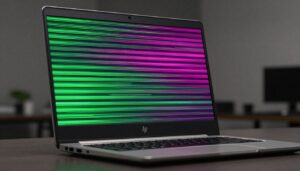
Your HP laptop screen flickers while you work. It blinks on and off, blurring your view. Many users face this glitch. It can spoil your whole day.
HP screen flickering strikes thousands yearly. Forum threads link it to updates or part wear. This guide pinpoints the cause and walks you through fixes. You will spot software or hardware issues.
Flickering shows fast brightness shifts or quick blackouts. It breaks email reads or video plays. Time slips away. Frustration grows. Most fixes prove simple.
Introduction: Identifying the HP Laptop Screen Flickering Phenomenon
HP laptops often face screen flickering due to their slim design and heavy use. Models like Pavilion or Envy series see this issue most. It starts small but grows into a big headache if ignored.
Think of it like a loose bulb in a lamp. The light blinks because something inside fails. For your laptop, it could be drivers or cables that cause the glitch.
This article gives you a full plan to diagnose and solve HP laptop screen flickering. Start with easy checks, then move to deeper steps. By the end, you’ll have your display stable again.
Section 1: Diagnosing the Root Cause – Software vs. Hardware
Spot the source of your HP laptop screen flickering before you fix it. Software problems show up often after changes like updates. Hardware issues point to physical parts wearing out.
Isolating the Issue: Task Manager Test
Open Task Manager with Ctrl+Shift+Esc keys. Watch if it flickers too when your screen does. If yes, drivers likely cause the trouble.
If Task Manager stays steady but the desktop blinks, check hardware. This test takes seconds and points you right. Many users skip it and waste time on wrong fixes.
Run this on your HP model to narrow down causes fast.
Common Software Culprits: Driver Conflicts and Updates
Graphics drivers from Intel, NVIDIA, or AMD lead to flickering. Old versions clash with new Windows patches. A recent update might install a buggy driver.
HP laptops use integrated or dedicated graphics. Conflicts arise when both run at once. Users report this after big OS upgrades.
Check your driver dates in settings. Outdated ones trigger the HP screen flicker problem most.
Hardware Possibilities: Loose Cables and Display Panel Failure
Inside your HP laptop, cables link the screen to the main board. They loosen from daily opens and closes. Hinge stress pulls them apart over time.
The display panel itself can fail after years of use. Backlight dims or flickers in patterns. Age and drops speed up this wear.
If software tests fail, hardware might be the HP laptop screen flickering culprit. Signs include constant blinks even in safe mode.
Section 2: Immediate Software Fixes – Addressing Driver and Setting Conflicts
Software tweaks often end HP laptop screen flickering quick. Start here before hardware dives. These steps use built-in tools you know.
Updating or Rolling Back Display Drivers
Right-click Start and pick Device Manager. Expand Display adapters. Right-click your graphics card and choose Update driver.
Search for the latest from HP’s site. Enter your model for exact files. Install and restart to test.
If a new driver caused issues, roll it back. In Device Manager, right-click the adapter. Select Properties, then Driver tab. Hit Roll Back Driver if available.
This fixes most HP screen flicker from bad updates. Users see results in minutes.
Adjusting Screen Refresh Rate Settings
Wrong refresh rates make screens unstable. Your HP might run at 59Hz when it needs 60Hz. This mismatch causes shakes.
Go to Settings, then System, Display. Click Advanced display settings. Under Choose a refresh rate, pick 60Hz or match your setup.
Test after changes. Videos and scrolls should smooth out. Many HP models default wrong after tweaks.
Disabling Problematic Applications (Startup and Background)
Apps like antivirus overlay data on screen. They clash with display drivers. Background tools from HP bloatware add to the mess.
Open Task Manager, go to Startup tab. Right-click extras and Disable. Restart to check.
Common culprits include RGB software or monitoring apps. Disable one by one to find the bad one. This stops HP laptop screen flickering from software fights.
Section 3: Advanced Troubleshooting for System Instability
If basic fixes miss, dig deeper into your HP system. These tools clean up hidden glitches. They target Windows quirks that affect displays.
Checking Power Settings and Sleep Mode Conflicts
Power plans switch graphics to save battery. This flip causes flickers on wake-up. Video play stutters too.
Search for Power Options in Start. Pick High performance plan. Set screen to never turn off for tests.
Adjust GPU in advanced power settings. Lock it to max state. HP laptops flicker less in full power mode.
Testing Windows System File Integrity (SFC Scan)
Corrupt files mess with screen rendering. Run a scan to fix them.
Open Command Prompt as Admin. Type sfc /scannow and hit Enter. Wait for it to check and repair.
This tool scans all system files. It fixes display-related errors in HP setups. Run it weekly to avoid issues.
Clean Installation of Graphics Drivers (DDU Method)
Old driver bits linger after updates. Use Display Driver Uninstaller for a fresh start.
Download DDU from a safe site. Boot into Safe Mode. Run it to wipe graphics drivers.
Then install clean ones from HP or maker sites. Restart and watch the screen. This ends stubborn HP laptop screen flickering cases.
Section 4: When the Problem Points to Hardware Failure
Software out? Hardware steps come next. Test to confirm before big repairs.
External Monitor Test for Isolation
Plug an HDMI cable from your HP to a TV or extra screen. Mirror the display.
If the external stays steady, your laptop’s screen cable or panel fails. Both flickering means GPU trouble.
This test isolates fast. No cost, just a cable. It guides your next move on HP screen flicker.
Inspecting the Display Cable Connection (If Comfortable)
Open your HP if warranty ends. Screws hide under feet or panels.
The cable runs from screen to board near hinges. Wiggle it gently to reseat. But this risks more damage.
Warn: It voids warranty. If unsure, skip to pros. Hinge wear frays cables over time.
Recognizing Inverter or Backlight Issues
Inverters power the backlight. Faulty ones cause fast, even flickers. Screen dims too.
This differs from driver blinks, which tie to apps. Backlight fails show constant pulse.
HP older models use inverters. New ones integrate it. Test in dark room for dim signs.
Conclusion: Final Steps and Professional Repair Assessment
HP laptop screen flickering often stems from drivers or settings. Run the Task Manager test first. Update or clean install graphics next. Use external monitor to check hardware.
If software fails, cables or panels might need swap. Don’t force opens if under warranty.
Seek HP service for deep issues like GPU fails. Centers fix internals safe. Your screen will work smooth again soon.
Follow these, and beat the glitch. Share your fix in comments if it helps. Stay productive without the blinks.