Table of Contents
Introduction in Your Google Chrome Camera Not Working
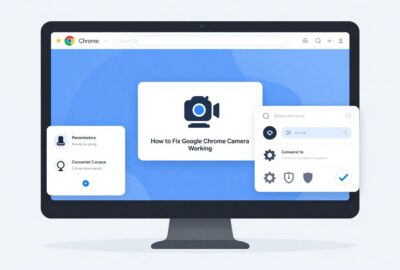
Is your camera refusing to work in Chrome when you’re trying to join a video meeting, attend an online class, or record a video? You’re not alone. Many users encounter the google chrome camera not working issue at some point, and it can happen for several reasons.
One day everything works perfectly. The next day, Chrome suddenly says “Camera not found,” “Camera access denied,” or shows a black screen. Frustrating, right?
The good news is that most camera issues in Chrome are easy to fix. Whether you’re using Windows 10, Windows 11, macOS, or a Chromebook, this guide walks you through the most effective solutions step by step.
Let’s get your camera working again.
Step 1: Check Camera Permissions in Google Chrome
One of the most common reasons for the google chrome camera not working problem is incorrect site permissions.
Chrome blocks camera access unless permission is granted.
How to Check Camera Permissions
- Open Google Chrome.
- Visit the website where the camera isn’t working.
- Click the lock icon beside the address bar.
- Select Site Settings.
- Find Camera.
- Choose Allow.
- Refresh the webpage.
If the website was accidentally blocked earlier, changing this setting usually fixes the issue immediately.
Check Global Camera Settings
- Open Chrome.
- Click the three-dot menu.
- Select Settings.
- Go to Privacy and Security.
- Click Site Settings.
- Select Camera.
Make sure:
- The correct camera is selected.
- Sites can request camera access.
- The affected website is not listed under blocked sites.
Many users have multiple webcams connected. If Chrome selects the wrong one, video won’t appear even though the camera is functioning properly.
Step 2: Verify Camera Access in Windows or macOS
Even if Chrome permissions are correct, your operating system may be blocking camera access.
Think of it like a locked front door. Chrome has permission to enter, but Windows won’t open the house.
For Windows 10 and Windows 11
Enable Camera Access
- Press Windows + I.
- Open Privacy & Security.
- Click Camera.
- Turn on:
- Camera Access
- Let Apps Access Your Camera
- Let Desktop Apps Access Your Camera
Scroll down and confirm that Chrome is allowed to use the camera.
Restart Chrome
After changing permissions:
- Close all Chrome windows.
- Reopen Chrome.
- Test the camera again.
For macOS
- Open System Settings.
- Select Privacy & Security.
- Click Camera.
- Enable access for Chrome.
Restart Chrome afterward.
Many Mac users discover Chrome was never granted permission during the initial setup process.
Step 3: Close Apps That Are Using the Camera
A webcam can often be used by only one application at a time.
If another program already controls the camera, Chrome may display:
- Camera unavailable
- Camera failed
- Camera not detected
- Camera in use by another application
Common Applications That Use the Camera
- Zoom
- Microsoft Teams
- Skype
- Discord
- OBS Studio
- Camera App
- Video recording software
Close Background Applications
On Windows
- Press Ctrl + Shift + Esc.
- Open Task Manager.
- Look for apps using the camera.
- Select them.
- Click End Task.
On Mac
- Open Activity Monitor.
- Find applications using the camera.
- Force quit them if necessary.
After closing other applications, restart Chrome and test again.
Step 4: Update Chrome and Camera Drivers
Outdated software often causes compatibility issues.
If you’ve been ignoring update notifications for months, now is the time to fix that.
Update Google Chrome
- Open Chrome.
- Click the three-dot menu.
- Go to Help.
- Select About Google Chrome.
Chrome automatically checks for updates.
If an update is available:
- Install it.
- Restart the browser.
Running the latest version can solve many camera-related bugs.
Update Camera Drivers on Windows
Using Device Manager
- Right-click Start.
- Select Device Manager.
- Expand Cameras.
- Right-click your webcam.
- Select Update Driver.
- Choose Search Automatically for Drivers.
Reinstall the Driver
If updating doesn’t help:
- Open Device Manager.
- Right-click the webcam.
- Select Uninstall Device.
- Restart your computer.
Windows will reinstall the driver automatically.
External Webcam Users
If you’re using:
- Logitech webcam
- Razer webcam
- Dell webcam
- HP webcam
Visit the manufacturer’s website and download the latest drivers.
Step 5: Reset Chrome Settings and Troubleshoot Hardware Issues
If the problem still exists, deeper browser settings or hardware problems may be involved.
Reset Chrome Settings
Corrupted settings can interfere with camera functionality.
Reset Chrome
- Open Chrome Settings.
- Select Reset Settings.
- Click Restore Settings to Their Original Defaults.
- Confirm the reset.
This action:
- Disables extensions
- Resets permissions
- Restores default settings
Your bookmarks and passwords remain safe.
Disable Browser Extensions
Some extensions interfere with camera access.
Common offenders include:
- Privacy extensions
- Security tools
- Ad blockers
- VPN extensions
Test Extensions
- Type:
chrome://extensions - Disable all extensions.
- Restart Chrome.
- Test the camera.
If it works, re-enable extensions one by one until you identify the culprit.
Test the Camera Outside Chrome
Open the built-in Camera app.
Windows
- Press Start.
- Search for Camera.
- Launch the app.
Mac
Use FaceTime or Photo Booth.
If the camera doesn’t work there either, the issue is likely hardware-related rather than Chrome-related.
Check USB Connections
For external webcams:
- Unplug and reconnect the device.
- Try a different USB port.
- Avoid USB hubs when possible.
- Test on another computer.
A faulty USB port can make it seem like Chrome is causing the issue when the hardware connection is actually failing.
Additional Fixes for Google Chrome Camera Not Working
If none of the main solutions work, try these advanced methods.
Clear Browser Cache
- Press Ctrl + Shift + Delete.
- Select:
- Cookies
- Cached Images and Files
- Click Clear Data.
Corrupted cached data can sometimes prevent camera permissions from loading correctly.
Use Chrome Incognito Mode
- Press Ctrl + Shift + N.
- Open the website.
If the camera works in Incognito Mode, an extension is likely causing the issue.
Disable Antivirus Webcam Protection
Some antivirus programs block webcam access.
Examples include:
- Norton
- Bitdefender
- Avast
- Kaspersky
Temporarily disable webcam protection features and test again.
Check Enterprise Policies
If you’re using a work or school computer, administrators may have disabled camera access through Chrome policies.
In that case, contact your IT department.
Signs That Your Webcam May Be Faulty
Sometimes the issue isn’t Chrome at all.
Watch for these warning signs:
- Camera not detected in any app
- Flickering video
- Random disconnects
- Black screen in all programs
- Device Manager showing hardware errors
If these symptoms appear everywhere, replacing the webcam may be necessary.
FAQs in Google Chrome Camera not Working
1.Why is my camera working in Zoom but not Google Chrome?
This usually indicates a browser-specific permission issue. Check Chrome camera permissions and verify the website is allowed to access your webcam.
2.Why does Chrome say camera access denied?
Chrome displays this message when camera permissions are blocked either within Chrome settings or by your operating system.
3.How do I allow Chrome to access my camera?
Open Chrome Settings → Privacy and Security → Site Settings → Camera, then allow camera access and select the correct device.
4.Why is my camera showing a black screen in Chrome?
A black screen can occur because:
- Another app is using the camera
- Camera drivers are outdated
- Browser extensions are interfering
- Hardware problems exist
5.Can browser extensions cause camera issues?
Yes. Privacy, security, and VPN extensions frequently block camera access and can trigger the google chrome camera not working issue.
6.Does clearing cache fix camera problems?
In some cases, yes. Corrupted browser data can interfere with permissions and website functionality.
7.Why is Google Meet unable to detect my camera?
Google Meet relies on Chrome permissions. Verify that both Chrome and your operating system allow camera access.
Final Thoughts in Google Chrome Camera Not Working
The google chrome camera not working problem can usually be fixed without advanced technical knowledge. Most cases come down to permission settings, conflicting applications, outdated drivers, or browser extensions.
Start by checking Chrome permissions. Then verify operating system access, close competing applications, update Chrome, and test your camera hardware. Working through these steps methodically solves the problem for the vast majority of users.
If you’ve completed all five troubleshooting steps and your camera still doesn’t work, test the webcam on another device. That simple test quickly reveals whether you’re dealing with a software issue or failing hardware.
Getting your camera back online doesn’t have to take hours. In many cases, the fix is only a few clicks away.
Google Chrome Camera Not Working Google Chrome Camera Not Working Google Chrome Camera Not Working Google Chrome Camera Not Working Google Chrome Camera Not Working Google Chrome Camera Not Working Google Chrome Camera Not Working Google Chrome Camera Not Working