Table of Contents
Introduction in Android Screen Flickering Issues
Is your phone screen flashing, blinking, or randomly changing brightness? You’re not alone. Android screen flickering is a common problem that affects many devices, from budget smartphones to flagship models.
Sometimes the issue appears after a software update. Other times, it starts unexpectedly while watching videos, scrolling social media, or charging the phone. The good news? In many cases, you can fix it without spending money on repairs.
This guide walks you through five practical solutions that can help stop Android screen flickering and get your phone working normally again.
Step 1: Restart Your Android Device
Before trying anything complicated, start with the simplest fix.
A temporary software glitch can cause display problems, including flickering screens. Restarting your phone refreshes system processes and clears minor bugs.
How to Restart Your Android Phone
- Press and hold the Power button.
- Tap Restart.
- Wait for the device to reboot completely.
If the screen is too unstable to use:
- Hold the Power button for 10–15 seconds.
- Wait until the device forces a restart.
Why This Works
Your phone runs dozens of background processes at the same time. Occasionally, one of them crashes or conflicts with the display system. A restart clears these temporary issues.
If the flickering disappears after restarting but returns later, continue with the next steps.
Step 2: Check Brightness Settings and Adaptive Brightness
Many users notice Android screen flickering when the phone automatically adjusts brightness.
Adaptive Brightness uses sensors to change screen brightness based on your environment. If the sensor behaves incorrectly, the screen may repeatedly brighten and dim.
Disable Adaptive Brightness
- Open Settings.
- Tap Display.
- Select Adaptive Brightness or Auto Brightness.
- Turn it off.
Test the Screen
After disabling the feature:
- Set brightness manually.
- Use the phone for several minutes.
- Watch for any flickering behavior.
Extra Tip
Reduce brightness to around 50%.
Extremely high brightness can sometimes trigger display instability, especially on devices with aging OLED screens.
Think of it like a light bulb that’s constantly being adjusted. The more often it changes, the more likely you’ll notice unusual behavior.
Step 3: Boot Your Phone in Safe Mode
Third-party apps are one of the biggest causes of Android screen flickering.
Apps that modify display settings, screen overlays, blue-light filters, battery savers, or performance boosters can interfere with Android’s display system.
How to Enter Safe Mode
Most Android devices follow these steps:
- Press and hold the Power button.
- Touch and hold Power Off.
- Tap Safe Mode when prompted.
- Wait for the phone to restart.
You’ll see “Safe Mode” at the bottom corner of the screen.
What Safe Mode Does
Safe Mode temporarily disables all downloaded apps and runs only essential system software.
Check for Flickering
Use the phone normally for a few minutes.
If Flickering Stops
A third-party app is likely causing the issue.
Try removing recently installed apps, especially:
- Screen dimmers
- Launcher apps
- Display customization tools
- Battery optimization apps
- Blue-light filter applications
If Flickering Continues
The problem is probably related to system software or hardware.
Move to the next step.
Step 4: Update Android and Apps
Outdated software can create compatibility issues that affect screen performance.
Manufacturers regularly release updates to fix display bugs, touch-screen problems, and graphical glitches.
Update Android
- Open Settings.
- Tap Software Update or System Update.
- Select Download and Install.
- Install any available updates.
Update Your Apps
- Open the Google Play Store.
- Tap your profile picture.
- Select Manage Apps & Device.
- Tap Update All.
Why Updates Matter
Imagine using old instructions with new hardware. Things don’t always work as expected.
Software updates contain patches that help Android communicate properly with the display controller, graphics processor, and installed applications.
Many users report that Android screen flickering started after an update—but just as often, another update fixes the problem.
Step 5: Check for Hardware Damage or Perform a Factory Reset
If none of the previous solutions work, it’s time to determine whether the problem is hardware-related.
Signs of Hardware Damage
Look for:
- Cracks on the screen
- Water exposure
- Flickering that gets worse over time
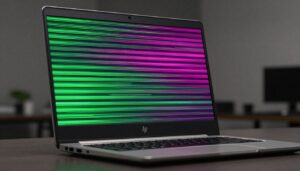
- Green lines on the display
- Screen flashing during startup
- Display issues after dropping the phone
If any of these symptoms are present, the display assembly or internal connector may be damaged.
Perform a Factory Reset
Before assuming hardware failure, try a factory reset.
Important: Back up your photos, contacts, and important files first.
Factory Reset Steps
- Open Settings.
- Tap System.
- Select Reset Options.
- Choose Erase All Data (Factory Reset).
- Follow the on-screen instructions.
Test Before Restoring Apps
After the reset:
- Set up the phone as new.
- Avoid installing apps immediately.
- Observe whether the screen still flickers.
When to Seek Professional Repair
If the screen continues flickering after a factory reset, hardware repair is usually necessary.
Common hardware causes include:
- Loose display connectors
- Damaged OLED panel
- Faulty display controller
- Battery-related voltage issues
- Motherboard damage
At this point, visiting an authorized repair center is often the best option.
Additional Tips to Prevent for Android Screen Flickering
To reduce the chance of future display issues:
- Keep Android updated.
- Avoid installing unknown display-related apps.
- Use original chargers whenever possible.
- Protect your phone from drops.
- Avoid exposing the device to excessive heat.
- Restart your phone occasionally.
- Remove apps that frequently crash.
Small maintenance habits can prevent bigger problems later.
FAQs in Android screen flickering Problems
1.Why is my Android screen flickering suddenly?
Sudden screen flickering is usually caused by software glitches, incompatible apps, display settings, or recent system updates. Hardware damage can also be responsible.
2.Can a software update cause screen flickering?
Yes. Some Android updates introduce display bugs on specific devices. Installing the latest available patch often resolves the issue.
3.Does Safe Mode fix Android screen flickering?
Safe Mode doesn’t permanently fix the problem, but it helps identify whether a third-party app is causing the issue.
4.Is screen flickering a sign of a damaged display?
Sometimes. If the phone has been dropped, exposed to water, or shows lines and flashing during startup, hardware damage is likely.
5.Will a factory reset stop screen flickering?
A factory reset can fix software-related causes of Android screen flickering. It will not repair physical screen damage or faulty hardware components.
6.Can overheating cause screen flickering?
Yes. Excessive heat can affect display performance and cause temporary flickering, brightness fluctuations, or screen instability.
Final Thoughts in Resolve Android screen flickering Issues
Dealing with Android screen flickering can be frustrating, especially when it interrupts everyday tasks. Fortunately, many cases are caused by software issues that can be fixed at home.
Start with a simple restart. Then check brightness settings, boot into Safe Mode, update Android, and finally consider a factory reset. These five steps solve the majority of screen flickering problems without professional repair.
If the issue remains after all troubleshooting attempts, hardware damage is the most likely cause, and a technician should inspect the device.
Take a few minutes to work through each solution carefully. One of them may be all it takes to bring your Android screen back to normal.