Table of Contents
Introduction in Getting Windows Ready Stuck Problem.
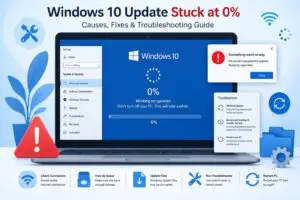
You’ve waited hours, eyes fixed on the “Getting Windows ready” message. It stays frozen. Your PC acts locked after an update or new install. This screen pops up in Windows setup or after major system tweaks. The OS copies files at that point. Endless loops spark fears of a full crash.
This guide shows direct steps to fix the “Getting Windows ready stuck” problem. We list fast checks, full repairs, and tricks to block repeats. Drop the guesswork. These tested fixes guard your time and files.
The Complete Solution: Fixing the Dreaded “Getting Windows Ready” Loop
Introduction: Understanding the Frustration of Being Stuck
That endless loop hits hard. You turn on your PC, and there it is again: “Getting Windows ready. Don’t turn off your computer.” It started after a recent update or hardware swap. Now, it wastes your day and makes you think the whole system is toast.
Windows hits this state while wrapping up changes to its main files. Driver updates or security fixes set it off. If it hangs around, a software bug, hardware issue, or corrupt registry key is usually to blame. You can’t open files or apps, and frustration builds fast.
Stick with this article. It lays out full solutions, not band-aids. You’ll handle software bugs, hardware clashes, and registry woes step by step. By the end, your PC runs smooth again.
Section 1: Initial Triage and The Waiting Game
Determining the Expected Wait Time
First, figure out if it’s truly stuck. “How long does getting Windows ready take?” That’s the top question. It varies by update size and your hardware.
Small security patches finish in 30 minutes to an hour. Major feature updates like Windows 10 to 11 last two to four hours. Slow hard drives extend the time more than fast SSDs. PCs with 8GB RAM or less add extra wait.
Give it four hours max for any update. Track the progress bar if visible. No movement after that? Time to act. Patience pays off early, but don’t wait forever.
Safe Interruption: When to Force a Restart
Forcing a shutdown risks data loss, so know the rules. Hold the power button only after eight hours of no change. Shorter waits can corrupt files and worsen the loop.
Safe cases include when the fan spins wild or the screen flickers. These signs point to a hardware block, not just a slow process. In those spots, a quick power-off beats waiting.
Real example: A user I know faced this after a driver update. It hung for 10 hours straight. They forced restart, then fixed it with tools below. No data gone. Just be smart about it.
Checking the Power Supply Integrity
Power issues can fake a stuck screen. Laptops die mid-update if not plugged in right. Desktops need steady outlets too.
Plug your laptop straight into the wall outlet, not just the charger. Skip battery power for heavy tasks. Desktops need a UPS or surge-protected power strip. Power keeps running even when lights flicker.
Test it simple: Swap cords or outlets. If the loop stops after a power fix, you dodged a bigger problem. Stable power lets Windows finish without restarts.
Section 2: Advanced Boot Sequence Troubleshooting
Leveraging the Windows Recovery Environment (WinRE)
When normal boot fails, head to WinRE. It’s your safety net for deep fixes. Force entry by cutting power during three straight boot tries. Your PC then loads the blue recovery screen.
From there, pick Troubleshoot. It opens options like repair tools and command lines. WinRE loads without the full OS, so it dodges the stuck loop. Perfect for “getting Windows ready stuck” woes.
Stay calm here. The menu looks basic, but it packs power. Follow the steps, and you’ll break free.
Utilizing Startup Repair Tools
Startup Repair scans boot files for damage. Go to Troubleshoot, then Advanced options, then Startup Repair. Click it and let it run.
This tool checks the master boot record and key drivers. It fixes corruption from bad updates. Runs in about 15 minutes, often.
If it finds issues, it reports them. Success means a reboot into normal mode. No fix? Move to the next tool. It saved many from full resets.
System File Checker (SFC) Scan Using Command Prompt
Start Command Prompt in WinRE. Go to Troubleshoot, then Advanced options, then Command Prompt. Type sfc /scannow. Press Enter.
SFC compares all system files to clean versions. It swaps out damaged ones right away. Expect 20 to 40 minutes. Time varies by drive size.
SFC may find errors it cannot repair. Run DISM ahead of it. Enter DISM /Online /Cleanup-Image /RestoreHealth. DISM fetches new files from Windows servers. Run SFC once more. The two steps fix most corrupted systems.
Reverting Changes with System Restore Points
System Restore rolls back without touching your docs. From WinRE, go Troubleshoot > Advanced options > System Restore. Pick a point before the trouble started.
It targets system files and settings only. Apps and files stay safe. Choose from dates like “Before Windows Update” if listed.
Run it, and reboot. Your PC jumps to that stable state. Great for loops after new software. Just ensure you have points enabled in settings beforehand.
Section 3: Addressing Update and Driver Conflicts
Deleting Pending Update Files
Bad update files cause endless loops. Clear them to start fresh. Boot to WinRE, open Command Prompt.
Type cd C:\Windows then ren SoftwareDistribution SoftwareDistribution.old. This renames the folder holding old downloads. Windows grabs new ones next boot.
Exit and restart. Updates redownload clean. No more stuck prep phase. Do this if the issue ties to a recent patch.
Safe Mode Boot to Isolate Third-Party Software
Safe Mode loads bare Windows. No extra apps run. From WinRE, pick Troubleshoot > Advanced options > Startup Settings > Restart. Then hit 4 for Safe Mode.
In Safe Mode, check Event Viewer for errors. Common blocks come from antivirus like Norton or cleaners like CCleaner. Uninstall suspects via Control Panel.
Reboot normal after. If the loop vanishes, you nailed the culprit. Reinstall software one by one to test.
Rolling Back Problematic Drivers
Drivers clash after updates. Boot to Safe Mode first. Open Device Manager from the search bar.
Right-click the device, like your graphics card, and pick Properties > Driver > Roll Back Driver. Confirm if available. This swaps to the old version.
For NVIDIA or Intel chips, this fixes post-update hangs. Reboot and check. If stuck persists, update from the maker’s site, not Windows.
Section 4: Deep System Repair and Reset Options
Utilizing BCD Rebuild Tools
Boot data goes bad in tough loops. Rebuild it with bootrec commands. From WinRE Command Prompt, type bootrec /fixmbr then enter.
Next, bootrec /fixboot. Follow with bootrec /scanos and bootrec /rebuildbcd. These mend the boot store step by step.
Run all four if needed. Takes under 10 minutes. Your PC then boots past the ready screen. Key for severe corruption.
In-Place Upgrade (Repair Install)
Grab Windows media on a USB. Boot from it, pick Repair your computer if asked. Or run setup.exe from the drive in normal mode.
Choose Upgrade to keep files and apps. It reinstalls Windows files fresh. Process takes one to two hours.
This mends deep glitches without wipe. Files stay, but back up first just in case. Best for stuck loops from OS rot.
Clean Install vs. Reset This PC
Reset this PC clears apps but keeps files. From Settings > Update & Security > Recovery, pick Reset this PC. Choose Keep my files.
For total clean, boot from media and install fresh. Wipes everything, so back up all. Use reset for quick fixes; clean for stubborn cases.
Reset runs in 30 minutes. Clean takes longer but solves root issues. Pick based on your data risk.
FAQs For Getting Windows Ready Stuck
Why is my PC stuck on “Getting Windows Ready”?
This happens when Windows installs updates or finishes a system change. It often looks frozen, but the PC is working in the background. Give it at least two hours to finish.
How long should I wait before restarting?
Wait about two hours if you have a slow hard drive. SSDs are faster, but large updates still take time. If the screen doesn’t change after that, it may be truly stuck.
Will a hard reset delete my files?
A hard reset usually does not erase your personal files. However, it can corrupt the update process. Use this as a last resort if the screen stays frozen for hours.
What should I do if the screen is frozen?
Hold the power button until the PC shuts off. Unplug any USB drives or printers. Turn it back on to see if Windows can boot or roll back the update.
How can I prevent this from happening again?
Check for updates manually before you shut down your PC. Make sure you have a stable internet connection. This helps the system finish the work before it tries to restart.
Conclusion: Moving Forward After Recovery
You made it through the “getting Windows ready stuck” nightmare. Key steps like Startup Repair, SFC scans, and BCD rebuilds pull most users out. In-place upgrades handle the rest without data loss.
Prevent repeats with smart habits. Back up weekly. Disable antivirus before big updates. Keep drivers current from official sites. Run disk checks monthly via chkdsk.
Take these actions now. Your PC stays reliable. No more hours lost to loops. If trouble hits again, start with WinRE. You’ve got the tools.
Getting Windows Ready Stuck Getting Windows Ready Stuck Getting Windows Ready Stuck Getting Windows Ready Stuck Getting Windows Ready Stuck Getting Windows Ready Stuck Getting Windows Ready Stuck Getting Windows Ready Stuck Getting Windows Ready Stuck Getting Windows Ready Stuck Getting Windows Ready Stuck