Table of Contents
Introduction
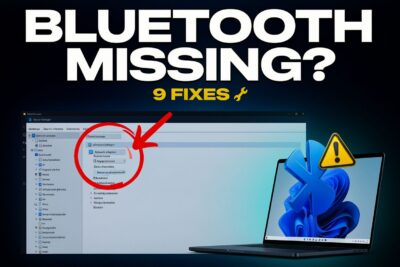
You open Device Manager, scroll down looking for the Bluetooth category, and it isn’t there. No adapter, no radio, nothing. If you’re dealing with bluetooth not showing up in device manager, you can’t pair headphones, a mouse, or a keyboard, and the Bluetooth toggle in Settings may have disappeared too.
This problem is common, and most of the time you can fix it without buying new hardware. This guide covers why it happens and how to solve it, starting with two-minute checks and moving on to driver, BIOS, and hardware fixes. The steps work on Windows 10 and Windows 11, on both laptops and desktops.
Why Is Bluetooth Not Showing Up in Device Manager?
Device Manager lists the hardware Windows can detect. If the Bluetooth category is gone, Windows either can’t see your Bluetooth adapter or has hidden it. The usual causes are:
- A stopped Bluetooth Support Service
- A corrupted, missing, or mismatched Bluetooth driver
- Hidden devices that aren’t displayed by default
- Airplane mode, a function-key switch, or a physical wireless switch
- Fast Startup or power management leaving the adapter in a bad state
- Bluetooth disabled in BIOS/UEFI
- A recent Windows update that replaced a working driver
- A loose, damaged, or failed adapter
Knowing which bucket you’re in saves time. If bluetooth not showing up in device manager started right after a Windows update, focus on the driver fixes. If it started after you opened the laptop, added an M.2 card, or moved a PC, check the BIOS and the hardware first.
Fix 1: Do a Full Shutdown and Hard Reset
It sounds too simple, but this solves more cases than you’d expect. Windows Fast Startup doesn’t fully power down the machine, so a glitched Bluetooth adapter can stay glitched across “restarts.”
- Click Start, then Power, and hold Shift while clicking Shut down.
- Unplug the charger. On a laptop with a removable battery, take it out.
- Hold the power button for 30 seconds to drain leftover charge.
- Reconnect power, start the PC, and check Device Manager again.
To stop this from recurring, open Control Panel, go to Power Options, click “Choose what the power buttons do,” then “Change settings that are currently unavailable,” and uncheck Turn on fast startup.
Fix 2: Check Airplane Mode and the Fn Key
Many laptops have a wireless key (often F2, F3, or F12) that switches the radios off at the hardware level. When that happens, Windows may not list the adapter at all.
Press the wireless or airplane-mode key, or Fn plus that key, and turn off Airplane mode in Settings. On Windows 11, also open Quick Settings and look for the Bluetooth tile. On some brands, such as Lenovo, HP, and Dell, a utility or hotkey app controls the wireless state, so make sure it’s installed and running.
Fix 3: Show Hidden Devices in Device Manager
Sometimes the adapter is present but hidden. This is one of the quickest ways to solve bluetooth not showing up in device manager, so don’t skip it.
- Right-click Start and open Device Manager.
- Click View in the top menu.
- Choose Show hidden devices.
- Expand Bluetooth, Network adapters, and Other devices.
Look for entries like “Generic Bluetooth Radio,” “Intel Wireless Bluetooth,” “Realtek Bluetooth,” or an “Unknown device” with a yellow warning icon. An unknown device usually means the hardware is detected but has no working driver, which leads to Fix 6.
Fix 4: Restart the Bluetooth Support Service
Windows relies on a background service to manage Bluetooth. If it stops, your Bluetooth option can go missing from Settings and misbehave in Device Manager.
- Press Win + R, type
services.msc, and press Enter. - Find Bluetooth Support Service.
- Right-click it and choose Restart (or Start if it’s stopped).
- Double-click it, set Startup type to Automatic, and click Apply.
By default the service is set to Manual (Trigger Start), which works for most people. Setting it to Automatic helps when it fails to start on its own. If the service is missing or won’t start, you likely have deeper system file issues, so jump to Fix 9.
Fix 5: Run the Windows Bluetooth Troubleshooter
The built-in troubleshooter isn’t perfect, but it can reset stuck settings and restart services for you.
- Windows 11: Settings → System → Troubleshoot → Other troubleshooters → Bluetooth → Run
- Windows 10: Settings → Update & Security → Troubleshoot → Additional troubleshooters → Bluetooth → Run the troubleshooter
Follow the prompts and restart the PC even if it reports nothing was found. If the troubleshooter says “Bluetooth doesn’t have a valid driver” or can’t find the adapter, the problem is almost certainly the driver or the hardware.
Fix 6: Reinstall or Update the Bluetooth Driver
A bad Bluetooth driver is the most common reason a Bluetooth adapter disappears from Device Manager. Windows Update sometimes installs a generic driver that doesn’t match your hardware, or overwrites a working one.
Step 1: Uninstall the current driver (if you can see it).
In Device Manager, right-click your Bluetooth adapter, choose Uninstall device, and tick “Attempt to remove the driver for this device” if offered. Restart the PC and let Windows try to reinstall it.
Step 2: Install the manufacturer’s driver.
Don’t rely only on Windows Update. Go to your laptop or motherboard maker’s support page (Dell, HP, Lenovo, ASUS, Acer, MSI, Gigabyte), enter your exact model or serial number, and download the Bluetooth driver from the Drivers or Downloads section. Most Bluetooth chips come from Intel, Realtek, Qualcomm, or MediaTek, and the maker’s version is tuned for your machine.
Step 3: Try a rollback.
If the issue began after an update, open the adapter’s Properties, go to the Driver tab, and click Roll Back Driver if it’s available.
Avoid random “driver updater” tools. They often install the wrong package and can make the problem worse. Stick with the manufacturer’s site.
Fix 7: Check Power Management and USB Settings
Windows can switch off devices to save power, and sometimes the Bluetooth adapter doesn’t come back properly.
Open Device Manager, right-click your Bluetooth adapter (or USB Root Hub entries if you use a USB dongle), choose Properties, and open the Power Management tab. Uncheck Allow the computer to turn off this device to save power. In Control Panel → Power Options → Change plan settings → Change advanced power settings, also disable USB selective suspend.
On a laptop, temporarily switching to the “Best performance” power mode is a quick way to test whether power saving is involved.
Fix 8: Enable Bluetooth in BIOS/UEFI
If Windows can’t see the adapter no matter what you try, it may be disabled in firmware. This happens after BIOS updates, BIOS resets, or on business laptops with strict wireless settings.
- Restart and press the BIOS key repeatedly (usually F2, Del, F10, or Esc, depending on your maker).
- Look for settings named Onboard Bluetooth, Wireless, Bluetooth Device, or WLAN/Bluetooth under Advanced, Integrated Peripherals, or Wireless.
- Make sure Bluetooth is Enabled.
- Save and exit, then boot into Windows.
If you don’t see any Bluetooth option, your adapter may be a separate USB device or an M.2 card that the BIOS doesn’t list. In that case you can move on. Also, if you recently reset the BIOS to defaults and bluetooth not showing up in device manager began right after, this is the first place to look.
Fix 9: Repair System Files and Windows Updates
If the Bluetooth service won’t start or errors keep appearing, corrupted system files may be the cause. Open Command Prompt as administrator and run these one at a time:
sfc /scannow
DISM /Online /Cleanup-Image /RestoreHealth
Let both finish (DISM can take a while), then restart. Next, open Windows Update and install any pending updates, including optional driver updates. Microsoft has released fixes for Bluetooth bugs in the past, so being current helps. If a specific update broke Bluetooth, you can uninstall it under Settings → Windows Update → Update history → Uninstall updates, and pause updates for a week or two while a fix arrives.
When It’s a Hardware Problem
If none of the fixes work, consider hardware:
- Combo Wi-Fi/Bluetooth card: Most laptops use a single M.2 card for both. If Wi-Fi is also missing or unstable, the card may be loose or failing. Reseating or replacing it is usually inexpensive.
- Internal USB connector: Some laptops connect Bluetooth through an internal USB header. A loose connector after a repair or drop can make the adapter vanish.
- Desktop PC: Try a different USB port for your Bluetooth dongle, avoid unpowered hubs, and test the dongle on another computer.
- Cheap adapter: Very low-cost dongles often have poor Windows driver support.
A quick, inexpensive workaround is a USB Bluetooth 5.0 or 5.3 adapter from a known brand. Plug it in, install its driver if needed, and it should show up under Bluetooth in Device Manager right away. If the built-in adapter is dead, this may be the cheapest fix.
Frequently Asked Questions
1.Why is Bluetooth missing from Device Manager on Windows 11?
The most common reasons are a missing or corrupted driver, a stopped Bluetooth Support Service, or the adapter being disabled in BIOS. Check hidden devices first, then reinstall the manufacturer’s driver.
2.How do I fix Bluetooth not showing up in device manager after a Windows update?
Roll back the driver or install the latest Bluetooth driver from your PC maker’s website. If that fails, uninstall the recent update and pause updates temporarily.
3.Can a BIOS update cause Bluetooth to disappear?
Yes. A BIOS update or reset can turn wireless features off. Check the BIOS wireless settings and enable Bluetooth.
4.Is my Bluetooth adapter dead if nothing works?
Not necessarily, but if it doesn’t appear in Device Manager, BIOS, or after a driver reinstall, hardware failure becomes likely. A USB Bluetooth adapter is a simple way to confirm and work around it.
Final Thoughts
Seeing bluetooth not showing up in device manager is annoying, but the fix is usually simple: a hard reset, unhiding devices, restarting the Bluetooth Support Service, or installing the right driver from your manufacturer. Work through the steps in order, since they go from easiest to most involved, and you’ll likely solve it before reaching the hardware section.
If this guide helped, note which fix worked so you can save time if it happens again.