Table of Contents
Introduction in ASUS Laptop Keeps Disconnecting from WiFi Windows 11
An ASUS laptop that keeps disconnecting from WiFi in Windows 11 can turn a simple browsing session into a constant reconnecting battle. One minute everything works normally; the next, the WiFi icon disappears, the connection drops, or Windows says “No Internet.”
The good news is that this problem is usually fixable without replacing your laptop or router. The cause can be a wireless driver, power-management setting, Windows network configuration, router interference, or a recent system update. This guide walks through the practical fixes in the order I recommend trying them.
Why Does an ASUS Laptop Keep Disconnecting From WiFi in Windows 11?
Before changing advanced settings, it helps to identify where the problem actually starts. If your phone and other computers stay connected to the same WiFi while only your ASUS laptop disconnects, the laptop is the stronger suspect.
Common causes include:
- Outdated or incompatible WiFi drivers
- A faulty wireless adapter configuration
- Windows 11 power-saving settings
- Recent Windows or driver updates
- Corrupted network settings
- Weak WiFi signal or interference
- Router firmware or configuration problems
- Incorrect wireless adapter settings
- Temporary problems with the WiFi service
- Hardware issues with the wireless adapter
ASUS specifically recommends checking whether the problem comes from the laptop, network equipment, or internet service before moving into deeper troubleshooting.
The wireless adapter manufacturer also matters. ASUS laptops can use Intel, Realtek, MediaTek, Qualcomm, or other wireless hardware depending on the model, so downloading a random WiFi driver is not a good idea. Use the driver intended for your exact ASUS model.
Quick Fixes for ASUS Laptop WiFi Disconnecting
Try these simple fixes before changing driver or adapter settings:
- Restart the ASUS laptop.
- Restart the router and modem.
- Move the laptop closer to the router temporarily.
- Turn WiFi off and back on in Windows 11.
- Disconnect from the network and reconnect using the correct password.
- Check whether another device stays connected to the same WiFi.
- Temporarily disconnect a VPN if one is installed.
- Install pending Windows updates.
- Run the Windows network troubleshooter.
- Open MyASUS and run its wireless connectivity diagnosis if your model supports it.
Windows 11 lets you manage saved WiFi networks through Settings > Network & internet > Wi-Fi, while Microsoft also recommends checking whether other devices can connect to help isolate the problem.
If the connection still drops, move to the following steps.
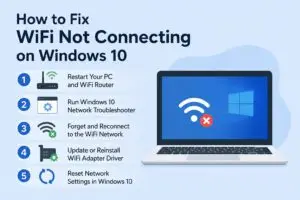
Step 1: Turn Off WiFi Adapter Power Saving
Windows can reduce power consumption by allowing the system to turn off certain devices when they are not actively needed. On some laptops, wireless power-management behavior can contribute to intermittent WiFi connections.
Change the adapter’s power setting
- Right-click the Start button.
- Select Device Manager.
- Expand Network adapters.
- Find your ASUS laptop’s wireless adapter.
- Right-click it and select Properties.
- Open the Power Management tab.
- If you see Allow the computer to turn off this device to save power, review the setting.
- Restart the laptop.
The exact adapter name varies by ASUS model. You might see something such as Intel Wi-Fi, Realtek Wireless LAN, MediaTek Wi-Fi, or Qualcomm Wireless.
If the Power Management tab is unavailable, don’t worry. Newer Windows drivers don’t always expose the same options.
Also check Windows power settings
Go to:
Settings > System > Power & battery
Make sure Windows isn’t aggressively using a power-saving mode while you’re testing the connection.
Now use the laptop normally for several minutes. If WiFi remains stable, power management may have been contributing to the problem.
Step 2: Update or Reinstall the ASUS WiFi Driver
This is one of the most important fixes when an ASUS laptop keeps disconnecting from WiFi in Windows 11.
A Windows update can sometimes change drivers or expose compatibility problems. ASUS maintains model-specific wireless drivers through its official support site, and its current troubleshooting guidance recommends updating wireless and Bluetooth drivers when dealing with WiFi problems.
ASUS Support and Driver Download Center
First, identify your wireless adapter
Open:
Device Manager > Network adapters
Write down the exact WiFi adapter name.
For example:
- Intel Wi-Fi 6 AX201
- Intel Wi-Fi 6E AX211
- Realtek WiFi adapter
- MediaTek WiFi adapter
- Qualcomm wireless adapter
Don’t assume every ASUS laptop uses the same driver. ASUS support pages show different wireless drivers for different hardware configurations and models.
Download the correct driver
Visit ASUS Support and enter your exact laptop model. Select Windows 11 64-bit, then look under the networking or wireless section.
Download the WLAN driver that matches your hardware.
If your laptop currently has no reliable internet connection, Microsoft recommends downloading the network driver on another device and transferring it using a USB drive when necessary.
Reinstall the wireless adapter
If updating doesn’t help:
- Open Device Manager.
- Expand Network adapters.
- Right-click the wireless adapter.
- Select Uninstall device.
- Follow the prompts carefully.
- Restart Windows.
ASUS’s current troubleshooting documentation also describes uninstalling and reinstalling wireless and Bluetooth drivers when wireless problems persist.
After restarting, Windows may reinstall the adapter automatically. If it doesn’t, install the ASUS driver you downloaded earlier.
Tip: If the problem started immediately after a driver update, check whether Roll Back Driver is available in the adapter’s Properties. A previous stable driver can sometimes be more useful than the newest one.
Step 3: Reset Windows 11 Network Settings
If the WiFi driver looks fine but the ASUS laptop still repeatedly disconnects, corrupted or incorrect network configuration could be responsible.
Windows has built-in commands that reset parts of the networking stack.
Use Command Prompt
Search Windows for Command Prompt, right-click it, and choose Run as administrator.
Run these commands one at a time:
netsh winsock reset
netsh int ip reset
ipconfig /release
ipconfig /renew
ipconfig /flushdns
Restart the laptop after running them.
Microsoft documents these commands as a way to reset Winsock and TCP/IP, renew the IP configuration, and clear the DNS resolver cache when troubleshooting connectivity problems.
Try Windows Network Reset
If the problem remains:
Settings > Network & internet > Advanced network settings > Network reset
Then select Reset now.
Network reset removes installed network adapters and resets their settings to defaults before reinstalling the adapters after the restart. Microsoft recommends treating network reset as a later troubleshooting step rather than the first thing to try.
Keep in mind that network reset can affect VPN software, virtual network adapters, and other networking configurations. You may need to configure those again afterward.
Step 4: Check the Router, Signal, and WiFi Band
Not every ASUS laptop WiFi problem is caused by Windows.
Here’s a simple test: connect your ASUS laptop to a different WiFi network, such as a trusted hotspot or another network you are allowed to use.
If the laptop works perfectly on the second network, your home router or WiFi environment becomes much more suspicious.
Check your WiFi signal
A weak signal can cause repeated disconnects, especially when you’re several rooms away from the router.
For testing, place the laptop close to the router.
If the connection becomes stable, investigate:
- Router placement
- Walls and physical obstructions
- WiFi interference
- 2.4 GHz vs. 5 GHz behavior
- Router firmware
- Congested wireless channels
Test another WiFi band
If your router provides both 2.4 GHz and 5 GHz networks, test them separately.
The 2.4 GHz band generally travels farther, while 5 GHz can provide higher performance at shorter distances. The best option depends on your environment and router.
Don’t immediately change dozens of router settings. Change one thing, test it, and keep track of the result.
Restart the network equipment
Power off the modem and router, wait briefly, then restart them. Once the WiFi network is available again, reconnect the ASUS laptop.
If every device in your home disconnects at roughly the same time, the router or internet connection is more likely to be responsible than the ASUS laptop.
Step 5: Run MyASUS Wireless Diagnosis and Check for Recent Changes
ASUS provides its own diagnostic tools through MyASUS on supported devices.
Open MyASUS, select System Diagnosis, then look for the wireless connectivity diagnostic option. ASUS’s current documentation says the tool can check for wireless connectivity problems and provide troubleshooting suggestions when errors are detected.
ASUS Official WiFi Troubleshooting Guide
Check Windows Update history
If the ASUS laptop started disconnecting immediately after Windows 11 updated, think about what changed.
Go to:
Settings > Windows Update > Update history
Look for recent updates.
Don’t uninstall updates randomly. First determine whether the timing strongly matches the beginning of the WiFi problem.
Also check for updated ASUS drivers and BIOS firmware for your exact model. ASUS provides model-specific downloads rather than one universal driver package.
Use System Restore when appropriate
If the WiFi problem appeared recently and a suitable restore point exists, System Restore can be worth considering.
ASUS lists restoring the system to an earlier restore point as a possible troubleshooting step when a wireless problem began recently.
Before making major system changes, back up important files.
What If ASUS WiFi Disconnects Only When the Laptop Sleeps?
This is a slightly different situation.
If WiFi works normally while you’re actively using the laptop but disappears after sleep or waking, investigate power-management behavior first.
Try:
- Updating the WLAN driver.
- Checking Device Manager power settings.
- Installing ASUS chipset and system drivers.
- Updating Windows.
- Checking ASUS BIOS/firmware updates for your exact model.
- Restarting after driver changes.
Avoid downloading unofficial driver packages from random websites. The wireless adapter is a core part of your laptop’s networking system, so the manufacturer’s driver is the safer starting point.
What If WiFi Disconnects After Windows 11 Updates?
When the problem begins directly after an update, don’t assume Windows itself is permanently broken.
The update may have changed a network driver, system component, or configuration. ASUS’s troubleshooting process includes updating wireless/Bluetooth drivers, updating Windows and BIOS where appropriate, and using recovery options if the problem continues.
A sensible order is:
- Restart Windows.
- Check Windows Update.
- Update the ASUS WLAN driver.
- Restart.
- Test another WiFi network.
- Reset network settings if necessary.
- Use System Restore if the issue clearly began after a recent change and a suitable restore point exists.
This approach is safer than immediately performing a full Windows reset.
FAQs About ASUS Laptop Keeps Disconnecting From WiFi Windows 11
Why does my ASUS laptop keep disconnecting from WiFi?
The most common possibilities include an unstable WiFi driver, power-management behavior, weak wireless signal, router problems, corrupted Windows network settings, or compatibility issues after an update. Testing another WiFi network is one of the quickest ways to separate laptop-related problems from router-related problems.
How do I stop my ASUS laptop from disconnecting from WiFi?
Start by restarting the router and laptop, checking the wireless signal, updating the ASUS WiFi driver, reviewing adapter power settings, and resetting Windows networking if necessary.
Should I update my ASUS WiFi driver?
Yes, especially if the problem started after a Windows update or if the current driver is old. Use the driver listed for your exact ASUS laptop model rather than installing a generic package from an unknown source. ASUS provides model-specific driver downloads through its support center.
Can a bad WiFi driver cause frequent disconnections?
Yes. A driver manages communication between Windows and the physical wireless adapter. If the driver is incompatible, corrupted, outdated, or behaving incorrectly, intermittent connection problems can occur.
Does restarting the router fix ASUS WiFi disconnecting?
It can. If the router has temporarily developed a connection or DHCP problem, restarting it may restore normal operation. However, if only the ASUS laptop keeps disconnecting while other devices remain stable, investigate the laptop as well.
Should I use Windows Network Reset?
Network Reset can help when ordinary troubleshooting doesn’t solve the problem. Microsoft recommends using it as a later step because it removes network adapters and resets networking configuration. VPN and other virtual networking software may need to be configured again afterward.
What if my ASUS laptop disconnects from every WiFi network?
If it disconnects from multiple unrelated networks, the laptop’s software or hardware becomes more likely to be responsible. Check the WLAN driver, Device Manager, Windows network configuration, MyASUS diagnostics, and ASUS support options.
What if only my home WiFi disconnects?
If another WiFi network works normally, focus on your router, wireless signal, interference, router configuration, and internet service. The laptop’s WiFi hardware may be perfectly healthy.
Final Thoughts an ASUS Laptop Keeps Disconnecting From WiFi Windows 11
When an ASUS laptop keeps disconnecting from WiFi in Windows 11, don’t jump straight to a factory reset. Start with the basics, then work toward the more technical fixes.
The most useful troubleshooting sequence is:
- Check whether other devices have the same problem.
- Restart the router and ASUS laptop.
- Test the laptop on another WiFi network.
- Check WiFi adapter power settings.
- Update or reinstall the correct ASUS WLAN driver.
- Reset the Windows networking stack.
- Use Network Reset if necessary.
- Run wireless diagnostics through MyASUS.
- Check recent Windows, driver, and BIOS changes.
- Consider System Restore when the problem clearly began after a recent change.
ASUS Official Support and Microsoft Windows Support are the best places to verify model-specific drivers and Windows networking procedures.
The key is to change one thing at a time and test the connection after each change. That makes it much easier to identify the real cause instead of applying ten fixes and never knowing which one actually solved the problem.
If your ASUS laptop is still disconnecting after all five steps, the next useful clue is when it disconnects—during sleep, under heavy downloads, only far from the router, or randomly. That pattern can point directly toward the next troubleshooting step.