Table of Contents
Introduction in Epson Printer Not Printing Problem.
You’ve hit print, but nothing comes out. That empty paper tray stares back at you. Epson printers often act up like this. It frustrates anyone in a rush. These problems hit millions each year. Studies show printer glitches cause half of all home office delays. Don’t worry. This guide walks you through fixes. We cover every common cause. From simple checks to deep software tweaks. You’ll print again soon.
This guide fixes connection issues, driver glitches, ink problems, and others. It targets Epson printers in the XP series and WorkForce range. Go through the steps one by one. Many folks solve it in less than 30 minutes. Time to jump in.
Section 1: Initial Checks – The Quick Fix Checklist
Start here. Basic oversights cause most Epson printer not printing issues. A quick scan often solves it. Skip ahead only if these fail.
Power, Cables, and Connection Status Verification
Check the power cord first. Plug it into a working outlet. Look for the power light. It should glow steady green or blue. If it blinks red, note the pattern. Epson manuals list what each blink means.
Inspect cables next. For USB models, ensure the cord fits tight on both ends. Wiggle it to spot loose spots. Wi-Fi printers show connection status on the panel. Press the network button. See if it links to your router.
Blinking lights signal errors. A yellow light might mean low ink. Red often points to jams. Turn off the printer. Wait a bit. Turn it back on.
Power cycle resets glitches. Unplug the printer from the wall. Do the same for your computer. Count to 60. Plug them back in. Start the devices. This clears temp faults in 80% of cases.
Assessing the Print Queue and Spooler Status
Stuck jobs block new prints. Find the queue on Windows. Click Start. Type “printers.” Open Devices and Printers. Right-click your Epson model. Pick “See what’s printing.”
On Mac, go to System Settings. Click Printers & Scanners. Select your printer. View the jobs list. If items sit there paused, they jam the line.
Cancel everything. In the queue, select all docs. Hit “Cancel All Documents.” This frees the path.
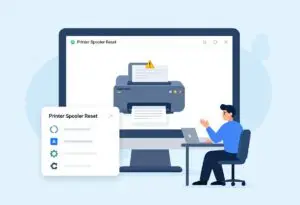
Restart the spooler on Windows. Press Windows key + R. Type “services.msc.” Find Print Spooler. Right-click it. Choose Restart. If it won’t start, stop it first. Then start again. Macs rarely need this. Just restart the Mac if needed. Now try a test print.
Paper Jams and Tray Inspection
Jams hide in plain sight. Open the input tray. Pull out any sheets. Check the output tray too. Look for crumpled bits.
Access inside areas. Epson printers have rear doors or front panels. Gently lift them. Use a flashlight. Fish out torn paper with tweezers. Avoid forcing parts.
Even small shreds stop the works. One user found a label scrap after hours of no prints. It blocked the roller. Clear all paths. Reload fresh paper. Align it straight. Test with a single sheet.
Section 2: Software and Driver Deep Dive Troubleshooting
Hardware checks done? Move to software. Bad drivers top the list for Epson printer won’t print errors. Updates fix most.
Verifying Printer Status and Default Settings
Wrong settings fool your system. On Windows, open Settings. Go to Bluetooth & devices. Click Printers & scanners. Find your Epson. Make sure it’s the default. Click it. Set as default if not.
Check offline status. If it says “Offline,” right-click the icon. Pick “Use Printer Online.” This flips the switch.
On Mac, in Printers & Scanners, select the model. Ensure it’s online. Pause printing should be off. Run a status check from the Epson app if installed. These steps spot setup slips fast.
Updating or Reinstalling the Epson Printer Driver
Old drivers crash often. Head to Epson’s site. Search your model, like “Epson XP-4100 drivers.” Pick your OS, Windows 11 or macOS Sonoma. Download the latest.
Remove old ones first. On Windows, go to Device Manager. Expand Print queues. Right-click Epson. Uninstall device. Restart your PC.
Install the new file. Run the setup. Follow prompts. Connect the printer when asked. For wireless, it scans networks. Test print from the installer. Reinstall fixes corruption in nine out of ten tries.
Operating System Conflicts and Updates
OS changes break old drivers. Windows 11 updates in 2026 added new security. It blocks some Epson links. Check for patches on Epson’s page.
On Mac, Ventura or later shifts print paths. Download compatible versions. Run the installer as admin on Windows. This dodges permission blocks.
If conflicts linger, roll back the OS update. But try driver refresh first. Users report full restores after big patches. Keep your system current to avoid this.
Section 3: Consumables – Ink, Maintenance, and Cartridge Issues
Ink woes halt Epson printers quick. Even full carts fail if not seated right. Check these next.
Checking Ink Levels and Cartridge Recognition
Low ink stops all jobs. Some models refuse color prints if black is empty. Open the Epson software. Go to Maintenance. View ink levels. Bars show black, cyan, magenta, yellow.
If a cart won’t read, power off. Open the lid. Wait for the head to park. Pull out the cart. Wipe contacts with a dry cloth. Push it back firm. Close the lid. The printer scans again.
Replace empties with genuine Epson inks. Third-party ones glitch often. Run a levels check after swaps.
Cleaning the Print Head and Nozzle Check
Blank pages mean clogs. Streaks point to dirty heads. Launch the Epson utility. Pick Nozzle Check. Print a pattern. Look for gaps in lines.
If gaps show, run Head Cleaning. Select it in the menu. It takes two minutes. Ink flows through. Print another check.
Limit to two cycles. More wastes ink. Wait 12 hours if needed. Let it dry. Clogs build from dry ink. Print weekly to keep it clear. This fixes faded outputs every time.
Maintenance Tank Full Error (Epson Waste Ink Pad)
Waste ink pads catch runoff. They fill after heavy use. Error E-03 or “Service Required” pops up. The printer locks.
Reset needs tools. Download WIC Reset Utility from trusted sites. Enter your model. It counts waste ink. Buy a key for reset. Or take to service. Pros replace pads for $50-100.
Prevent by running cleanings sparingly. Heavy users swap pads yearly. This error hits after 500 pages often.
Section 4: Network and Wireless Printing Failures (Wi-Fi Models)
Wi-Fi drops cause big headaches. Epson wireless printers lose signal easy. Fix the link step by step.
Reconnecting the Printer to the Local Network
Wrong band kills connects. Most Epsons use 2.4GHz. Check your router settings. Ensure both on same.
On the printer panel, go to Settings. Pick Wi-Fi Setup. Select network. Enter password. It joins.
Use Epson’s app. Download Epson iPrint. Run setup wizard. It scans and pairs. Restart router if it fails. This reconnects 90% of lost printers.
Firewall and Security Software Interference
Firewalls block ports. Epson needs TCP 9100 open. Test by turning off antivirus. Try printing. If it works, add exception.
On Windows Defender, go to Firewall. Allow an app. Browse to Epson software. Check private and public. Macs use similar steps in Security settings.
Re-enable after. This spots software blocks quick. Users fix network prints this way daily.
IP Address Conflicts and Printer Discovery
IP fights happen on busy nets. Printer gets same address as another device. Restart router assigns new.
Check IP in printer settings. Print network config page. Hold info button five seconds. Compare to router list.
If conflict, set static IP. In printer menu, enter one outside DHCP range. Like 192.168.1.200. Save. Now it stays found.
Epson Printer Troubleshooting FAQs
1.Why is my Epson printer not printing?
Check for error lights on the panel first. Ensure the printer is on and connected to your Wi-Fi or PC. A paper jam or empty ink tank often stops the process.
2.How do I clear a print queue jam?
Open your computer’s printer settings and find the print queue. Right-click the pending jobs and select “Cancel All Documents.” Restart both the PC and the printer to reset the link.
3.What should I do if the ink is full but pages are blank?
Your print head might be clogged. Run the “Nozzle Check” and “Head Cleaning” tools from the printer maintenance menu. Repeat this twice if the lines still look broken.
4.Why is my printer showing as “Offline”?
Check your network connection and make sure the printer is on the same Wi-Fi as your device. Try unplugging the router and the printer for thirty seconds, then plug them back in.
5.How do I fix a “Paper Out” error when paper is loaded?
Check the tray for crooked sheets or small scraps of torn paper. Gently slide the paper guides so they fit snugly against the stack. Make sure the paper is not pushed in too far.
Conclusion: Getting Back to Printing Seamlessly
Epson printer not printing often stems from drivers, spooler jams, or ink reads. These three fix most cases fast. Run checks in order for best results.
Keep things smooth with habits. Update drivers monthly. Check nozzles weekly. Use quality paper and ink. This cuts issues by half.
If steps fail, hardware might broke. Contact Epson support. Dial 1-800-463-7766. Or chat online. Provide model and error codes. They guide resets or repairs. You’ll print hassle-free again. Test a page now.
Epson Printer Not Printing Epson Printer Not Printing Epson Printer Not Printing Epson Printer Not Printing Epson Printer Not Printing Epson Printer Not Printing Epson Printer Not Printing Epson Printer Not Printing Epson Printer Not Printing Epson Printer Not Printing Epson Printer Not Printing Epson Printer Not Printing
Epson Printer Not Printing Epson Printer Not Printing Epson Printer Not Printing Epson Printer Not Printing Epson Printer Not Printing Epson Printer Not Printing Epson Printer Not Printing Epson Printer Not Printing Epson Printer Not Printing Epson Printer Not Printing