
Table of Contents
Introduction in HP Laptop Not Charging
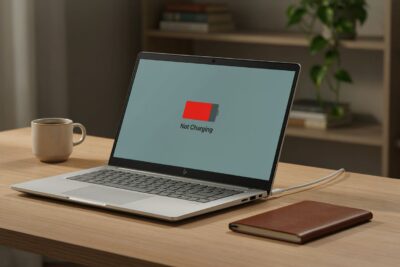
Your HP laptop sits on your desk showing just 42% battery while plugged in. You press the power button but it dies the moment you unplug the charger. This frustrating scenario happens more often than you might think. Charging failures stem from bad adapters, damaged ports, worn batteries, or software glitches. Some issues need quick fixes while others require professional repair. This guide walks you through simple checks first before moving to advanced solutions. You can solve most charging problems without opening your laptop.
Step1: Identify Why Your HP Laptop Won’t Charge
A laptop that shows no power differs from one running on AC but not charging. Some machines charge slowly or stop halfway due to protection features. Recognizing which behavior you face helps pick the right fix path. No LED lights point to adapter or outlet issues. Windows showing “plugged in, not charging” suggests battery or driver trouble. A percentage stuck at a specific number might mean the battery is worn out or disabled.
HP Laptop Not Charging
Common charging symptoms include
- No charging light or power response signals outlet, adapter, or port failure
- Plugged in but not charging message indicates software or battery management settings
- Battery percentage stuck at a specific level suggests capacity loss or protection mode
- Charging only when cable held at an angle points to damaged connector or port
- Switching between charging and battery power means loose connections or failing components
- Battery draining while connected occurs when system power exceeds adapter capacity
- Laptop powering off immediately after unplugging shows battery cannot hold charge
- “Battery not detected” warnings indicate faulty battery recognition or hardware issues
HP and Windows include battery protection features that pause charging to reduce wear. Adaptive charging stops near 80 percent to extend battery lifespan. Optimized charging waits until you disconnect power before reaching 100 percent. A charge stopping near high percentages may be intentional rather than defective. These features help preserve your battery for years but confuse users who expect full charges.
HP Laptop Not Charging
Distinguish between charger, battery, software, and port problems using this framework. No LED plus no power requires checking outlets, cables, and connectors. Laptop works on AC but battery doesn’t increase points to drivers or firmware. Charging changes when the cable moves signals port or cable damage. Battery fails across multiple compatible chargers means internal battery or charging circuit issues.
HP Laptop Not Charging
Step2: Perform Safe Power and Charger Checks First
Start with non-invasive steps that resolve loose connections and temporary glitches. These actions don’t require opening your laptop or voiding warranties. You can complete them in under ten minutes before trying deeper diagnostics.
2.1 Verify wall outlet and connection first
Test another known-working outlet to rule out power supply issues. Connect the adapter directly to the wall instead of using extension cords or strips. Ensure the charger plugs fully into both the laptop and the adapter brick. Loose connections prevent charging even when the laptop appears powered up.
HP Laptop Not Charging
2.2 Inspect HP charger and cable for physical damage
Look for exposed wires, melted plastic, bent connectors, or fraying near strain relief areas. Watch for unusual heat, buzzing sounds, or burning smells during operation. Stop using visibly damaged or overheating equipment immediately. Replace any compromised components before continuing troubleshooting attempts.
HP Laptop Not Charging
2.3Confirm charger meets laptop requirements
Compare the adapter output specifications printed on its label against your laptop’s needs. Check original documentation or the rating plate on your HP device base. Low-wattage USB-C chargers won’t power demanding laptops even if they connect physically. Third-party and non-certified replacements often fail to deliver stable power delivery.
HP Laptop Not Charging
2.3 Perform an HP power reset procedure
Shut down your laptop completely before starting. Disconnect the charger and all external accessories including mice and drives. Remove the battery only if your model supports user removal safely. Hold the power button for approximately fifteen to thirty seconds to drain residual power. Reconnect the charger and test normal operation afterward. Never force removal of internal batteries designed for technician service only.
HP Laptop Not Charging
Step3: Restore Charging Through Windows, BIOS, and Diagnostics
Corrupted drivers, outdated firmware, and incorrect settings affect charging functionality. These software elements manage how power flows to your battery during operation. Corrupted battery drivers frequently cause false charging status messages. Outdated BIOS versions may lack compatibility with newer power management features. HP Support Assistant includes diagnostic tools specifically designed for this purpose. Create backups before making major firmware changes as safety precaution.
HP Laptop Not Charging
3.1 Reinstall Microsoft ACPI battery drivers manually
Open Device Manager through Windows search or Run dialog. Expand the Batteries category to see installed devices. Uninstall both Microsoft AC Adapter and Microsoft ACPI-Compliant Control Method Battery entries. Restart your laptop so Windows reinstalls these drivers automatically during boot. Check charging status again after system restart completes successfully. Record current battery percentage and charging message before restarting for easier comparison.
HP Laptop Not Charging
3.2 Run Windows battery diagnostics and generate reports
Open Command Prompt as administrator through search results. Execute powercfg /batteryreport command to create analysis file. Open the generated HTML report located in your user folder easily. Compare Design Capacity numbers against actual Full Charge Capacity figures. Review recent usage patterns and charge cycle counts when available. Use this report to distinguish display glitches from real capacity loss.
HP Laptop Not Charging
3.3 Use HP Support Assistant and hardware diagnostics
Launch HP Support Assistant from Start menu or desktop icon. Navigate to diagnostics section and run full system check. Select battery and AC adapter tests specifically for power issues. Diagnostic names vary by HP model and software version typically. Save any failure ID codes because support centers request them later. These tests identify hardware faults that software fixes cannot resolve.
HP Laptop Not Charging
3.4 Check BIOS battery and power settings
Enter BIOS setup using startup key shown on your screen, commonly Esc or F10. Navigate to System Configuration or Power Management sections carefully. Verify adapter type recognition and battery health status displayed there. Review available power management options without changing unfamiliar settings blindly. If BIOS doesn’t recognize the adapter, focus on charger or port issues instead of Windows fixes.
HP Laptop Not Charging
3.5 Update HP BIOS and chipset software carefully
Download updates only from official HP support page for your exact product number. Firmware and chipset updates often resolve power management compatibility problems. Never interrupt a BIOS update process or install files for wrong models. Keep laptop connected to reliable power throughout entire update sequence. Incorrect updates can brick your motherboard permanently requiring replacement costs.
HP Laptop Not Charging
Step4: Fix Battery, Charging Port, and USB-C Hardware Problems
Physical causes require different approaches than software troubleshooting. Users can safely inspect some issues while others demand qualified technicians. Damaged ports, broken solder joints, or failed components need professional repair. Swollen batteries pose fire hazards that warrant immediate attention. Know which problems you handle versus those requiring expert service.
4.1 Test battery health and assess age conditions
Lithium-ion batteries gradually lose capacity over time naturally. Eventually cells may fail to accept or hold charges reliably. Use Windows reports, HP diagnostics, and BIOS results together for assessment. Real-world behavior shows degradation better than any single tool alone. Treat batteries that charge briefly, drain fast, swell, or cause shutdowns as replacement candidates. Don’t repeatedly recalibrate batteries with physical damage or swelling.
4.2 Identify loose or damaged charging port signs:
Charging cuts out when plug movement occurs indicates port failure. Connector feels loose or adapter recognized only at certain angles too. Charging LED flickers or stays dim despite proper connection attempts. Port shows bent contacts, debris buildup, discoloration, or visible damage. Don’t insert metal objects into ports or use connections becoming hot. Continue safe operation only after port inspection confirms no further risks.
4.3 Troubleshoot USB-C charging limitations properly:
Not every USB-C port supports laptop charging functionality always. Some HP models require specific ports with power delivery capabilities. Others need certified PD chargers meeting minimum wattage specifications. Check port markings near each connector on your device carefully. Test with known-compatible USB-C PD chargers exceeding required wattage ratings. Avoid assuming phone or tablet chargers work for laptop charging needs.
4.4 Recognize battery swelling and overheating hazards
Raised touchpad, separating case panels, or keyboard bulge signals swelling. Rocking laptop on flat surfaces or unusual odors also indicate danger. Excessive heat generation or sudden shutdowns require immediate power disconnection. Shut down laptop and disconnect power immediately upon noticing these signs. Seek qualified service rather than attempting DIY battery repairs yourself. Do not puncture, compress, freeze, or dispose of swollen batteries in household waste.
Step5: Resolve Plugged In Not Charging and Intermittent Issues
This specific message means the laptop detects the charger but refuses to add charge. Causes range from intentional limits to insufficient output or component failures. Driver errors, high load, or hardware faults can trigger this state too. Understanding root cause prevents unnecessary replacements or service calls.
5.1 Disable or adjust charging limits appropriately
HP power management tools and BIOS options cap charging intentionally sometimes. These settings preserve battery longevity by avoiding constant 100 percent exposure. Direct readers to verify their specific model settings before assuming defects. If used primarily at desks, charge limits may serve their intended purpose. Review available modes when maximum runtime becomes essential requirement.
5.2 Reduce power demand during testing phases
Shut down demanding applications and disconnect unnecessary peripherals temporarily. Lower display brightness and test while system remains idle or powered off. Low-wattage adapters may fail increasing battery percentage under heavy load conditions. Compare charging behavior when system off, asleep, and running normally today. These comparisons identify whether power demand contributes significantly to the problem.
5.3 Recalibrate batteries only when diagnostics suggest need
Calibration corrects inaccurate percentage readings but cannot restore lost capacity. It won’t repair damaged cells or worn-out chemistry effectively. Use HP calibration feature when available or follow model-specific guidance online. Avoid repeatedly deep-discharging healthy batteries as routine maintenance practice. Calibrations become necessary only when percentages show inconsistent or erratic behavior.
5.4 Test with verified compatible chargers regularly
Second known-compatible HP adapters isolate original charger from laptop problems. Confirm voltage, connector type, USB-C Power Delivery support, and wattage before testing. If second charger works normally, replace original adapter instead of continuing Windows troubleshooting. Using identical chargers eliminates one variable from complex diagnosis scenarios. Document charger specifications before replacement decisions for future reference.
Step6: Decide When HP Repair or Battery Replacement Is Necessary
Home troubleshooting reaches its limit when basic checks fail repeatedly. Preparation before professional service saves time and reduces repair costs. Collect diagnostic codes, photos, and purchase history beforehand for faster resolution. Warranty coverage may apply depending on age and condition factors. Knowing when to seek help prevents dangerous DIY attempts.
6.1 Replace batteries when health deteriorates or safety compromised
HP diagnostics reporting failure indicate imminent battery replacement needs. Full Charge Capacity substantially below Design Capacity suggests degradation beyond repair. Unexpected shutdowns or impractically short runtimes signal functional failure. Swollen or physically damaged batteries require immediate disposal and replacement procedures. Purchase exact HP product numbers and battery part numbers from reputable suppliers only.
6.2 Repair charging ports or internal power circuits professionally
Damaged ports, failed DC boards, broken solder joints, and IC faults need technician expertise. Motherboard problems generally exceed home repair capabilities and warranty terms. Port repair complexity varies significantly between HP model designs today. Some require separate power board replacement while others need entire system board changes. Qualified technicians possess specialized tools and replacement parts unavailable commercially.
6.3 Use warranty and official support channels wisely
Check laptop warranty status through HP support portal before paying repair fees. Service manuals, authorized repair options, and virtual assistance await ready access. Collect full product name, product number, serial number, and purchase date accurately. Document diagnostic failure IDs, charger specifications, and visible damage photos thoroughly. Provide clear descriptions of when charging fails and under what conditions.
6.4 Avoid unsafe DIY repair attempts consistently
Opening sealed batteries, bypassing charging circuitry, or forcing connectors creates electric shock risks. Using damaged adapters or unknown specification batteries threatens fire and data loss dangers. Improper repairs cause further motherboard damage requiring expensive replacements. Professional services protect warranties while ensuring safety compliance standards met. Trust qualified technicians for internal hardware modifications and component replacements.
Step7: Prevent Future HP Laptop Charging Problems
Maintenance practices reduce avoidable failures while accepting normal lithium-ion aging. Realistic expectations about battery lifespan help plan replacements proactively. Proper care extends usable life without excessive worry or expense. Small daily habits prevent most common charging interruptions people experience regularly.
7.1 Protect charger, cable, and charging port physically
Keep cables free from sharp bends or crushing pressure situations. Support adapter bricks when storing laptops in bags or backpacks. Unplug by pulling connector rather than dragging cables from walls. Prevent debris entering ports through careful insertion and cleaning methods. Avoid positioning laptops placing sideways pressure on charging plug constantly.
7.2 Manage heat and ventilation conditions actively
Sustained heat contributes significantly to battery aging and charging interruptions occurring frequently. Use laptops on hard, flat surfaces ensuring airflow around vents stays clear. Clean dust regularly according to model service guidance documentation online. Operating temperatures below optimal ranges preserve battery chemistry integrity longer naturally.
HP Laptop Not Charging
7.3 Use reliable power accessories consistently
Select correct HP adapters or reputable compatible chargers meeting required specifications. Bargain adapters with inaccurate specs create instability and safety risks regularly. Voltage mismatches, inadequate connectors, and wrong wattage ratings cause charging failures. Genuine or certified third-party options provide consistent power delivery performance.
HP Laptop Not Charging
7.4 Monitor battery health periodically over time
Review HP diagnostics or Windows reports whenever runtime changes noticeably. Check after unexpected shutdowns or before important travel days annually. Replace degraded or swollen batteries promptly instead of repeated reset attempts. Proactive monitoring prevents catastrophic failures during critical work periods unexpectedly.
HP Laptop Not Charging
Frequently Asked Questions for HP Laptop Not Charging
1. Why is my HP battery not getting more power?
Sometimes small software glitches stop power flow to the cells. Restart your whole machine to clear these minor errors right now.
2. Can a broken cable stop the laptop from working?
Damaged wires block power from reaching the main unit. Look for visible cracks near the metal plug tip always.
3. How do I hard reset the charging module?
Unplug every single cable from the laptop body first. Hold the power button down for ten full seconds to reset.
4. Does an old battery affect charging speed now?
An old battery might hold much less juice than it used to. Buy a new one if you see low power warnings today.
5. Where do I find power saving settings on HP?
Some units save energy by slowing the charge speed. Check system settings inside the power control panel menu often.
Conclusion: Restore Reliable Charging Without Guessing
Fixing HP laptop charging starts with external checks and official diagnostics. Verify outlets, adapters, cables, connectors, and charging ports systematically first. Perform power resets to clear temporary glitches affecting normal operation. Confirm charger compatibility and USB-C power delivery requirements meet specifications. Reinstall battery drivers and run Windows or HP diagnostic tools completely. Check BIOS adapter recognition and battery health before considering replacements.
HP Laptop Not Charging
Professional service becomes necessary when ports, motherboards, swelling, or persistent failures remain unresolved after testing. Known-compatible chargers and completed diagnostics confirm whether battery or internal power circuit needs attention. The safest approach begins with non-invasive steps before opening any laptop compartments. Home repairs should only address external connections and software configurations initially. Most charging problems resolve within fifteen minutes using these proven methods effectively.