Table of Contents
Introduction in Android Bluetooth Not Working Issues
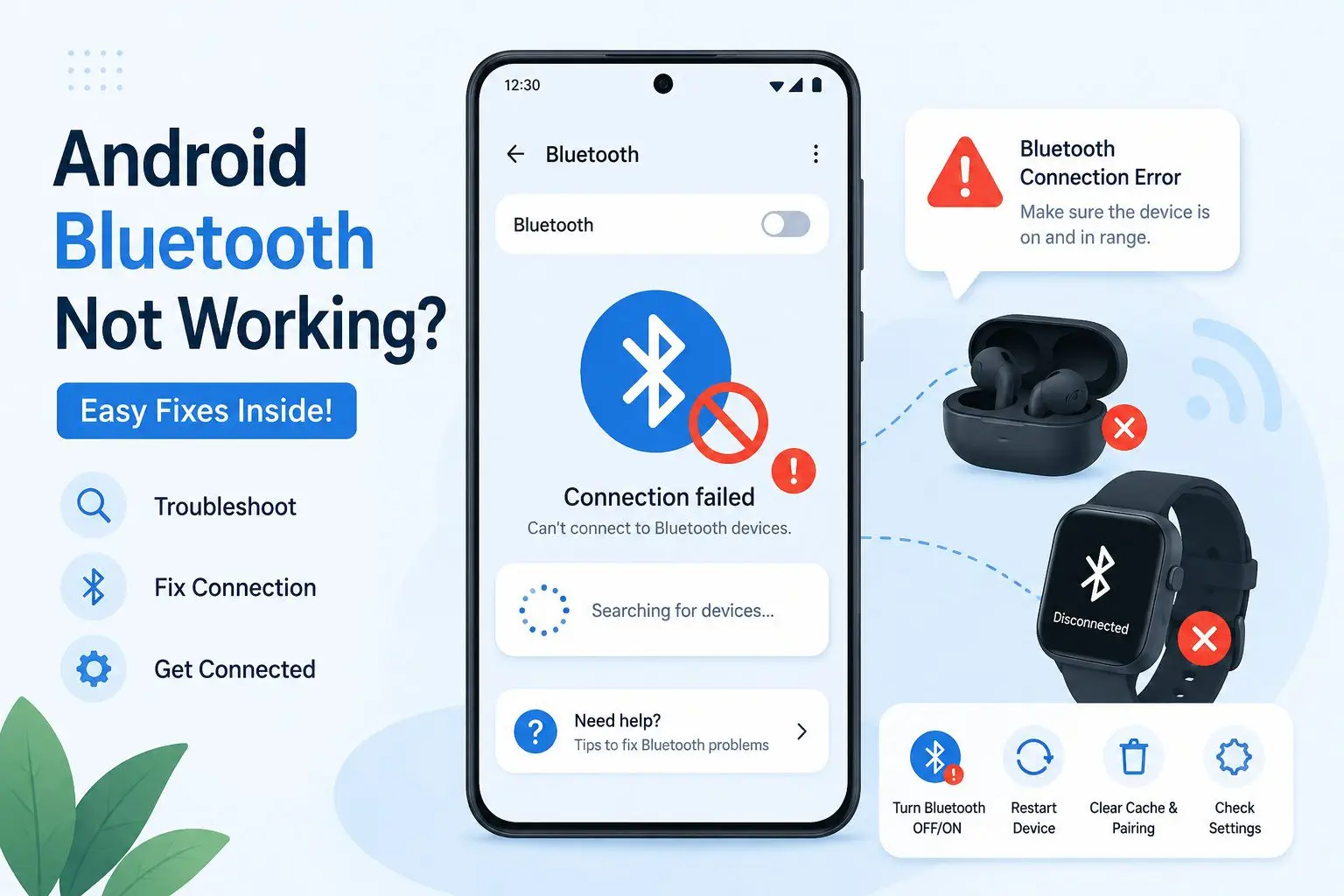
Bluetooth problems on Android phones can feel random. One minute your wireless earbuds connect instantly, and the next? Nothing works. Your phone keeps disconnecting, refuses to pair, or simply acts like Bluetooth doesn’t exist.
it usually not as bad as it feels. Most Bluetooth glitches on Android are pretty simple to sort out once you know what to try. No matter what you’re using—Samsung, Pixel, Xiaomi, OnePlus, Motorola, you name it—these troubleshooting steps tend to get things working again fast.
Why Is Your Android Bluetooth Not Working?
Common signs include:
- Bluetooth keeps turning off
- Devices won’t pair
- Audio cuts in and out
- Earbuds connect but no sound plays
- Car Bluetooth won’t detect the phone
- “Pairing failed” errors
- Bluetooth stuck searching forever
The good news? Most of these android Bluetooth issues don’t require professional repair.
Start With the Simple Fixes First
Before changing advanced settings, try the basics. You’d be surprised how often these work.
Turn Bluetooth Off and Back On
This sounds almost too simple, but it refreshes the Bluetooth connection service.
Steps:
- Swipe down from the top of your screen
- Tap the Bluetooth icon to turn it off
- Wait 10 seconds
- Turn Bluetooth back on
Now try reconnecting your device.
If it still fails, move on.
Restart Your Android Phone
A restart clears temporary software bugs that can interfere with wireless connections.
Hold the power button and select:
- Restart
or - Reboot
Once the phone powers back on, test Bluetooth again.
Think of it like resetting a jammed remote control. Tiny software hiccups disappear after a reboot.
Check If the Other Device Is the Problem
Sometimes your phone isn’t the issue at all.
Try connecting the Bluetooth accessory to another device:
- Another Android phone
- iPhone
- Laptop
- Tablet
If the accessory still doesn’t connect, the problem may be:
- Low battery
- Damaged hardware
- Outdated firmware
- Pairing mode not enabled
Wireless earbuds are especially guilty here. Many users think Bluetooth is broken when the earbuds simply aren’t in pairing mode.
Forget and Re-Pair the Bluetooth Device
Corrupted pairing data is one of the biggest causes of android Buetooth not working errors.
Removing and reconnecting the device often fixes it instantly.
How to Forget a Bluetooth Device on Android
- Open Settings
- Tap Bluetooth or Connected Devices
- Find the problematic device
- Tap the gear icon beside it
- Select Forget or Unpair
Now reconnect the device from scratch.
This creates a fresh Bluetooth connection without corrupted settings.
Fix Android Bluetooth Issues by Clearing Bluetooth Cache
Android stores temporary Bluetooth data in the background. If that cache becomes corrupted, pairing problems start showing up.
Clearing the cache can help.
Steps to Clear Bluetooth Cache
- Open Settings
- Go to Apps
- Tap the three-dot menu
- Select Show System Apps
- Find Bluetooth
- Open Storage
- Tap:
- Clear Cache
- Clear Data
Restart your phone afterward.
Don’t worry — this won’t delete photos or apps. It only resets Bluetooth-related settings.
Make Sure Airplane Mode Is Disabled
This one catches people more often than you’d think.
If Airplane Mode is enabled, Bluetooth may behave strangely or stop working entirely.
Check Airplane Mode
- Swipe down from the top
- Look for the airplane icon
- Turn it off if enabled
Some Android phones allow Bluetooth in Airplane Mode, but connections can still become unstable.
Update Your Android Software
Outdated Android versions can create compatibility problems with newer Bluetooth devices.
Manufacturers regularly release fixes for:
- Bluetooth bugs
- Audio syncing problems
- Wireless stability issues
How to Check for Android Updates
- Open Settings
- Go to Software Update
- Tap Download and Install
Install any available updates and restart the phone.
A software update can quietly solve issues that have been driving you crazy for weeks.
Reset Network Settings
If Bluetooth still refuses to work, resetting network settings can help.
This resets:
- Wi-Fi
- Mobile data settings
- Bluetooth configurations
It sounds dramatic, but it’s safe.
How to Reset Network Settings on Android
- Open Settings
- Go to System
- Tap Reset Options
- Select Reset Wi-Fi, Mobile & Bluetooth
- Confirm the reset
After restarting, reconnect your Bluetooth devices.
Android Bluetooth Not Working Issues With Wireless Earbuds
Earbuds are notorious for Bluetooth headaches.
Here are the most common causes:
Earbuds Already Connected Elsewhere
Your earbuds may automatically reconnect to another device nearby.
For example:
- Laptop
- Smart TV
- Tablet
Disconnect them from other devices before pairing again.
One Earbud Not Connecting
This usually happens when earbuds lose synchronization with each other.
Fix it by:
- Forgetting the earbuds from Bluetooth settings
- Placing both earbuds back in the case
- Resetting the earbuds
- Pairing again
Most earbud brands have a reset method involving holding the touch controls for several seconds.
Android Bluetooth Audio Connected but No Sound?
This problem is incredibly frustrating.
Your phone says “Connected,” but audio still comes from the speaker.
Try This Fix
- Open Bluetooth Settings
- Tap the connected device
- Ensure:
- Media Audio is enabled
- Calls Audio is enabled
Sometimes Android disables media playback accidentally.
You can also:
- Disconnect and reconnect
- Restart the music app
- Increase volume on both devices
Sounds obvious, but many Bluetooth speakers have separate volume controls.
Fix Android Bluetooth Not Working Problems in Cars
Car Bluetooth systems can be stubborn, especially older vehicles.
Common Car Bluetooth Fixes
- Delete old paired phones from the car system
- Restart the car infotainment system
- Update the car software if possible
- Remove the phone from the car memory and reconnect
Some cars have pairing limits. If the system memory is full, new devices won’t connect.
Another issue? Old car systems sometimes struggle with newer Android versions.
Disable Battery Saver Mode
Battery optimization settings can interfere with Bluetooth performance.
When Battery Saver is active, Android may restrict background Bluetooth activity.
Turn Off Battery Saver
- Open Settings
- Tap Battery
- Disable:
- Battery Saver
- Power Saving Mode
Then test Bluetooth again.
This is especially common on Samsung and Xiaomi devices.
Check for Android Bluetooth Interference
Bluetooth uses short-range wireless signals. Too much interference nearby can weaken the connection.
Common interference sources include:
- Wi-Fi routers
- Smart home devices
- Microwaves
- USB 3.0 devices
- Crowded wireless environments
Try moving away from crowded electronics and reconnecting.
It’s similar to trying to hear someone in a noisy room. Too many wireless signals can create confusion.
Boot Your Android Phone Into Safe Mode
Third-party apps sometimes break Bluetooth functionality.
Safe Mode disables downloaded apps temporarily.
How to Enter Safe Mode
The process varies slightly by brand, but generally:
- Hold the power button
- Press and hold Power Off
- Select Safe Mode
Once in Safe Mode:
- Test Bluetooth
- Try pairing devices
If Bluetooth works normally here, a downloaded app is likely causing the problem.
Common offenders include:
- Battery optimizer apps
- Cleaning apps
- Security apps
- Audio customization apps
Factory Reset as a Last Resort
If nothing works, a factory reset may solve deep software corruption.
But only use this after trying everything else.
Important Before Resetting
Back up:
- Photos
- Contacts
- Files
- Messages
Factory Reset Steps
- Open Settings
- Go to System
- Tap Reset Options
- Select Erase All Data
After setup, test Bluetooth before reinstalling apps.
If Bluetooth still fails even after a reset, the issue may be hardware-related.
Signs Your Android Phone Has a Hardware Bluetooth Problem
Sometimes the Bluetooth chip itself is damaged.
Possible signs include:
- Bluetooth won’t turn on at all
- Bluetooth crashes instantly
- The phone cannot detect any devices
- Wi-Fi and Bluetooth both fail together
- Problems started after water damage or a drop
In these cases, professional repair may be necessary.
Best Practices to Avoid Future Android Bluetooth Not Working Issues
Once Bluetooth works again, these habits can help keep it stable:
- Keep Android updated
- Remove unused paired devices
- Avoid cheap unreliable accessories
- Restart your phone occasionally
- Keep Bluetooth accessories charged
- Avoid installing aggressive “cleaner” apps
A cluttered Bluetooth list can sometimes create connection confusion over time.
Final Thoughts in Android Bluetooth Not Working Problem
Dealing with android Bluetooth not working problems can be annoying, especially when you rely on wireless earbuds, speakers, or your car connection every day. The good news is that most android Bluetooth issues are caused by software glitches, corrupted pairing data, or simple settings conflicts — not broken hardware.
Start with the easy fixes first:
- Restart the phone
- Re-pair the device
- Clear Bluetooth cache
- Update Android
Often, one of these tips fixes the problem fast.
If your Android Bluetooth still does not work, call the phone maker or go to a repair shop.
Wireless tech is great until it breaks. Most of the time, simple fixes save you from paying for new gear.
Android Bluetooth Not Working Android Bluetooth Not Working Android Bluetooth Not Working Android Bluetooth Not Working Android Bluetooth Not Working Android Bluetooth Not Working Android Bluetooth Not Working Android Bluetooth Not Working Android Bluetooth Not Working Android Bluetooth Not Working
Android Bluetooth Not Working Android Bluetooth Not Working Android Bluetooth Not Working Android Bluetooth Not Working Android Bluetooth Not Working Android Bluetooth Not Working Android Bluetooth Not Working