Table of Contents
Introduction in Computer Sound Not Working Issues for Windows and Mac
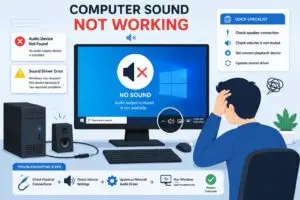
A silent computer hits hard and fast, wrecking your day. You play a video. Nothing comes out. Windows and Mac users run into this. Wrong settings or a bad driver often start it. Software glitches cause most trouble, not busted hardware. These steps fix no sound on your PC. The guide covers quick tests, system tweaks, driver updates, and extras. Stick to it. Audio works again soon.
Section 1: The Essential Quick Checks (The First Line of Defense)
Start with basic steps before you dig deeper. These checks catch the easy fixes that solve most no sound problems. They take just a minute or two.
Verify Physical Connections and Volume Levels
Start with your cables. For external speakers or headphones, push the plug all the way into the jack. Pull it out once, then insert it again with force. Also check the volume dial on the speakers and raise it if needed.
Next, adjust the volume slider on your computer. On Windows, tap the speaker icon in the taskbar. Slide it up and confirm it’s unmuted. Macs have the icon in the top menu bar. Play a sound test immediately after.
Dust or wear can loosen connections. Shake the cable while audio plays. If the sound drops in and out, swap the cable or pick another port.
Test with Multiple Applications and Devices
Run sounds through various programs to spot the problem. Fire up YouTube in your browser for a quick clip. No sound there but fine in Groove Music suggests a browser glitch.
Try other gear too. Switch to headphones from built-in speakers. Or hook up external speakers if headphones are in play. Audio on one but off the other means hardware output fails.
Test system sounds too. In Windows, go to Settings > System > Sound and play a test tone. On Mac, use the Sound preferences pane to test. This helps spot if the issue is global or tied to one output.
Check for Mute Status in the Taskbar/Menu Bar
Mute buttons hide in plain sight. On Windows, the taskbar speaker icon turns into a crossed-out version when muted. Right-click it and select Open Volume Mixer to unmute everything.
Watch for output switches. Your system might route audio to a Bluetooth device that’s off. Click the speaker icon and pick the right device, like your internal speakers.
Mac users see the volume icon in the menu bar. Click it to check for mute or low levels. If it shows a Bluetooth option, select Built-in Output. These quick peeks often restore sound right away.
Section 2: Operating System Sound Settings Deep Dive
If quick checks fail, head to your OS settings. Misconfigured options here cause many audio losses. Adjust them step by step for both Windows and Mac.
Confirming the Correct Playback Device is Selected (Windows Focus)
Windows makes it simple to select audio outputs. Right-click the speaker icon. Pick Open Sound Settings. Or type Sound settings into the Start menu search.
Check the Output area for your listed devices. Choose speakers or headphones. Click Set Default. Multiple options? Turn off extras like old Bluetooth links to cut confusion.
Test after changes. Play a video. If sound works, you’re set. This fix handles cases where Windows picks the wrong device after a connection change.
On Macs, go to System Settings > Sound. Pick the Output tab and select your device. Volume controls appear there too. Ensure it’s not set to a disconnected option.
Troubleshooting the Sound Mixer and Volume Levels
Apps control their own volumes sometimes. In Windows, right-click the speaker and open Volume Mixer. See sliders for each program, like browser or media player. Raise them if low or muted.
For example, if YouTube has no sound but notifications do, unmute the browser in the mixer. This per-app control catches hidden mutes.
Macs use a similar setup. Hold Option and click the menu bar volume icon for app-specific controls. Adjust levels for Safari or QuickTime. These tweaks fix uneven audio across programs.
Run a full check. Play sound in three apps and verify each slider. Balance them to match your needs.
Running Built-in System Troubleshooters (Windows)
Windows has tools to scan audio issues. Go to Settings > System > Troubleshoot > Other troubleshooters. Find Playing Audio and click Run.
The tool asks questions about your setup. It checks drivers and services automatically. Follow prompts, like restarting or updating.
This often fixes service stops or conflicts without manual work. If it finds nothing, note the results for later steps. Macs lack a direct equivalent, but restart helps there too.
Section 3: Driver and Service Integrity Checks
Drivers link your hardware to the OS. When they fail, sound vanishes. Check these next if settings don’t help.
Updating or Reinstalling Audio Drivers (Windows)
Search Start for Device Manager and open it. Expand Sound, video and game controllers. Right-click your audio device, such as Realtek Audio. Pick Update driver.
Select Search automatically. Windows grabs the newest version from its list. No fix? Download it from your PC brand’s site, like Dell or HP.
Updates fail? Reinstall instead. Right-click and Uninstall device. Restart your PC. Windows loads it again. Grab Realtek’s file from realtek.com if required.
Test the sound. Bad update to blame? Roll back in Device Manager’s properties tab.
Macs handle drivers via System Settings > General > Software Update. Add any patches shown.
Checking Essential Audio Services Status
Services run in the background for audio. Press Windows + R, type services.msc, and hit Enter.
Find Windows Audio. Right-click, select Properties. Set Startup type to Automatic and click Start if stopped.
Do the same for Windows Audio Endpoint Builder. These must run for sound to work. Restart your PC after changes.
Experienced users set dependencies correctly. Services fail to start? Check event logs in Event Viewer for errors.
Using macOS Audio MIDI Setup.
Macs include Audio MIDI Setup for audio device settings. Search Spotlight to find and launch it.
Select your output device in the sidebar. Review Format settings like 44.1 kHz sample rate and 16-bit integer. Mismatches produce silence.
Set it to fit your speakers’ details, usually in the manual. Hit apply and play sound to check.
Static still there? Reset to default. Close apps then reopen. It solves format problems on old Macs.
Section 4: Advanced Troubleshooting and Third-Party Conflicts
Deeper issues involve software clashes or updates. Tackle these if basics fail. They require more patience but solve stubborn problems.
Reviewing Bluetooth and USB Audio Device Conflicts
Bluetooth pairs can glitch. Go to Windows Settings > Bluetooth & devices. Remove the device, then pair again.
For USB sound cards, unplug and replug. Check Device Manager for errors, shown as yellow triangles. Update those drivers.
On Macs, System Settings > Bluetooth for pairings. Forget and reconnect. USB devices show in About This Mac > System Report > Hardware > USB.
Test with wired options to isolate wireless issues. Clear caches if needed by restarting.
Disabling Audio Enhancements and Third-Party Software
Enhancements add effects but cause conflicts. In Windows Sound settings, select your device and Properties > Enhancements tab. Check Disable all enhancements.
Software like Sonic Studio or Nahimic might interfere. Uninstall via Apps & features if sound fails after install.
Try safe mode. Hold Shift while restarting on a Mac or use msconfig on Windows. If you hear sound now, a third-party app is causing the problem.
Reinstall only needed audio tools. Keep your system clean.
Checking for System Updates and Rollbacks (Computer Sound Not Working)
Updates sometimes break audio. In Windows, go to Settings > Windows Update > Update history. Look for recent ones and uninstall if suspicious.
Roll back drivers in Device Manager. Select Properties > Driver tab > Roll Back Driver.
On Macs, use System Settings > General > Software Update to install fixes. Ventura updates can cause problems, so roll back with Time Machine if needed.
Scan release notes at support.apple.com or microsoft.com for listed audio bugs. Install patches right away.
Conclusion: Restoring Your Audio Experience
You started with quick checks like cables and volumes, moved to OS settings, then drivers, and finally conflicts. This order catches 90% of no sound cases on Windows and Mac. Most fixes take under 10 minutes.
Key takeaways:
- Test apps and devices first.
- Use Windows troubleshooter right away.
- Update drivers from official sources only.
No fix yet? Run System Restore on Windows or safe mode on Mac. Call your PC maker’s support last. Sound returns fast—videos, music, and calls work again.
Computer Sound Not Working Computer Sound Not Working Computer Sound Not Working Computer Sound Not Working Computer Sound Not Working Computer Sound Not Working Computer Sound Not Working Computer Sound Not Working Computer Sound Not Working Computer Sound Not Working Computer Sound Not Working Computer Sound Not Working
Computer Sound Not Working Computer Sound Not Working Computer Sound Not Working Computer Sound Not Working Computer Sound Not Working Computer Computer Sound Not Working Computer Sound Not Working ter Sound Not Working Computer Sound Not Working Computer Sound Not Working Computer Sound Not Working Computer Sound Not Working