Table of Contents
Introduction in My Brother Printer Not Printing Issues
You press print. Nothing happens. Your Brother printer stays quiet, like it’s on a work stoppage. That irritation strikes deep, right in the middle of your task. Brother models face this often, from inkjets in the MFC series to lasers in the HL line. No stress—this guide offers quick steps to resume printing. We handle software bugs, hardware snags, and link problems that block most jobs.
Step1: Immediate Troubleshooting Checks—The First 5 Minutes Fix
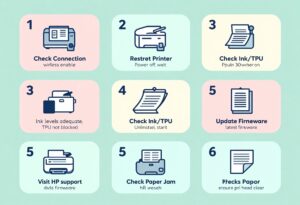
Begin here when your Brother printer refuses to print. These simple steps solve 70% of problems in minutes. Skip them, and you lose time on tough fixes.
Check Power, Paper Jams, and Ink/Toner Levels
Turn the printer on completely. Watch for solid lights—no flashing alerts. Open every cover and door. Close them firmly.
Paper jams lurk in odd places. Slide out trays with care. Look for bits in rollers or behind the back cover. One small piece stops it all.
Then check ink or toner. Use the printer screen or app. Low amounts block printing. Swap empty cartridges. Real ones prevent clogs from fakes.
Verify Connection Status (USB, Wi-Fi, Network)
USB links need a firm cable. Give it a soft pull. Is it tight? Try another PC port. Use a spare cable if you have one. Worn ones quit without warning.
Wi-Fi models must join your device’s network. Check the printer light. It glows solid blue or green. Print a network page from the menu. That shows signal power.
Network cables for wired models? Ensure they’re plugged in right. Restart your router too. This resets any brief drops that block print signals.
Confirm Printer Selection in Print Dialogue Box
Apps like Word or your browser pick printers wrong sometimes. Open the print menu – Ctrl + P on Windows. See your brother model listed?
Set it as default in settings. Go to Devices and Printers on Windows. Right-click your Brother printer and choose “Set as default.” Test with a simple page.
Old profiles linger too. Remove extras that mimic your model. This stops jobs from vanishing to ghost printers.
Step2: Software and Driver Deep Dive for Resolution
Outdated drivers cause half of Brother printer not printing headaches. Your OS updates might skip key files. Time to refresh them properly.
Update or Reinstall Brother Printer Drivers
Head to Brother’s support site—support.brother.com. Pick your exact model, like MFC-J1010DW. Download the full software package, not just basics.
Run the installer as admin. Unplug the printer first, then connect during setup. Restart your computer after. This wipes old glitches.
If issues persist, uninstall via Control Panel. Search “Add or remove programs.” Reboot, then reinstall fresh. Users report 80% success this way.
Running the Windows/macOS Troubleshooter
Windows has a built-in helper. Search “Troubleshoot” in the start menu. Select “Printer” and run it. It scans for spooler hangs or driver mismatches.
On macOS, go to System Settings > Printers & Scanners. Right-click your Brother and choose “Reset printing system.” Add it back fresh.
These tools spot common blocks fast. They fix offline states or queue jams without manual tweaks. Run them weekly for smooth runs.
Clearing the Print Queue and Restarting the Print Spooler Service
Stuck jobs clog the line. Open Printers & Scanners. Cancel all in the queue.
If that fails, restart the spooler. Press Win+R, type “services.msc.” Find “Print Spooler,” right-click, stop it.
Delete files in C:\Windows\System32\spool\PRINTERS. Empty the folder. Start the service again. Your next print should flow free.
Addressing Common Error Codes and Status Messages
Error lights flash, screens show codes. These clues point to fixes for Brother printer not printing woes. Decode them quick.
Understanding “Offline” or “Error State” Messages
Offline means the PC thinks it’s disconnected. But it might just hang. On the printer panel, go to settings > network > bring online.
In Windows, right-click the icon in Devices. Uncheck “Use Printer Offline.” Clear any pauses too.
True errors need a power cycle. Unplug for 60 seconds. Plug back—resets temporary locks.
Interpreting Low Ink/Toner Warnings on Laser Printers (Fuser Issues)
Lasers differ from inkjets. Toner warns early to protect parts. But low doesn’t always stop prints—check the message.
Fuser errors heat up drums wrong. Clean contacts if dirty. Replace the unit if old; it’s common after 10,000 pages.
Drum issues mimic no-print. Run a cleaning cycle from the menu. This clears residue without full swaps.
Addressing Communication Errors (Port Mismatch)
Ports link your setup. In Device Manager, expand printers. Check properties for the right port—USB001 or IP address.
Mismatch? Edit it to match your cable or Wi-Fi. For networks, ping the printer’s IP from command prompt. No reply? Reset ports.
Advanced fix: Update USB drivers via Device Manager. Scan for changes. This aligns software with hardware.
Connectivity Solutions for Wireless Brother Printers
Wireless freedom brings Wi-Fi snags. Brother printers drop signals often. Fix them to end not printing frustration.
Renewing the Printer’s IP Address via Network Settings
IP conflicts block jobs. On the printer, press menu > network > WLAN. Choose “Reset Network” or renew DHCP.
Print a report to see the new IP. Update it in your PC’s printer settings. Matches now? Test a page.
Do this monthly. Routers assign IPs that expire, causing silent fails.
Router Conflicts and Firewall Interference
Routers juggle devices. Restart yours to clear jams. Place the printer closer—walls weaken signals.
Firewalls block port 9100 often. On your PC, turn off Windows Firewall quick. If prints work, add exceptions for Brother software.
Router firewalls too. Log in, check port forwarding. Open needed ones for stable links.
Essential FAQs in My Brother Printer Not Printing Issues
You have questions when your Brother printer stops. Here are top ones with straight answers.
Q: My Brother Printer Prints a Test Page But Nothing Else Will Print. Why?
Test pages use direct paths. Apps route different, hitting bad settings. Check app print options—scale or duplex might clash. Corrupt files in software cause this. Reinstall the app or clear its cache. Drivers handle tests fine but fail complex jobs. Switch USB ports or restart the app. This routes fresh, often solving selective blocks.
Q: How Often Should I Update My Brother Printer Firmware?
Firmware fixes bugs rarely. Check Brother’s site every six months. Update only for OS changes, like Windows 11 shifts. Auto-updates via app work if enabled. But manual ones ensure full installs. Skip if all prints fine—stability matters. Major releases come yearly. They boost speed or fix security holes in older models.
Q: Can I Use Third-Party Ink/Toner If My Brother Printer Won’t Print?
Third-party supplies sometimes trigger locks. Brother chips detect non-genuine, halting jobs. Stick to OEM for safety. If you try compatibles, reset counters via menu hacks online. But risks clogs or voids warranty. Test with genuine first. Cheap fakes cause 40% of ink-related no-prints.
Conclusion: Getting Back to Productivity
Start with the basics to fix your Brother printer. Check hardware first. Look at paper trays, ink levels, and power cords. Loose connections or low ink cause many issues.
Next, refresh software. Restart your computer and printer. Update drivers if needed. Old software blocks prints often.
Verify networks last. Test WiFi signal strength. Restart your router. Weak connections stop jobs cold.
Most Brother printer not printing problems end here. Simple steps fix 80% of cases. You save hours. Skip costly service calls.
Keep drivers close at hand. Bookmark support.brother.com and add your model number. Quick access speeds fixes.
Run checks each month. Test a print job. Spot issues early. Stay trouble-free.
Print without hitches now. Get your work done fast and smooth. Still stuck? Drop a comment below. Share details for quick tips.
My Brother Printer Not Printing Issues My Brother Printer Not Printing Issues My Brother Printer Not Printing Issues My Brother Printer Not Printing Issues My Brother Printer Not Printing Issues My Brother Printer Not Printing Issues My Brother Printer Not Printing Issues My Brother Printer Not Printing Issues My Brother Printer Not Printing Issues
My Brother Printer Not Printing Problems My Brother Printer Not Printing Problems My Brother Printer Not Printing Problems My Brother Printer Not Printing Problems My Brother Printer Not Printing Problems My Brother Printer Not Printing Problems My Brother Printer Not Printing Problems My Brother Printer Not Printing Problems My Brother Printer Not Printing Problems My Brother Printer Not Printing Problems My Brother Printer Not Printing Problems My Brother Printer Not Printing Problems