Table of Contents
How to Change Your Password on Outlook
Your email holds private info like letters, job files, and bank notices. Many rely on Outlook for daily chores. Hackers hit these accounts hard. Reports note over 300,000 email breaks each year. A weak or dated password invites trouble. Update it after a hack scare, regular review, or if you forgot. This guide covers each step to swap your Outlook password right. Stick to it for a safe inbox.
Introduction: Why Password Security for Your Outlook Account Matters Now More Than Ever
Email security tops the list for online safety. Outlook acts as a main spot for job emails and private chats. This makes it a prime goal for bad actors online. Cyber threats rise each year, and strong passwords block many attacks. You could face a breach, forget your code, or want a fresh start. Changing your Outlook password boosts protection right away. Think of it as locking your front door after spotting a stranger nearby.
Section 1: Prerequisites and Identifying Your Account Type
Understanding If You Need to Change Your Microsoft Account Password or Just Outlook Settings
Outlook links to different setups. Most users tie it to a Microsoft account for web or desktop use. But some add emails from Gmail or Yahoo inside the app. If you use Outlook.com or Office 365, update the core Microsoft password first. For added accounts, fix the source password then adjust Outlook. Wrong changes lead to login fails.
Check your type with this list:
- Log into outlook.com. If it works, it’s a Microsoft account.
- Open the desktop app. Go to File > Account Settings. See the email type listed.
- If it’s POP or IMAP from another provider, change there first.
This step saves time and avoids mix-ups.
Necessary Information Before Beginning the Process
Gather key details to start. You need your current password if you remember it. Access to a backup email or phone helps for checks. Know answers to security questions too. Without these, recovery takes longer.
For example, if a hacker changes your recovery options, you contact Microsoft support. They ask for proof like old bills or device IDs. Plan ahead by noting these items in a safe spot. Test your recovery email now to ensure it works.
Section 2: Changing the Password for Outlook.com (Microsoft Account)
Step-by-Step Guide for Changing Passwords via the Web Portal
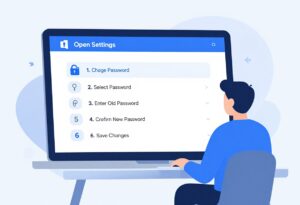
Go to account.microsoft.com/security to start. Sign in with your Outlook email and current password. Click on “Password security” from the menu. Then select “Change my password.” Enter the old one, type a new strong code, and confirm it. Hit save to finish.
Microsoft checks for weak passwords here. Pick one with 12 characters, mix of letters, numbers, and symbols. Avoid easy guesses like birthdays. This process takes under five minutes if you have access.
After, sign out from all devices. Log back in to test. Your Outlook.com now uses the new password.
Utilizing the “Forgot My Password” Flow for Access Recovery
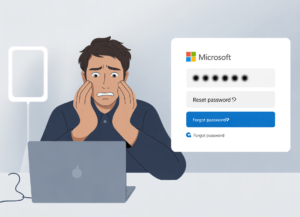
Many forget their password after months. Click “Forgot password?” on the login page at login.live.com. Microsoft sends a code to your backup email or phone. Enter it to verify. Set a new password right after.
Options include an authenticator app for quick checks. Or use SMS if that’s your setup. Pick what fits your phone best.
Tip: Turn on multi-factor authentication once inside. It adds a second check, like a text code. This cuts hack risks by 99%, per security stats. Do it now to avoid future headaches.
Section 3: Change Passwords for Desktop Outlook Apps (2016, 2019, 365)
Managing Stored Passwords in Windows Credential Manager
Desktop Outlook saves logins in Windows. Open the Control Panel. Search for “Credential Manager.” Find entries under “Windows Credentials” for Outlook or Office. Click on the one for your email. Select “Edit” and update the password field.
This works for POP, IMAP, or Exchange setups. Restart Outlook after changes. It pulls the new details from there.
If no entry shows, Outlook might cache it elsewhere. Close the app fully, then reopen. Enter the password when prompted.
Prompting Outlook to Request New Credentials for Exchange/Office 365
Exchange passwords often change by IT admins. Outlook stops connecting until you update. Close the app. Hold Ctrl and click the Outlook icon to start in safe mode. Or go to File > Account Settings > Repair.
Sign out from the profile menu if available. Sign back in with the new password. This clears old cache.
For Office 365, use the web first to confirm. Then desktop syncs auto. If errors pop, check your internet link.
Section 4: Addressing Passwords for Third-Party Accounts Configured in Outlook
Changing Passwords for Non-Microsoft Email Providers (Gmail, Yahoo, etc.)
Third-party emails need source updates first. For Gmail, go to myaccount.google.com. Click “Security” then “Password.” Change it there. Yahoo follows a similar path at login.yahoo.com.
Back in Outlook, it will ask for the new one on next use. But if two-factor is on, make an app password. Google generates these in security settings. Use that instead of your main code.
This keeps your main account safe while linking to Outlook. Test send and receive after.
Navigating the Account Settings Menu to Update Server Credentials
Open Outlook desktop. Click File, then Account Settings, and pick “Account Settings.” Select your email from the list. Hit “Change” for details.
Scroll to incoming and outgoing servers. Update passwords for IMAP or POP incoming, SMTP outgoing. Click Next to test, then Finish.
Save and restart the app. Emails flow with the new info. If stuck, remove and re-add the account.
Section 5: Post-Change Verification and Troubleshooting Common Issues
Verifying Successful Password Update Across All Devices
Log into outlook.office.com first. This checks the main Microsoft password. Then open your phone app like Outlook mobile. Sign in to sync.
Desktop should pull updates too. Check sent items across all to confirm. If one lags, force a refresh.
Real issue: Phones store separate tokens. Update the app password there if needed. Full sync takes a few minutes.
Troubleshooting Synchronization Errors After a Password Change
Errors like “0x8004010F” mean auth fails. Restart Outlook. Clear cache via File > Options > Advanced > Office Upload Center.
If profile corrupts, create a new one in Control Panel > Mail. Set it as default.
Check firewall or antivirus blocks too. Disable briefly to test. Most fixes work in under 10 minutes.
Conclusion: Maintaining Long-Term Outlook Security Post-Update
You now know how to change your Outlook password fully. Start at the source, update local stores, and verify everywhere. Enable MFA for extra layers.
Key takeaways:
- Identify your account type early.
- Use strong, unique passwords always.
- Set recovery options you control.
- Test changes on all devices right away.
Strong email security starts with you. Update now and check monthly. Stay safe online.
How to Change Your Password on Outlook How to Change Your Password on Outlook How to Change Your Password on Outlook How to Change Your Password on Outlook How to Change Your Password on Outlook How to Change Your Password on Outlook How to Change Your Password on Outlook How to Change Your Password on Outlook How to Change Your Password on Outlook How to Change Your Password on Outlook How to Change Your Password on Outlook How to Change Your Password on Outlook
How to Change Your Password on Outlook How to Change Your Password on Outlook How to Change Your Password on Outlook How to Change Your Password on Outlook How to Change Your Password on Outlook How to Change Your Password on Outlook How to Change Your Password on Outlook