Table of Contents
Introduction in Forgot Microsoft Account Password
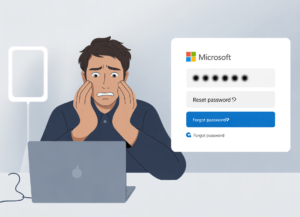
Picture your eyes glued to the screen. Your heart drops. You’ve forgotten your Microsoft account password. You’re shut out of email, cloud files, games, and your Windows PC. These accounts link to so much of daily life. That slip turns into a real digital barrier.
You need access back fast. This guide walks you through every step to reset your forgot Microsoft account password. It covers basic resets, tough cases, and tips to lock down your account for good.
Section 1: Understanding the Microsoft Account Recovery Process Fundamentals
Recovery starts with basics. Know your account type and what Microsoft needs to verify you. This avoids dead ends.
1.1 Identifying Your Account Type and Required Credentials
Microsoft handles two main types: personal accounts and work or school ones. Personal accounts link to @outlook.com or @hotmail.com emails. Work accounts fall under Azure Active Directory, run by your employer or school.
Recovery differs for each. Personal accounts let you self-serve online. Work accounts often route through IT support.
Key verification methods include your email address, phone number, or Skype name. Enter one to start. If none work, options narrow.
1.2 The Importance of Linked Security Information
Up-to-date security info speeds recovery. A linked email or phone gets you a code in seconds. Without it, you face delays or blocks.
Microsoft uses this to confirm it’s you. Old info means failed attempts. Check your settings under account security.
Verify now. Log in if you can, or note your recovery details. It saves hours later.
1.3 When Standard Recovery Fails: The Account Verification Form
Automated steps fail if security info is lost. Then, use the manual form. It asks for old passwords, contacts, or purchase history.
Fill it out with as much detail as possible. Microsoft reviews in 24 hours, sometimes faster. Be accurate to boost approval odds.
This acts as a safety net. But it’s not instant. Prep by keeping records of account activity.
Section 2: Step-by-Step Guide to Microsoft Password Reset via Web Portal
Most users reset via the web. It’s simple and works on any device. Follow these steps to fix your forgot Microsoft account password.
2.1 Initiating the “Forgot Password” Flow on Microsoft.com
Go to account.microsoft.com. Click “Sign in” at the top. On the login page, select “Forgot password?” below the entry fields.
Enter your email or phone tied to the account. Hit “Next.” Microsoft scans for matches.
If it finds your account, proceed. Wrong details? Double-check spelling. Typos block progress.
2.2 Successfully Completing the Verification Step
Microsoft sends a code to your recovery email or phone. Check texts or inbox. Enter the six-digit OTP in the box.
For app verification, open Microsoft Authenticator. It shows the code. Input it quick before it expires.
OTP issues happen. Texts delay in poor signal areas. Emails land in spam—search there. No code? Request another after a wait.
2.3 Creating a Strong, New Password
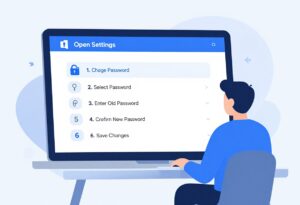
Once verified, create a new password. It needs eight characters, mixing letters, numbers, and symbols. Avoid easy guesses like birthdays.
Microsoft blocks weak ones. Test phrases like “BlueSky2026!” for strength. Change it right away.
Use a password manager. Tools like LastPass generate and save them. This cuts forget risks.
Section 3: Advanced Recovery Scenarios and Troubleshooting
Basic resets fail sometimes. Old phones or emails complicate things. These steps handle tricky spots in Microsoft account recovery.
3.1 Recovering Accounts Without Access to Security Email or Phone
Pick “I don’t have any of these” when prompted. Microsoft offers the verification form. Provide details like recent sign-ins or support tickets.
Expect a 24-hour review. They check against records. Vague answers lead to denial.
Gather proof first. List devices used or recent emails sent. This strengthens your case.
3.2 Dealing with Two-Step Verification Lockouts
Two-step verification adds a code layer. If locked, use your 25-character recovery code. You got it when setting up—print or save it then.
Lost the code? Wait 30 days for a reset option. Or use alternate methods if available.
Picture this: Your phone dies mid-travel. The recovery code on paper saves you. Always keep backups handy.
3.3 Specific Issues for Windows 10/11 Local Account Conversion
Local Windows logins sometimes link to Microsoft accounts. A lockout stops sync for files and apps. Boot to safe mode and unlink if needed.
Use another device for reset first. Then relink on your PC. This restores OneDrive access.
Updates in 2026 made this smoother. But test logins after changes. It prevents sync halts.
Section 4: Solutions for Forgotten Work or School Microsoft Accounts (Azure AD)
Work accounts follow strict rules. Self-reset isn’t always open. Know your org’s setup.
4.1 Contacting Your Organization’s IT Administrator
Corporate policy blocks self-service for many. Email or call IT support. Give your full name, employee ID, and account email.
They verify via internal tools. Provide recent activity like last login date. This speeds their check.
IT handles resets securely. Don’t share passwords over email. Use secure channels.
4.2 Using Self-Service Password Reset (SSPR) Portals
Some orgs enable SSPR. Go to myaccount.microsoft.com or your company’s portal. Enter credentials and follow prompts.
It asks for registered methods like a work phone. Complete verification to reset.
Check with IT if unsure. Not all setups allow it. This keeps enterprise data safe.
Section 5: Future-Proofing Your Microsoft Account Security
Recovery is reactive. Prevention stops the problem. Set up strong habits now.
5.1 Implementing and Managing Multi-Factor Authentication (MFA) Effectively
Turn on MFA in account settings. Use the Authenticator app over texts—it’s harder to hack. Scan the QR code to link.
App codes work offline. SMS can get intercepted. Switch for better protection.
Test it after setup. Log out and back in. Confirm it flows smooth.
5.2 Regularly Reviewing and Updating Security Info
Check security info every three months. Add a backup email or phone. Remove old ones.
Store recovery codes offline. A printed sheet in a drawer works. Or use an encrypted note app.
This routine catches issues early. In April 2026, threats rose 15% per reports. Stay ahead.
5.3 Recognizing and Avoiding Phishing Attempts During Recovery
Scammers target stressed users. Fake emails claim “Microsoft support” with links. Never click—go to official sites.
Look for odd URLs. Real ones start with account.microsoft.com. Report suspects to Microsoft.
During recovery, stick to known pages. This blocks credential theft.
Forgot Microsoft Account Password for FAQs
1.How do I reset my password online?
Go directly to the main Microsoft sign-in page online now. Click the clear link labeled Forgot password to get started. You will need access to your backup email or phone code very soon.
2.What if I no longer have my phone number?
Use your alternate email address if you set one up initially for safety. Select the recovery options that are clearly shown on your screen display. Be ready to answer security questions from your past account settings carefully.
3.Is there a fee to recover my account?
Microsoft never charges any money to help you recover a lost account. Just be sure to work only on official secure websites always. Scammers often ask for payment during this specific security recovery process.
4.How much time does verification take?
Verification codes usually arrive within a few minutes for most users quickly. Sometimes security checks might delay the whole process slightly longer than expected. Wait patiently until the countdown timer finally finishes on the screen there.
5.Can I change my password immediately after reset?
Yes, you can create a brand new strong password right away immediately. Make sure it is hard for anyone else to guess easily. You must enter two-factor authentication details before logging back into the app safely.
Conclusion: Regained Access and Enhanced Digital Safety
You now have paths to fix a forgot Microsoft account password: web resets, manual forms, IT help for work accounts. Each step regains entry quick.
True fixes come from prep. Update security info, enable MFA, and watch for scams. These make your digital life secure.
Act today. Review your account settings. It ensures smooth sails ahead.
Recover Forgot Microsoft Account Password Recover Forgot Microsoft Account Password Recover Forgot Microsoft Account Password Recover Forgot Microsoft Account Password Recover Forgot Microsoft Account Password Recover Forgot Microsoft Account Password Recover Forgot Microsoft Account Password Recover Forgot Microsoft Account Password